- 01How I hit the limit
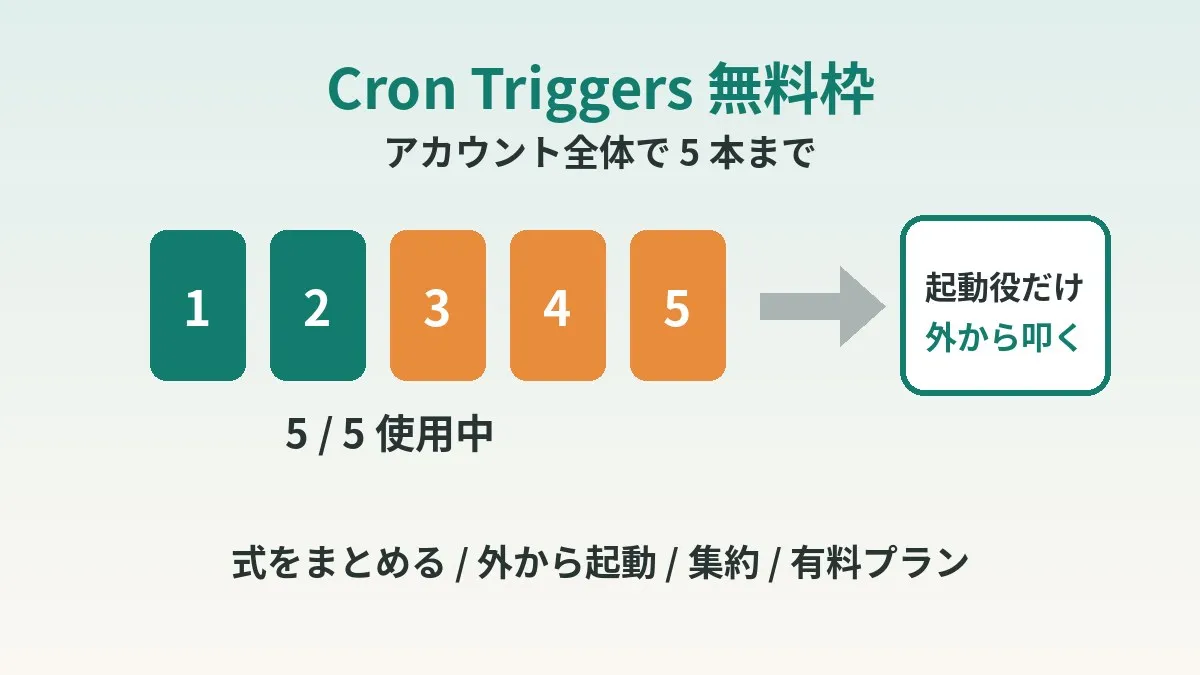
- 02The free tier limit is 5
- 03A quick review of Cron Triggers basics
- 04Four main ways out
- 05Workaround 1: Combine times into one expression
- 06Workaround 2: Move only the trigger outside
- 07Workaround 3: Consolidate into a dispatcher Worker
- 08Workaround 4: Move to the paid plan
- 09The trade-off I accepted
- 10Common mistakes and pitfalls
- 11Who this suits and who it does not
- 12What to check before you start
- 13Frequently asked questions
- 14Official sources I referred to
- 15Summary
Good morning, this is まさきん.
The official Cloudflare Workers docs cap Cron Triggers at 5 on the free plan. I run our home automation on the free tier, and the other day I hit that limit. Here are the ways I worked around it, checked against the official documentation.
※This information is current as of publication. Please check the official websites for the latest conditions.
- On Workers Free, you get up to 5 Cron Triggers for the whole account
- Times for similar jobs can be combined into one expression and routed inside the handler
- If you move only the trigger to something like a home PC, the processing can stay in the Worker
- If you call it from outside, you need secret-token authentication and a proper timeout
- If that still is not enough, moving to the paid plan with 250 triggers is the straightforward option
How I hit the limit
I added 3 Cron Triggers to a Worker that sends health data notifications and deployed it. Only the schedule setup failed. The error code was 10072, and the cause was hitting the Workers Free account limit.
The code itself had deployed fine. That is what makes it a bit tricky: at first glance it looks like a success. If I had not checked the logs, I might have ended up with a mystery of “why isn’t this running?”
The free tier limit is 5
According to the official Limits page, the number of Cron Triggers is set per account. The key point is that it is not per Worker.
| Item | Workers Free | Workers Paid |
|---|---|---|
| Number of Cron Triggers (whole account) | 5 | 250 |
| CPU time per Cron invocation | 10ms | 30 seconds (intervals under 1 hour) / 15 minutes (intervals of 1 hour or more) |
| CPU time per HTTP invocation | 10ms | Up to 5 minutes (default 30 seconds) |
| Requests | Up to 100,000 per day (resets at 0:00 UTC) | 10 million per month included |
Home automation tends to be split into small Workers, one per purpose. If each Worker has 2 or 3 schedules, 5 fills up fast. In my case, it was full before I knew it.
A quick review of Cron Triggers basics
Before thinking about workarounds, let me go over the spec. Once you have these down, a range of options opens up.
- Expressions use 5 fields (minute, hour, day, month, weekday)
- Times are evaluated in UTC
- You can set multiple schedules on one Worker as an array
- In the scheduled handler, you can tell which expression fired via
controller.cron - Adding or changing a schedule can take up to about 15 minutes to take effect
The UTC part is the one to watch. Japan time is 9 hours ahead of UTC. If you want something to run at 6:30 in the morning, you write it as 21:30 on the previous day in UTC.
controller.cron contains the expression string exactly as you set it. The official docs say it has to match character for character, spaces included. Code written with the older event.cron follows the same idea.
Four main ways out
Here is a table of the options I considered, up front.
| Workaround | Slots saved | Pros | Cons |
|---|---|---|---|
| (1) Combine multiple times into one expression | Large | No extra setup needed | Your code has to route by time |
| (2) Move only the trigger outside | Large | You can freely increase the frequency | Stops working if the external trigger stops |
| (3) Consolidate into a dispatcher Worker | Large | Stays entirely within Cloudflare | A bug in one place affects everything |
| (4) Move to the paid plan | Solves the root problem | The limit expands to 250 | Costs from $5 per month |
Try (1) first, move on to (2) or (3) if that is not enough, and consider (4) last. If you are making do with the free tier, that order is probably the natural one.
Workaround 1: Combine times into one expression
This is the easiest one. Say you had separate expressions for morning and noon. Within the same Worker, you can join the hour field with a comma to make it one.
I combined my morning and noon expressions into this single one and redeployed.
[triggers]
crons = ["30 3,21 * * *"]
21:30 UTC is 6:30 in the morning Japan time. 3:30 UTC is 12:30 in the afternoon Japan time. That freed up 1 slot.
With a single expression, controller.cron cannot tell you which time fired. So you take the UTC “hour” from the scheduled time and route based on that.
export default {
  async scheduled(controller, env, ctx) {
    const hourUtc = new Date(controller.scheduledTime).getUTCHours();
    if (hourUtc === 21) {
      await sendMorning(env); // 6:30 Japan time
    } else if (hourUtc === 3) {
      await sendNoon(env); // 12:30 Japan time
    }
  },
};
scheduledTime is the time the invocation was scheduled for. I think checking this is more reliable than using the time it actually ran.
However, you can only combine times that share the same “minute.” If the minutes differ, like 6:30 and 12:15, you cannot express them in one expression. In that case, it is worth considering whether you can align the minutes.
If it is still full after combining
In my case, even after combining morning and noon, all 5 slots were still taken. There was no room to add anything new.
So I reviewed the remaining crons. One was for location sync, and two were for updating our home signage. All three assumed my Mac at home was running. So I chose to move the trigger outside.
Home automation ultimately runs over network connections. Having your connectivity in good shape makes it easier to run setups like this with peace of mind.
Clicking this opens the Rakuten login page. Once you log in, you’ll see the campaign details.
Workaround 2: Move only the trigger outside
The idea is simple. Keep the processing in the Worker, and hand off only “when to run it” to something outside. The external trigger just calls the Worker’s URL over HTTP.
I removed the crons for location sync and signage updates. Instead, I switched to having launchd on my home Mac call the Worker’s URL. That brought my free slots to 3.
There was a nice side effect too. Location sync used to run once a day, and now I could increase it to every hour from 8:05 in the morning to 20:05 at night. Not having to worry about cron slots makes a big difference.
Build an endpoint on the Worker side
On the Worker side, prepare a path for triggering. The important thing is to let through only callers who know the password.
export default {
  async fetch(request, env, ctx) {
    const url = new URL(request.url);
    if (url.pathname !== "/run/location-sync") {
      return new Response("not found", { status: 404 });
    }
    const auth = request.headers.get("Authorization");
    if (auth !== `Bearer ${env.RUN_TOKEN}`) {
      return new Response("unauthorized", { status: 401 });
    }
    await syncLocation(env);
    return new Response("ok");
  },
};
Do not write the token directly in your code; register it as a secret. Use npx wrangler secret put RUN_TOKEN to register it. In your code, you can read it with env.RUN_TOKEN.
Call it from the Mac with launchd
On the Mac side, a launchd job runs curl. The flow looks like this.
- Create a shell script that loads the token and calls the Worker’s URL with curl
- Place a plist in
~/Library/LaunchAgentsand set the run times - Load the job with
launchctl - Run it once manually and confirm success in the Worker’s logs
The script is basically a single curl command.
curl -fsS --max-time 600 \
  -H "Authorization: Bearer ${RUN_TOKEN}" \
  https://example.workers.dev/run/location-sync
launchd runs on the Mac’s local time. Not having to convert to UTC like with Cron Triggers is a small but real convenience.
Things to watch when calling from outside
Triggering from outside comes with considerations that Cron Triggers do not have. Here they are, including the ones I actually tripped over.
Anyone who knows the URL can call it. Authenticate with a secret token, and store the token as a secret. It is safer to set the curl timeout longer than the processing time.
The biggest snag for me was the timeout. The job called from the Mac took about 73 seconds when processing 2 days of data at once. I had set the curl timeout to 90 seconds, and it timed out. I have now extended it to 600 seconds.
According to the official docs, there is no hard limit on the execution time of a Worker invoked over HTTP. The catch is that it only lasts while the client stays connected. If the client disconnects, the processing may stop partway. So I think it is better to give the caller’s timeout plenty of room.
The other one is CPU time. On Free, it is up to 10ms per invocation. However, waiting on fetch() or database responses does not count toward CPU time. A job that mostly waits on external APIs may often fit even if it looks long.
Workaround 3: Consolidate into a dispatcher Worker
If several Workers each have their own crons, you can also consolidate them. Only one “dispatcher” Worker holds the schedules.
The dispatcher looks at controller.cron or the invocation time and calls the Worker in charge. I think calling the target over HTTP is the easiest to understand.
The good thing about this approach is that it stays entirely within Cloudflare. It works even if your home PC is asleep. However, if the dispatcher breaks, all your scheduled jobs stop. On Free, you get up to 50 subrequests per invocation, so keep that in mind if you have many targets.
Workaround 4: Move to the paid plan
The most straightforward option is moving to Workers Paid. The pricing page says it starts at $5 per month per account.
The limit expands from 5 to 250. CPU time per Cron invocation also increases, so it becomes easier to run heavier jobs.
Personally, I doubt I will ever use 250 for home automation. If it is only about the slot limit, try (1) through (3) first. If the weight of the processing becomes a problem, then consider paying. I think that order makes sense.
The trade-off I accepted
Moving the trigger to my Mac did cost me something clear. The signage no longer updates unless the Mac is running. There is no longer any path that delivers without going through the Mac.
That said, we only look at the signage when we are at home. And when we are at home, the Mac is usually running too. Under that assumption, I decided I could accept it.
Conversely, I think notifications that need to arrive reliably even while you are out are safer left on Cron Triggers. Drawing the line so that you move things outside starting with “the ones that are fine if they stop” feels important to me.
Common mistakes and pitfalls
These are the points I felt were worth watching after actually doing this.
- Forgetting to write in UTC, so the job runs 9 hours off
- Combining into one expression but leaving the
controller.croncheck on the old expression - Not noticing that the deploy succeeded but only the schedule setup failed
- Leaving the trigger URL without authentication so anyone can call it
- Setting the curl timeout too short so it disconnects mid-process
- Not planning for the external trigger not running while the home PC is asleep
The third one in particular is easy to overlook. After deploying, it is reassuring to check in the dashboard or the Wrangler output that the schedules were registered.
Who this suits and who it does not
Workaround 2 (moving the trigger outside) clearly suits some people more than others.
| Details | |
|---|---|
| Suits you if | You have a home PC or server that is always on / You have jobs that only need to run while you are home / You want to increase frequency in fine steps |
| Does not suit you if | You need it to run reliably while you are out or traveling / Your home PC goes to sleep often / You do not want to manage authentication |
If you fall on the “does not suit” side, (1) or (3) may be a better fit. The paid plan is also an option.
What to check before you start
- Counted how many Cron Triggers the whole account uses right now
- Confirmed each expression is written in UTC
- Looked for expressions in the same Worker whose minutes match so they can be combined
- Considered whether the jobs to move outside are fine if the PC stops
- Prepared secret-token authentication for the trigger path
- Set the caller timeout longer than the processing time
- Decided how to confirm after deploying that the schedules were registered
Frequently asked questions
Q. Is the limit of 5 per Worker?
It is 5 for the whole account. It is not 5 per Worker. Even if you split them across multiple Workers, they are counted as a total.
Q. Does the deploy itself fail if I go over the limit?
In my case, the code deploy went through. Only the schedule setup failed. The error code was 10072. Since it looks like a success at first glance, I think it is worth checking the output carefully.
Q. How many times can I put in one expression?
If you join the hour field with commas, you can combine as many times as you like as long as the minute is the same. However, times with different minutes cannot be expressed in the same expression. Also be careful that combining too many makes the routing in the handler hard to read.
Q. Are controller.cron and event.cron different?
The current official docs use controller.cron to tell which one fired. controller is the first argument of the scheduled handler. Older code sometimes uses event.cron. Either way, the idea of looking at the string of the expression that fired is the same.
Q. If I call it from outside, will I stay within the free request limit?
Free allows up to 100,000 requests per day. Calling it about once an hour is only a dozen or so times a day, so there is plenty of room. Just keep in mind that it is counted together with your other usage.
Q. Are there options other than a home PC for the trigger?
You can also call it from an external scheduling service or another cloud’s scheduled execution feature. The ideas about authentication and timeouts are the same in that case. I think choosing a service based on the impact if it stops is a good approach.
Q. Will the paid plan remove my CPU time worries?
On Paid, CPU time per Cron invocation extends to 30 seconds or 15 minutes depending on the interval. That is far more room than the 10ms on Free. However, note that the limit itself does not go away.
Official sources I referred to
- Limits · Cloudflare Workers docs
- Cron Triggers · Cloudflare Workers docs
- Scheduled Handler · Cloudflare Workers docs
- Pricing · Cloudflare Workers docs
- Secrets · Cloudflare Workers docs
Summary
The Cron Triggers limit is 5 for the whole account. If you keep building home automation, you hit it sooner than you might expect.
First, I combined my morning and noon expressions into one. Next, I moved the trigger outside only for the jobs that assumed my Mac was running. Thanks to that, I now have room to spare and have even increased location sync to every hour.
In exchange, the signage now depends on the Mac. I think the best way to decide how much to move outside is whether it would be a problem if it stopped.
By the way, I wrote about what goes on our home signage in my post about having AI read the school contact notebook and showing it on a home display. I also covered the setup that puts our morning information on a single page in my post about auto-generating a morning briefing. Give them a read if you are interested.
While you are reviewing the plumbing behind your automation, why not take a look at your monthly phone bill too?
Clicking this opens the Rakuten login page. Once you log in, you’ll see the campaign details.
This article contains affiliate advertising. If you sign up for a product or service through a link on this site, we may receive compensation from the partner company. The site operator is also an employee of Rakuten Group and may receive compensation through an employee referral program. The content and opinions here are based on the operator’s own experience and research regardless of any advertising relationship, but please read with the above in mind. See the Disclaimer & Affiliate Disclosure for details. Disclaimer & Affiliate Disclosure
This article includes machine-translated content. Please check the official Rakuten Mobile multilingual page for exact terms.
If you have concerns about Rakuten Mobile coverage or signal quality, you can consult through the official signal improvement request form .