- 01Meant to run once a month, but ran every day at the start of the month
- 02Day and weekday are evaluated with OR
- 03Listing how it actually runs
- 04How major runtimes handle it
- 05The workaround: trigger on the weekday, then check the date
- 06Some environments support extended syntax
- 07List the next run dates to double-check
- 08Where household automation tends to hit this
- 09Where I landed, and one more stumble
- 10Common mistakes and pitfalls
- 11What to check before you start
- 12Frequently asked questions
- 13Official sources I referred to
- 14Summary
Good morning, this is まさきん.
I have been setting up more of our household reminders and scheduled AI tasks using cron syntax. Along the way, I tried to write “the first Saturday of every month” and walked straight into a trap. I suspect quite a few people write it the same way, so here is a rundown of how the spec works and how to get around it.
※This information is current as of publication. Please check the official websites for the latest conditions.
- In cron, if you specify both the day of month and the day of week, they are combined with OR, not AND
- So “0 9 1-7 * 6” does not mean the first Saturday; it runs every day from the 1st to the 7th and every Saturday
- The workaround is to trigger on the weekday only and check the date inside your script
- Some runtimes offer an extended syntax for “the Nth weekday,” but whether you can use it depends on the environment
- After writing an expression, list the next run dates to double-check, and watch for the offset from UTC
Meant to run once a month, but ran every day at the start of the month
It started with a shopping reminder that I send on the first Saturday of the month. I only needed it once a month, so I wrote it like this.
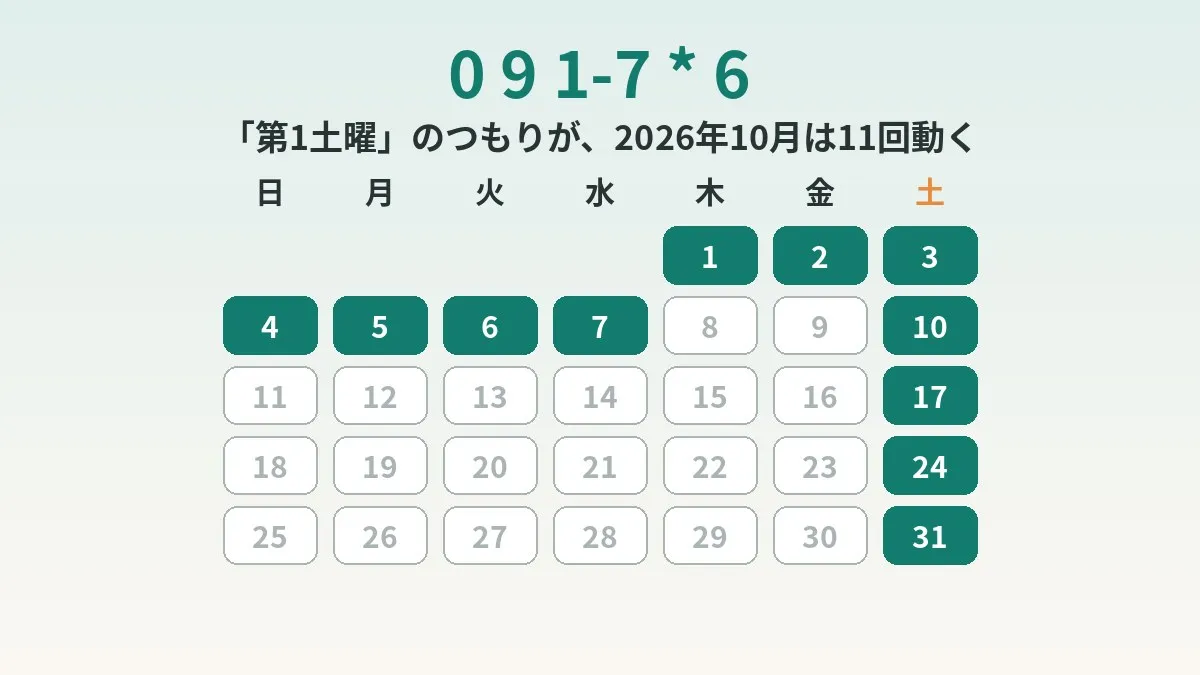
0 9 1-7 * 6
“The 1st through the 7th” and “Saturday” should pin down exactly one day: the first Saturday of the month. That is how a human would read it, right?
But that is not how it actually ran. It fired every day from the 1st to the 7th of each month, plus every Saturday. What I meant as a monthly reminder had turned into one that arrived every morning in the first half of the month.
A quick review of the five fields
A cron expression is made up of five fields separated by spaces. From left to right, they mean the following.
min hour day month weekday
0   9    1-7 *     6
”*” means “any value.” You can also write ranges like “1-7” and lists like “1,15.” In most environments, 0 is Sunday and 6 is Saturday for the weekday field.
Up to this point, it is all straightforward. The problem lies in how the “day” and “weekday” fields relate to each other.
Day and weekday are evaluated with OR
The POSIX crontab specification says something to the following effect. It concerns the case where both the day-of-month field and the day-of-week field are specified with concrete values. In that case, any day that matches either field is a match.
The man page for cronie, which is widely used on Linux, says the same thing. When neither field is ”*”, the job runs if either one matches. As an example, it explains that “30 4 1,15 * 5” runs at 4:30 on the 1st and 15th of every month, plus every Friday.
In other words, as soon as you write both a day and a weekday, the meaning becomes “or” rather than “and.” Personally, I think this is the most counterintuitive part of cron.
- If both the day field and the weekday field are something other than ”*”, the job runs when either one matches
- Even if you mean “the 1st to the 7th AND Saturday,” it becomes “the 1st to the 7th OR Saturday”
- If one of them is ”*”, only the other field is used, so the problem does not occur
Listing how it actually runs
Let me count it out for October 2026. Here are the days on which “0 9 1-7 * 6” runs.
| Expression | Intent | Days it runs in October 2026 | Count |
|---|---|---|---|
| 0 9 1-7 * 6 | First Saturday only | Every day from the 1st to the 7th, plus the 10th, 17th, 24th and 31st | 11 times |
| 0 9 * * 6 | Every Saturday | The 3rd, 10th, 17th, 24th and 31st | 5 times |
| 0 9 * * 6 + date check | First Saturday only | The 3rd | 1 time |
Even though the intent is once a month, it works out to 11 notifications. The Saturday that falls between the 1st and the 7th overlaps, so the total is a bit lower than a simple sum.
With reminders, getting a notification is the whole point. That may be why it is hard to notice something is off even when you get too many.
How major runtimes handle it
Cron syntax varies slightly depending on where it runs. Here is a table of what I could confirm in the official documentation.
| Runtime | Weekday numbering | Both day and weekday specified | Extended syntax | Time zone basis |
|---|---|---|---|---|
| POSIX crontab | 0-6 (0 is Sunday) | Runs when either matches | Not in the spec | Not stated in the spec |
| cronie on Linux | 0-7 (0 and 7 are Sunday) | Runs when either matches | Not stated | Can be set with CRON_TZ |
| Cloudflare Workers Cron Triggers | 1-7 (1 is Sunday) | Not stated | Supports L, W and # | UTC |
| GitHub Actions schedule | 0-6 (0 is Sunday) | States that it uses POSIX syntax | @daily and the like are not supported | UTC by default, timezone can be specified |
The one to watch is Cloudflare’s weekday numbering. Sunday is 1 and Saturday is 7, so it is off by one compared with other environments. The official docs also recommend using three-letter abbreviations like SAT because the numbers are confusing.
GitHub Actions says it uses POSIX cron syntax. The page does not go into the relationship between day and weekday. So I think the safe bet is to assume it behaves with the same OR as POSIX.
The workaround: trigger on the weekday, then check the date
The most reliable workaround is to set one of the fields to ”*”. Trigger on the weekday only, and do the date check inside the script.
- Set cron to “0 9 * * 6” so it starts at 9:00 every Saturday
- When it starts, get today’s date
- If the date is between the 1st and the 7th, send the reminder
- If it is the 8th or later, exit without doing anything
The first Saturday always falls somewhere between the 1st and the 7th. So if you check “it is Saturday and the date is 7 or less,” it runs only once a month. Think of it as writing the AND condition in your own code instead of leaving it to cron.
This idea can be adapted. For the second Saturday, check the 8th to the 14th; for the third Saturday, the 15th to the 21st. For the last Saturday of the month, check whether “7 days from now falls in the next month.”
Example in a shell
If you write it directly in a Linux crontab, it might look something like this.
0 9 * * 6 [ "$(date +\%d)" -le 7 ] && /path/to/remind.sh
The key point here is the backslash before the ”%”. The cronie man page says that a ”%” in a command is treated as a newline. If you do not escape it, the command gets cut off in a way you did not intend.
If the line gets long, it may be easier to read if you move the whole check into the script. Keeping the crontab side as just “start every Saturday” makes it less confusing when you look at it later.
Using it with scheduled AI tasks
If you have an AI handling scheduled tasks, the idea is the same. Set the schedule to “every Saturday at 9:00.” Then, at the very start of the instructions, write “If today is not between the 1st and the 7th, do nothing and exit.”
If you check it in Python, it might look like this.
from datetime import datetime
from zoneinfo import ZoneInfo

today = datetime.now(ZoneInfo("Asia/Tokyo"))
if today.day > 7:
    raise SystemExit(0)  # Not the first Saturday, so do nothing
The important part here is explicitly using Japan time. The clock in the runtime is often set to UTC, so this keeps the date from getting mixed up.
- Always set one of the two fields to ”*” on the cron side
- Write the “Nth weekday” check in the script or the instructions
- Get the date with the time zone stated explicitly
Some environments support extended syntax
Depending on the runtime, there are extensions that let you write “the Nth weekday” in a single expression. According to its table, Cloudflare Workers Cron Triggers allows ”#” in the weekday field. The docs describe it as supporting extensions close to the Quartz scheduler.
However, the official page did not include a concrete example using ”#”. On Cloudflare, weekday numbers start at 1, so you need to be especially careful with how you write it. If you use it, it seems wise to confirm before deploying that it runs on the days you expect.
On the other hand, ”#” does not appear in the POSIX spec or the cronie man page. It is also not in the GitHub Actions table. Considering that it may stop working if you move environments, putting the date check in code is probably the more portable approach.
| Method | Ease of writing | When moving environments | Best suited for |
|---|---|---|---|
| Trigger on weekday and check the date | A little more code | Tends to keep working as is | Household automation in general |
| Extended syntax such as ”#“ | Fits on one line | Cannot be used where unsupported | Only in environments where support is documented |
| Write both day and weekday | Looks simple | Tends to become OR everywhere | Better to avoid |
List the next run dates to double-check
After writing a cron expression, I recommend listing a few of the next run dates to verify it. Even this trap becomes obvious at a glance if you list the next few runs.
There are sites like crontab.guru that restate an expression in plain language. The official GitHub Actions docs also mention it as a tool for building expressions and checking run times. But it is a third-party tool. What it shows will not always match how your runtime actually behaves. For things like extended syntax, I think it is safer to check it alongside the official docs for each environment.
If you want to check it yourself, simply looping over a month of dates and counting the matches is enough. The October table in this post was also made by listing the dates one by one and counting. It only takes a few lines of code, so it might be worth making a habit of running it every time you change an expression.
Watch out for the UTC offset too
Another pitfall is time zones. Cloudflare Cron Triggers clearly state that they run in UTC. GitHub Actions also defaults to UTC, and it provides a way to specify a timezone.
Japan time is 9 hours ahead of UTC. So 9:00 in the morning Japan time is exactly 0:00 in UTC. Anything earlier than that changes the picture. For example, 8:00 on Saturday Japan time is 23:00 on Friday in UTC.
In that case, the cron weekday field needs to be Friday, not Saturday. On top of that, the date check in the script will be off unless it is done in Japan time. It is worth remembering that both the weekday and the date can shift by one day.
Where household automation tends to hit this
I feel this trap is especially easy to fall into when setting up monthly reminders. For example, in situations like these.
- Remembering the bulk grocery run on the first Saturday of the month
- Checking card statements on the first weekend of the month
- Reviewing subscription renewals and cancellations on the first day off of the month
- Checking payments for the kids’ school on the second Saturday
All of these tend to take the form “a certain weekday of a certain week.” If you get too many notifications, you gradually start ignoring them. Once you start skimming even the important billing reminders, the automation may lose much of its point.
For automated household finance checks, the notification frequency itself shapes how usable they are. Using the time freed up by automation to also review your monthly fixed costs could make a big difference.
Clicking this opens the Rakuten login page. Once you log in, you’ll see the campaign details.
Where I landed, and one more stumble
I ended up switching to “every Saturday”
I have laid out the workarounds, but I actually landed somewhere a bit different. After rethinking how I use it, I changed the reminder itself to every Saturday at 9:00.
0 9 * * 6
When I thought about why I insisted on once a month, the reason turned out to be not that strong. If it comes every week, I can just decide each time whether I need it. Keeping the setup simple is one valid answer too.
My scheduled tasks were scattered
There was one more thing I tripped over this time. I had trouble finding the scheduled task I wanted to fix.
My scheduled tasks were split between two places: a cloud scheduler and a local app on my Mac. Searching by name only turned it up in one of them, and it took me a while to figure out where it lived.
Keeping a list for each location might make this a little easier next time.
Common mistakes and pitfalls
Here are the mistakes that are easy to make when building scheduled tasks with cron.
- Writing both day and weekday, meaning “and” but getting “or”
- Writing the weekday as a number on Cloudflare and having it run one day off
- The gap between UTC and Japan time shifting the weekday or date to the previous day
- Forgetting to escape ”%” in a crontab command
- Not checking the next run dates after writing, and only noticing days later
- Having scheduled tasks in multiple places and not being able to find the one to fix
The ones I hit were the first and the sixth. I think both are the kind of mistake that is easy to prevent once you know about it.
What to check before you start
- Either the day field or the weekday field is set to *
- Checked whether weekdays start at 0 or 1 in the runtime you use
- Checked whether the runtime time zone is UTC or Japan time
- Put the Nth weekday check in the script or the instructions
- Listed the next few run dates and confirmed they match the intent
- Made a list of where each scheduled task lives
Frequently asked questions
Q. If I write both day and weekday, does it always become OR?
The POSIX spec and the cronie man page say the job runs when either one matches. However, some runtimes do not document how they handle it. So I think the safest approach is to build it without writing both.
Q. Is there a way to write the first Saturday in one line?
Some environments, such as Cloudflare Workers Cron Triggers, allow ”#” in the weekday field. However, it is an extension not found in standard cron. It seems best to confirm support in the official docs for your environment before using it.
Q. How should I write the last Saturday of the month?
Cloudflare’s official docs include an example of the last weekday using “L”. In standard cron, you would trigger every Saturday and check the date. Checking “if 7 days from now is in the next month, it is the last Saturday” is probably the easiest to understand.
Q. Is checking for the 1st to the 7th really enough?
The first Saturday of the month always falls somewhere between the 1st and the 7th. So if you trigger on Saturday and check whether the date is 7 or less, you narrow it down to the first Saturday only. Just be aware that the date can be off unless you get it in Japan time.
Q. How can I check the next run dates?
One way is to check what the expression means on a site like crontab.guru. The official GitHub Actions docs mention it too. But since it is a third-party tool, it is safest to ultimately confirm against the official information for your runtime.
Q. Can I specify Japan time in GitHub Actions?
The official docs say the default is UTC. They also say you can specify a time zone in IANA format, for example Asia/Tokyo. There were notes about regions with daylight saving time, but with Japan time I think the impact is minimal.
Official sources I referred to
- crontab (The Open Group Base Specifications)
- crontab(5) - Linux manual page (man7.org)
- Cron Triggers (Cloudflare Workers docs)
- Events that trigger workflows (GitHub Docs)
- Workflow syntax for GitHub Actions (GitHub Docs)
Summary
In cron, if you specify both the day and the weekday, they are evaluated with OR, not AND. So “0 9 1-7 * 6” does not mean the first Saturday; it runs every day at the start of the month and every Saturday. If you trigger on the weekday only and check the date in code, you can narrow it down to exactly once a month.
After writing an expression, I recommend listing the next few run dates to check it. It also pays to watch for the UTC offset and how each runtime numbers the weekdays.
I also wrote about choosing times for scheduled runs in my post about automatically checking school notices. For automated household finance checks, my setup for automatically reviewing card spending every night may also be useful.
If you have a monthly reminder set up, take one more look at its expression.
Clicking this opens the Rakuten login page. Once you log in, you’ll see the campaign details.
This article contains affiliate advertising. If you sign up for a product or service through a link on this site, we may receive compensation from the partner company. The site operator is also an employee of Rakuten Group and may receive compensation through an employee referral program. The content and opinions here are based on the operator’s own experience and research regardless of any advertising relationship, but please read with the above in mind. See the Disclaimer & Affiliate Disclosure for details. Disclaimer & Affiliate Disclosure
This article includes machine-translated content. Please check the official Rakuten Mobile multilingual page for exact terms.
If you have concerns about Rakuten Mobile coverage or signal quality, you can consult through the official signal improvement request form .