- 01What happened
- 02The cause: “+09:00” and the calendar’s time zone
- 03Re-adding it with “Z” put it on the right day
- 04An all-day event is “a date with no time”
- 05The Google Calendar API specification
- 06The “Z” this time is “a workaround for the input format”
- 07Results by way of passing the date
- 08Where people automating family calendars tend to trip
- 09How to check a calendar’s time zone
- 10Common mistakes and pitfalls
- 11Things to check before you start
- 12How to think about building the system
- 13FAQ
- 14Official references
- 15Summary
Good morning, this is まさきん.
More and more, I add family events to Google Calendar through an AI assistant. It is convenient, but the other day I stepped into a small trap. An all-day event had somehow landed one day early. Once I looked into how it works, it made sense, so I am writing it down for the record.
*This information is current as of publication. Please check the official sites for the latest details.
- Passing a date-time with “+09:00” for an all-day event turned it into an all-day event on the previous day
- The one that shifted was a shared family calendar whose time zone was set to UTC
- In the Google Calendar API, all-day events are specified with start.date and end.date
- end.date is supposed to be the following day, because the end date is treated as exclusive
- My fix this time, passing the time with “Z”, is a workaround tailored to the input format of the AI integration I use
What happened
I have my AI assistant (Claude) connected to Google Calendar. It also adds events automatically to the calendar our family shares.
The other day, I was trying out a free trial of a subscription, an AI plan that comes with cloud storage. I decided to set two checkpoints for deciding whether to keep it.
The first was a mid-trial check date to see how it felt to use. The second was a final decision date to decide whether to continue or cancel. I put the final decision date 9 days before the cancellation deadline. If I left the decision to the last minute, I felt it would get lost in the busyness.
I added these two dates to the family calendar as all-day events, the usual way: telling the AI the dates and having it add them.
But when I opened the calendar, something was off. Both December events had been added one day early. Since this was about a cancellation deadline, even a one-day shift felt unsettling.
The cause: “+09:00” and the calendar’s time zone
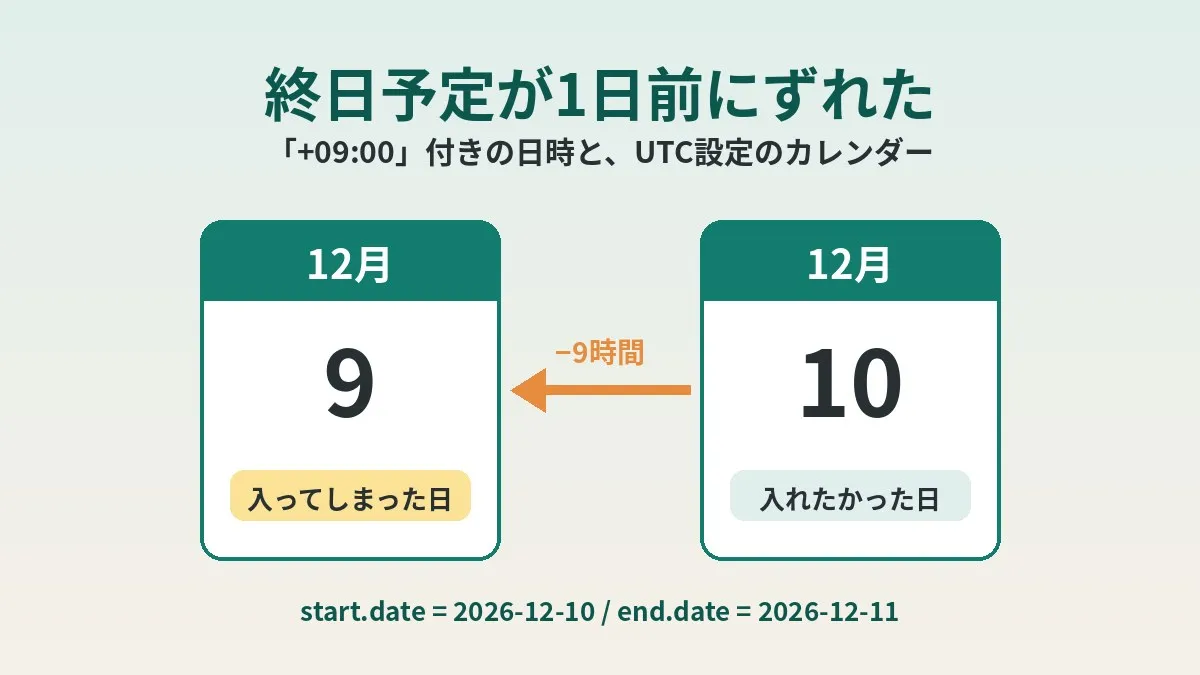
When I looked into it, the cause was how the dates were passed. When creating events through the AI, the all-day dates were specified with “+09:00” attached. “+09:00” is the notation for Japan time.
Meanwhile, the shared family calendar’s time zone was set to UTC. UTC is the world’s reference time, and it is 9 hours behind Japan time.
For example, “December 10, 00:00 (+09:00)” becomes “December 9, 15:00” in UTC. Seen from a UTC calendar, that moment belongs to December 9. So it makes sense that the all-day event was also added as December 9.
I cannot see inside the AI integration tool I use. So I cannot say for certain exactly how it converts things. But I think the shift is perfectly explained by the 9-hour time difference.
Re-adding it with “Z” put it on the right day
As a test, I updated the events again, passing the dates with “Z”. “Z” is the symbol for UTC. This time, the events landed on the correct day.
“December 10, 00:00 (Z)” stays December 10 even on a UTC calendar. The date does not cross over by the amount of the time difference.
Since then, I pass all-day events with Z in this AI integration. That said, this is not the proper approach. As I explain later, the actual specification was much simpler.
An all-day event is “a date with no time”
This made me stop and think about what an all-day event really is.
An event with a time points to the same moment no matter where in the world you look at it. 9:00 in Tokyo is the same moment as 0:00 in London. The displayed time changes depending on where you view it.
An all-day event, on the other hand, refers to “that whole day.” Like a birthday or a deadline, the date itself is what matters, regardless of time. It is information that ideally should not move with time zones.
But if you pass a date with a time and time zone attached, things change. The receiving side may treat it as “a specific moment.” Which date that moment belongs to is determined by the calendar’s time zone. I think this mismatch is exactly what caused the shift this time.
The Google Calendar API specification
Reading Google’s developer documentation, the way to pass all-day events was clearly spelled out.
An event’s start and end have two kinds of fields: date and dateTime. date is a date in “yyyy-mm-dd” format and is to be used for all-day events. dateTime is a value with a time, and it requires a time zone offset.
| Field | Example format | When to use |
|---|---|---|
| start.date / end.date | 2026-12-10 | All-day events |
| start.dateTime / end.dateTime | 2026-12-10T09:00:00+09:00 | Events with a time |
| start.timeZone / end.timeZone | Asia/Tokyo | Region for events with a time |
The documentation also had one important sentence: for all-day events, the time zone field has no meaning.
In addition, the start and end apparently need to match: either “both with times” or “both all-day.” You cannot mix them, such as a start using date and an end using dateTime.
In short, the correct way is to pass all-day events as dates only. With dates only, you are not affected by the calendar’s time zone.
end.date is the following day
Another easy place to trip up is the end date. The documentation says the start is “inclusive” and the end is “exclusive.”
For an all-day event on December 10 only, end.date should be the next day, December 11. In the official sample too, an all-day event on June 1 had its end on June 2.
"start": { "date": "2026-12-10" },
"end":   { "date": "2026-12-11" }
If you set end to December 10 as well, the duration becomes zero. It feels a bit strange intuitively, but it is best to just remember that this is the rule.
The “Z” this time is “a workaround for the input format”
I want to be honest and draw a clear line here.
Following the API specification, the proper way is to pass all-day events with start.date and end.date. What I was using, though, was an integration tool that connects the AI and the calendar. Its input seemed to be designed to accept all-day events in date-time form too.
Within that design, the format that landed correctly on a UTC calendar happened to be the one with Z. If you can call the API directly yourself, I think passing dates only is the straightforward way.
- Passing 00:00 with Z may have worked only because the calendar was in UTC
- If the calendar’s time zone were different, it could shift to another day
- It is reassuring to check once how your tool’s input handles all-day events
Results by way of passing the date
In theory, here is how each way of passing the date combines with each calendar time zone. The dates are examples for explanation. I actually tried only the two UTC calendar patterns. The rest are calculated from the time difference, so please treat them as reference only.
| How it was passed (intended as December 10) | UTC calendar | Japan time calendar |
|---|---|---|
| December 10, 00:00 +09:00 | Shifted to December 9 (experienced) | Should be December 10 |
| December 10, 00:00 Z | Landed on December 10 (experienced) | Should be December 10 |
| Date only (2026-12-10) | December 10 | December 10 |
On a Japan time calendar, 00:00 Z corresponds to 9:00 in the morning in Japan. So by calculation, the date does not shift. However, on a calendar in a region west of UTC, it would shift to the previous day. The method that is stable in every case is, after all, passing the date only.
Where people automating family calendars tend to trip
I think a calendar shared with family is often created separately from your personal main calendar. According to Google’s help pages, the time zone can be set per calendar.
So even if your main calendar is in Japan time, a shared calendar might have a different setting. I honestly do not know why our family calendar was in UTC. The truth is that I had been using it without noticing.
While you add events by hand, this difference may not really come to the surface. Once you automate and start adding events through the API, it suddenly shows up, I suspect.
The developer documentation says a calendar’s time zone is also called its “default time zone.” This time zone is apparently used as the reference when listing events too. If you are automating, it is worth checking the calendar settings once.
Clicking this opens the Rakuten login page. Once you log in, you’ll see the campaign details.
How to check a calendar’s time zone
Following Google Calendar Help, here are the steps to check on a computer.
- Open Google Calendar on a computer
- Under “My calendars” on the left, hover over the calendar you want
- Open “Settings and sharing” from the more options icon
- Look at “Time zone” in the calendar settings
- To change it, search for a city or country and select it
The overall “Primary time zone” is on the settings screen opened from the settings icon in the upper right. That one and the per-calendar setting are different things, so it is a good idea to check both.
However, the help page also notes that “you cannot change it if you are not the event organizer.” If you want to change a shared calendar’s setting, asking the person who created it may be faster.
What to check after adding events
Even after fixing the mechanism, I feel the most reliable thing in the end is to look with your own eyes. Here are the three check points I decided on.
- Visually check each added event on the calendar, including the date
- For all-day events, check that the end date is the following day
- Confirm the event shows on the same day on the family members’ phones that share the calendar
I am especially careful with events where “a shift would be a problem,” like cancellation deadlines. This time too, I was saved because I noticed it by looking.
Common mistakes and pitfalls
Here is a summary drawn from my experience and what the official documentation suggests.
- Passing an all-day event with a time and time zone attached
- Assuming your main calendar and the shared calendar have the same time zone
- Setting end.date to the same date as the start
- Mixing formats, such as a date for the start and a date-time for the end
- Only confirming that the event was added, without checking the date
The ones I stepped on were the first, the second, and the last. All of them may be hard to notice when you first start automating.
Things to check before you start
- Checked the target calendar time zone on the Settings and sharing screen
- Confirmed it does not differ from your own primary time zone
- Checked the tool spec to see whether all-day events can be passed as dates only
- Made a habit of checking after adding that the end date is the next day
- Confirmed once that it shows on the same day on family devices
How to think about building the system
This incident made me rethink the order of things in automation a little.
At work, too, format mismatches happen all the time when passing data around. Family events are essentially the same kind of data exchange. So I feel it is important to check the sender’s format and the receiver’s settings as a set.
I previously wrote about using AI to put family plans made by word of mouth into the calendar. In my system for adding school printouts to the calendar, I set the end of all-day events to the following day. This look at the specification also backed that up.
I also touched on time reference shifts a bit in my post on the cron day-of-month and day-of-week trap. Getting along with UTC might be a key part of automation.
FAQ
Q. What should I use when creating all-day events through the API?
In the Google Calendar API, you are to use start.date and end.date. The format is a “yyyy-mm-dd” date. dateTime is for events with a time, so it is not used for all-day events.
Q. What should I put in end.date?
The end is treated as “exclusive,” so you put the day after the last day. For an event on December 10 only, end.date is December 11. The official sample uses the same form.
Q. Does specifying timeZone have any effect on all-day events?
The developer documentation says the time zone field has no meaning for all-day events. If you pass dates only, you should not be affected by the calendar’s time zone.
Q. Can each calendar have a different time zone?
Google’s help explains the steps to change the time zone per calendar. So your main and shared calendars can have different settings. You can check it on the “Settings and sharing” screen.
Q. If I pass the time with Z, will it always land on the correct day?
In my case, it landed on the correct day on a UTC calendar. But by calculation, the result can change depending on the calendar’s time zone. If you can pass dates only, I think that is more stable.
Q. I cannot change the shared calendar’s time zone.
Google’s help notes that you cannot change it if you are not the event organizer. Asking the person who created the calendar to look at the setting may be faster.
Q. How do I fix events that were already added on the wrong day?
I updated the events again using the correct format. If fixing by hand, you can just open the event and change the date. After fixing, it is reassuring to check how it displays on family members’ devices too.
Official references
- Events (Google Calendar API reference)
- Calendars and events (Google Calendar API guide)
- Calendars (Google Calendar API reference)
- Use Google Calendar in different time zones (Google Calendar Help, Japanese page)
Summary
An all-day event is “a date with no time.” If you pass it a date-time with a time zone, the date can shift depending on the calendar’s settings. On our family calendar, that showed up as a shift to the previous day.
Following the API specification, you pass all-day events as dates only and set the end date to the following day. The Z approach this time is positioned as a workaround tailored to the integration tool I use.
If you automate your family calendar, why not take a look at your calendar’s time zone once? Events that manage deadlines, like a trial decision date, are especially troublesome if they shift. While managing deadlines, it might be a good time to look over your monthly fixed costs too.
Clicking this opens the Rakuten login page. Once you log in, you’ll see the campaign details.
This article contains affiliate advertising. If you sign up for a product or service through a link on this site, we may receive compensation from the partner company. The site operator is also an employee of Rakuten Group and may receive compensation through an employee referral program. The content and opinions here are based on the operator’s own experience and research regardless of any advertising relationship, but please read with the above in mind. See the Disclaimer & Affiliate Disclosure for details. Disclaimer & Affiliate Disclosure
This article includes machine-translated content. Please check the official Rakuten Mobile multilingual page for exact terms.
If you have concerns about Rakuten Mobile coverage or signal quality, you can consult through the official signal improvement request form .