- 01What the tool is
- 02How the processing flows
- 03What you need to run it
- 04Measuring how much slower it got
- 05Transcription: from turbo to large-v3
- 06Polishing: from Qwen2.5-3B to Qwen3-8B
- 07I set aside thinking mode and bigger models
- 08Context looked promising for same-sound mix-ups
- 09The terms file and replacement rules
- 10Pasting into the app I was in
- 11Where I got stuck
- 12Who it suits and who it does not
- 13What to check before you start
- 14Frequently asked questions
- 15Official sources I referred to
- 16Summary
Good morning, this is まさきん.
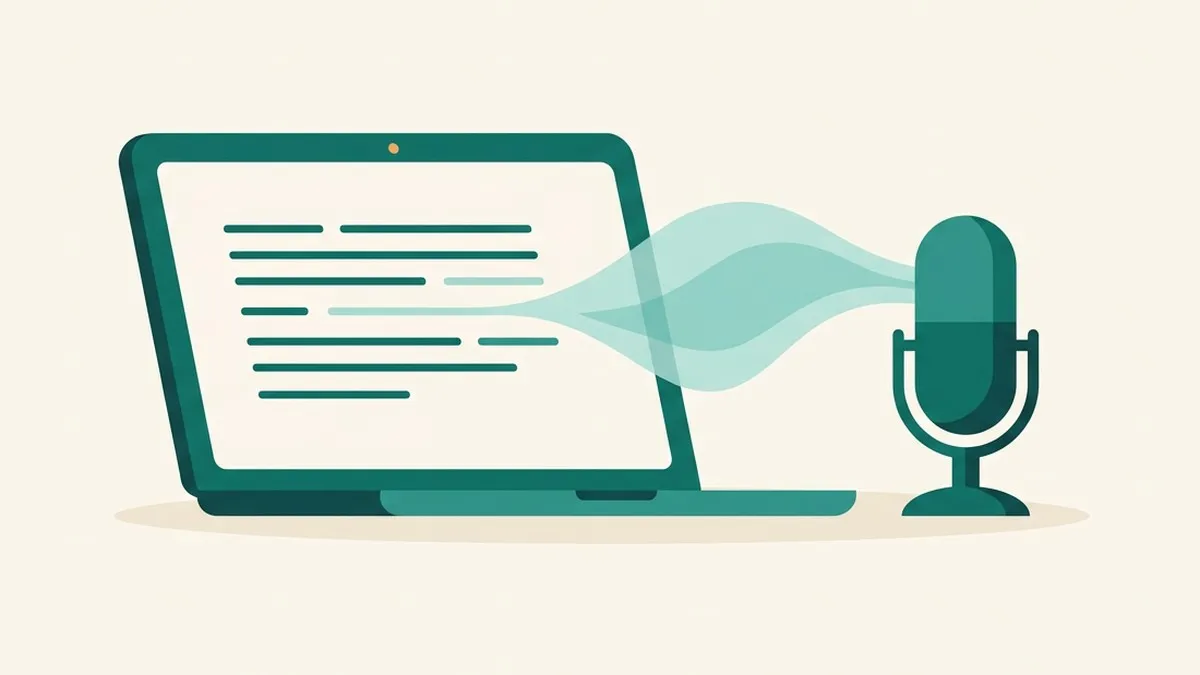
I use a voice input tool on my Mac that records only while I hold down the right Control key. When I let go, it turns what I said into text and pastes it in. Both the transcription and the tidying-up of the text run inside the Mac.
Here I sort out the points I hesitated over while building it, the numbers I measured, and the attempts that did not work. I carried out the improvements and measurements with help from AI (Claude Code). I have not published the code, so I hope you can read this as a record of my thinking.
*This information is current as of the time of publication. Please check the official sources for the latest specifications of the models and libraries.
- It records only while the recording key is held, and when I release it, the text is pasted at the cursor
- Transcription uses Whisper large-v3 and polishing uses the 4-bit version of Qwen3-8B. Both run on MLX
- Even after moving up from turbo and Qwen2.5-3B, each utterance got only about 0.3 to 0.8 seconds slower
- Thinking mode took 4 to 22 seconds per utterance and barely fixed same-sound mix-ups, so I set it aside
- The paste target follows the frontmost app at the moment I pressed the recording key
What the tool is
Using it is simple. Put the cursor in a text field, hold the recording key, and speak. When you release the key, the text is pasted after a short wait.
The default recording key is the right Control key. The tool stays resident in the menu bar, and you can switch to another key from its menu. You can tell its state from the icon.
It runs only on Apple Silicon Macs, because both transcription and polishing run on MLX. MLX is a machine learning framework for Apple silicon. The official README explains it that way.
The parts I use are as follows.
| Role | What I use | Notes |
|---|---|---|
| Transcription | mlx-whisper | The model is whisper-large-v3-mlx |
| Text polishing | mlx-lm | The model is the 4-bit version of Qwen3-8B |
| Recording | sounddevice | Records in 16kHz mono |
| Detecting the recording key | pynput | Right Control, etc. |
| Menu bar | rumps | Shows the state as an icon |
| Runtime environment | uv | Python 3.11 to 3.12 |
mlx-whisper is the part that runs Whisper on MLX. According to the official description, Whisper is a set of open-source speech recognition models from OpenAI. The sizes are said to range from about 39 million to about 1.5 billion parameters.
How the processing flows
From releasing the key to the text appearing, processing goes through these steps in order.
- Record only while the recording key is held. Keep recording for 0.3 seconds after release
- Discard silence and recordings shorter than 0.4 seconds
- Transcribe with Whisper, passing hints of specific terms along with it
- Fix the spelling with replacement rules
- Discard results that repeat the same word or have low confidence
- Remove fillers and tidy punctuation with Qwen3
- Apply the replacement rules once more
- Paste through the clipboard, then restore the original clipboard contents
A distinctive point of the design is that I put in several stages that throw things away. Whisper can make up sentences out of silence. So recordings that are too quiet are never sent to transcription.
There is a safeguard after polishing as well. If the polished result has drifted too far from the original sentence, the text from before polishing is pasted. This is because when I speak in the form of a question, the LLM sometimes writes an answer to it.
What you need to run it
The requirements are below. I have confirmed that it works on only one machine, a MacBook Pro.
| Item | Requirement |
|---|---|
| Chip | Apple Silicon (M1 or later) |
| OS | macOS 14 or later. The only version I have confirmed on my machine is macOS 26 |
| Memory | About 8GB while resident, peaking at about 10GB. 24GB or more is a good target |
| Disk | About 7.2GB for the models and about 1.2GB for the Python environment |
| Internet | Needed only for the first model download. After setup, it starts even without internet |
| Keyboard | A key that can serve as the recording key. The default is right Control |
| Microphone | Built-in, external, or Bluetooth all work |
The memory figures are measured values. On a 16GB Mac, there may be little headroom once other apps are included.
If memory is tight, switching to turbo and Qwen2.5-3B reduces it. For the models alone, it is roughly 3GB as an estimate. Accuracy goes down in exchange.
The built-in keyboard of a MacBook has no right Control key. You either use an external keyboard or switch to another key from the menu. Since the key is only used while held, I think a modifier key that does nothing when pressed alone is a good fit.
The first time only, about 7GB of data is used to download the models. On a home connection that is not a worrying amount. But if you start while tethering away from home, the data usage may matter.
Clicking this opens the Rakuten login page. Once you log in, you’ll see the campaign details.
Measuring how much slower it got
A bigger model takes more time. I measured how much slower it gets on my own Mac, a MacBook Pro with an Apple M5 Pro and 48GB of memory.
| Stage | Before | After | Approx. time |
|---|---|---|---|
| Transcription | whisper-large-v3-turbo | whisper-large-v3 | 0.2-0.3 s to 0.4-0.7 s |
| Polishing | Qwen2.5-3B | Qwen3-8B | About 0.25 s to 0.4-0.6 s |
Taken together, each utterance became about 0.3 to 0.8 seconds slower. For short utterances, I feel the difference is not noticeable.
I also measured a long utterance. When I spoke for 25 seconds, both transcription and polishing took 1.9 seconds. The total was about 3.9 seconds. It grows in proportion to length, but the wait was not unbearable.
That said, this table comes from short synthetic speech, and there were only a few runs. Please take it as a rough reference.
In actual use in the app, some utterances took 3.6 or 5.3 seconds. The length of the utterance alone does not explain it, and I have not yet investigated the cause.
Transcription: from turbo to large-v3
turbo is a model in which the decoder layers of large-v3 were cut from 32 to 4. The official model card says it is much faster in exchange for a slight drop in quality.
At first I used turbo, prioritizing speed. But when I tried synthetic speech, it mistook a katakana product name for an ordinary word with the same sound. With large-v3, the output came out in a spelling close to the original.
That said, this check used only 3 short synthetic clips. I have not yet confirmed whether the difference shows up with my real voice. The time goes up a little, but I came down on the side of fewer mix-ups.
I also wrote about model size and misheard numbers in Whisper Gets Price Numbers Wrong.
Polishing: from Qwen2.5-3B to Qwen3-8B
The job of polishing is only to remove fillers and tidy punctuation. It is not allowed to add content or summarize. The prompt says so as well.
But the 3B model added words to broken input. On a broken sentence that came up in real use, it tacked on “のです” (a sentence-ending phrase that explains or emphasizes) and “にゃあい” (a cat-like “nyaai” sound). It also rewrote “お日に” (an odd fragment, “o-hi-ni”) as “毎日” (“every day”), changing the word order along with it.
With 8B, it began returning the input almost as it was. On fillers, 3B left “あのー” (ano-, “um”) and “えーと” (eeto, “well”) in place. 8B removed even “あのー”, “えっと” (etto), “ですね” (desu ne, “you know”), and “まあ” (maa, “well”).
By default, Qwen3 outputs its thinking process. I do not need that for polishing, so I turn it off with enable_thinking=False. The model card explains this setting as a switch that strictly stops the thinking behavior.
prompt = tokenizer.apply_chat_template(
    messages, add_generation_prompt=True, tokenize=False,
    enable_thinking=False,
)
I also put a cap on the output length: up to twice the input’s character count, measured in tokens. This keeps polishing from running on and on if it goes off track.
I set aside thinking mode and bigger models
To fix mis-conversions, having the model think about them seems like an option. Qwen3 has a thinking mode, so I tried whether it could be used for polishing.
First, I tried thinking mode on 8B. It added 6 to 20 seconds per utterance.
Next, I also tried a 30B thinking-only model, around 16GB in size. That took 7 to 30 seconds. On a long sentence, it did not finish even after using 2,500 tokens, and kept thinking in English.
The model card gives recommended settings for thinking mode: Temperature 0.6, TopP 0.95, and TopK 20. It also says to avoid greedy generation.
To be safe, I redid the test with those settings. The table below shows the results of trying each sentence twice. The input sentences are Japanese test sentences, so I left them as they are. The second column explains the intended fix.
| Input sentence (some shortened) | What I wanted fixed | Result | Time (2 runs) |
|---|---|---|---|
| 今週の試作について共有します | 試作 (shisaku, “prototype”) should be 施策 (shisaku, “initiative”) | Not fixed in either run | 9.2 s, 12.1 s |
| 前年同月費と比較します | 費 (hi, “cost”) should be 比 (hi, “ratio”), as in 前年同月比, “year-over-year for the same month” | Not fixed in either run. Once it dropped a word, once it added words | 20.9 s, 22.1 s |
| 原因を分析して、改善作を検討します | 作 (saku, “make”) should be 策 (saku, “measure”), as in 改善策, “improvement measure” | Fixed in both runs | 8.1 s, 8.6 s |
| 新商品の試作品が届いたので、来週の会議で確認します | Nothing to fix (a correct sentence) | Left as is in both runs | 5.8 s, 4.0 s |
Of the 3 sentences I wanted fixed, only 1 was fixed cleanly. The time was 4 to 22 seconds. On another sentence, it also dropped a grammatical particle that was in the input.
Thinking mode made me wait, and it did not always fix the problem. Even after waiting several seconds to 20 seconds, same-sound mix-ups can remain.
The number of tests is small, so please read this as a tendency. Even so, I judged that waiting several seconds to 20 seconds for short voice input is not worth it. An optional mode used only for long utterances is conceivable. Still, in this result the time was not justified by the effect.
I also tried adding a glossary and instructions to the polishing prompt. The only words that got fixed were the ones I had put in the glossary. On long sentences, it sometimes changed words into different ones.
Context looked promising for same-sound mix-ups
While using the tool, I sometimes saw “施策” (shisaku, “initiative”) come out as “試作” (shisaku, “prototype”). They are words with the same sound, so sound alone cannot tell them apart. If the surrounding topic is known, they should be distinguishable.
So I tried adding the previous utterance as a hint to Whisper. Of 3 synthetic clips, the case where “施策” became “試作” got fixed. The time went from 0.39 seconds to 0.43 seconds, which is barely a change.
The other 2 clips came out right with or without the addition. In other words, I could confirm only 1 case.
I have not adopted this method yet. I want to confirm it with my real voice first. Adding the previous utterance also affects the rule that discards echoed hints. I plan to review that together with it.
The terms file and replacement rules
Proper nouns and technical terms come out in a different spelling when the tool goes by sound alone. So I prepared a terms file. There are two ways to write it.
- Writing just one word on a line makes it a hint for transcription
- Writing
誤 => 正(meaningwrong => right) replaces the text after transcription
# One word per line: passed to the transcription as a hint
Whisper
Qwen
# left => right: replaced after transcription
ビッグクエリ => BigQuery
The hint takes up to 30 words. The example above is only to show the format. It differs from my actual contents. The last line is a katakana spelling of “BigQuery” (biggu kuerī) being replaced with the official spelling.
What I was careful about with replacement rules was not to replace ordinary words. A mis-conversion dictionary I had made for another purpose had lines that swap one ordinary word for another. If I reused it for dictation, even ordinary sentences would break. So I did not reuse it and prepared a separate one for dictation.
Pasting into the app I was in
Before I finish speaking, I sometimes switch to another app. If the text were pasted as is, it would land in the app I switched to. That is not always the app I wanted to type into when I pressed the recording key.
So the tool remembers the frontmost app at the moment the recording key is pressed. If a different app is in front at paste time, it brings the remembered app to the front and then pastes.
I check the frontmost app with lsappinfo. To bring an app to the front, I pass its bundle ID to open -b. It takes about 0.3 seconds for the app to come to the front.
lsappinfo info -only bundleid "$(lsappinfo front)"
open -b com.apple.TextEdit
I got stuck on one thing here. At first I checked the frontmost app with NSWorkspace’s frontmostApplication. But a process that is not running an event loop keeps returning a stale value, you see. The app was in front, but my check judged that it was not.
So I switched to lsappinfo, which always returns the latest state.
There is one more thing: it does not switch while I am typing. If the frontmost app changed in the middle of typing, the characters I was typing would go into a different app. So it waits until my input pauses for about 0.6 seconds. It waits at most 2 seconds, and switches after that.
If the app has quit, or could not be brought to the front, it does not paste. It just puts the text on the clipboard and lets me know.
There are limitations too.
- It tells apps apart only at the app level. Switching tabs or panes within the same app is not detected
- If a full-screen app is in another Space, the Space switches as well
- After pasting, it does not return to the previous app
Where I got stuck
AirPods that are not in your ears give you silence
At first, it looked like recording was working, yet no text came in. The cause was that the default input in macOS was my AirPods. I was not wearing them, so no sound reached the tool at all, and the volume stayed at 0.
There were two fixes. First, I made it possible to pin the input microphone from the menu. Second, I made it rebuild the device list before each recording.
PortAudio, the library that handles audio, keeps the device list from when it started. As is, it cannot follow a change of the default input after you connect AirPods. Rebuilding takes only a few milliseconds.
The rule for discarding echoed hints was too strict
If the output is just the hint text itself, it is discarded without pasting. This is because when you pass a hint, the hint itself can come out in quiet stretches. In an earlier article, too, the hint was repeated on a quiet clip with faster-whisper.
But my first version of the rule was too strict. It threw away even correct utterances made up of only short words contained in the hint. For example, when I say only “日本語の音声” (“Japanese audio”).
So I set a lower limit on the length of the match. The rule now discards an output only if it is a copy of the basic hint sentence of 10 or more characters, or a copy of the whole hint with terms of 24 or more characters.
A test overwrote my own clipboard
Testing the paste function touches the real clipboard. I missed swapping out the function that writes to the clipboard. As a result, a test sentence overwrote my own clipboard. I could not restore the original contents.
When you test code that touches the real machine, you replace every function that could be called. You also check that the clipboard contents are unchanged before and after the test. That was the lesson from this.
Other limitations
- Clipboard restoration covers text only. If you had copied an image, it is lost
- Keys pressed during transcription are ignored. Speak the next one after it finishes
- For an utterance of about 10 seconds, it takes around 2 seconds from release to paste
- If it crashes, it does not restart automatically
Who it suits and who it does not
| Aspect | Suits | Does not suit |
|---|---|---|
| Mac | Apple Silicon with memory to spare | An Intel Mac, or little memory |
| Usage | Entering fairly short text many times | Writing documents that need every character to be exact |
| Environment | Can download about 7GB the first time | Always saving on data usage |
| Attitude | Does not mind editing settings files yourself | Prefers an app that works as is |
Mis-conversions never drop to zero. So I think of this as a tool where you are expected to check the pasted text with a quick read-through.
What to check before you start
I put together the conditions for anyone who wants to try a similar tool on a Mac.
- The Mac has Apple Silicon (M1 or later)
- macOS is version 14 or later
- There is 24GB or more of memory. If not, use lighter models
- There is free disk space for about 8.4GB of models and environment
- There is a connection that can download about 7GB the first time
- There is a key that can serve as the recording key. If not, switch to another key
- If you use AirPods, put them in your ears before you speak
I think the two that matter most are memory and the microphone. If you notice them only after running it, a lot of work has to be redone.
- When prioritizing accuracy: large-v3 for transcription and Qwen3-8B for polishing. Each utterance takes about 0.3 to 0.8 seconds longer
- When saving memory: use turbo and Qwen2.5-3B. Accuracy goes down accordingly
- When you do not need polishing: turn it off in the menu. The transcription is pasted with only the replacement rules applied
Frequently asked questions
Q. Does it work on an Intel Mac?
I think it does not. The official README describes MLX as being for Apple silicon. I have also only tried it on an Apple Silicon Mac.
Q. Can I use it on a Mac with 16GB of memory?
It used about 8GB while resident and about 10GB at peak. With other apps running, there may be no headroom. A lighter combination of models uses less memory, though accuracy goes down accordingly.
Q. Can I use it without internet?
After setup, yes. The tool is set to use only models that are already downloaded, and I confirmed that it starts without a connection. Internet is needed only for the first model download.
Q. Can I change the recording key?
Yes, from the “録音キー” (Recording key) item in the menu. You can choose the left or right Control, Option, Command, or Shift, or F1 to F20. Keys that produce characters, Enter, and Space cannot be used. I think right Control, right Option, and F13 and above are less likely to clash with everyday shortcuts.
Q. Can I turn off polishing?
Yes. You can switch it on and off with the “整形する” (Polish) item in the menu. When it is off, the text skips polishing and is pasted with only the replacement rules applied. It returns to on after a restart.
Q. How long do I wait for a long passage?
A 25-second utterance took about 3.9 seconds. An utterance of around 10 seconds takes about 2 seconds. It grows in proportion to length, so the longer you speak, the longer the wait.
Q. Does the text still get pasted correctly if I switch to another app?
It pastes into the app that was in front when you pressed the recording key. If you have switched, it brings that app to the front before pasting. Still, it tells apps apart only at the app level. Switching tabs inside the same app is not detected.
Official sources I referred to
- MLX (ml-explore official repository)
- Whisper on MLX README (ml-explore official repository)
- openai/whisper-large-v3-turbo model card (OpenAI, Hugging Face)
- mlx-community/whisper-large-v3-mlx (mlx-community, Hugging Face)
- Qwen/Qwen3-8B model card (Qwen, Hugging Face)
- mlx-community/Qwen3-8B-4bit (mlx-community, Hugging Face)
Summary
Transcribe with Whisper, polish with Qwen3. The flow is simple. But how I chose the models and how I matched the paste target changed how it feels to use a great deal.
In the end, what worked were the modest tweaks. For example, moving to a somewhat larger model. The 0.3 seconds that keeps the ends of sentences from being cut off, and pasting into the app I was in when I pressed the key, also helped. Flashy methods like thinking mode were not worth the waiting time.
There are still things I have not tried. One is adding the previous utterance as context, and the other is logging transcription and polishing times separately. If you want to try voice input, why not start by running just mlx-whisper?
I also wrote about pushing my own work over to AI in the article on automatically generating a morning briefing. Downloading models uses data, so I think it is easier to start when your connection has some room.
Clicking this opens the Rakuten login page. Once you log in, you’ll see the campaign details.
This article contains affiliate advertising. If you sign up for a product or service through a link on this site, we may receive compensation from the partner company. The site operator is also an employee of Rakuten Group and may receive compensation through an employee referral program. The content and opinions here are based on the operator’s own experience and research regardless of any advertising relationship, but please read with the above in mind. See the Disclaimer & Affiliate Disclosure for details. Disclaimer & Affiliate Disclosure
This article includes machine-translated content. Please check the official Rakuten Mobile multilingual page for exact terms.
If you have concerns about Rakuten Mobile coverage or signal quality, you can consult through the official signal improvement request form .