- 01I could not get text out of a scanned PDF
- 02A PDF has a “visible layer” and a “text layer”
- 03Three ways to recognize the symptom
- 04Three possible causes
- 05Installing poppler
- 06Steps to deal with it
- 07Resolution guide
- 08Always verify numbers against the original
- 09Cautions when handing over paper with personal information
- 10Tips when scanning
- 11Common mistakes and pitfalls
- 12Frequently asked questions
- 13Official sources I referred to
- 14Summary
Good morning, this is まさきん.
I scanned a flyer from a trial lesson for my kids’ after-school activity with my phone and tried to have an AI read it. No text could be extracted from the PDF at all. I think anyone digitizing household paperwork runs into this at least once, so here are my notes on how to diagnose it and what to do.
Note: this reflects the information available at the time of publication. Please check the official sites for the latest conditions.
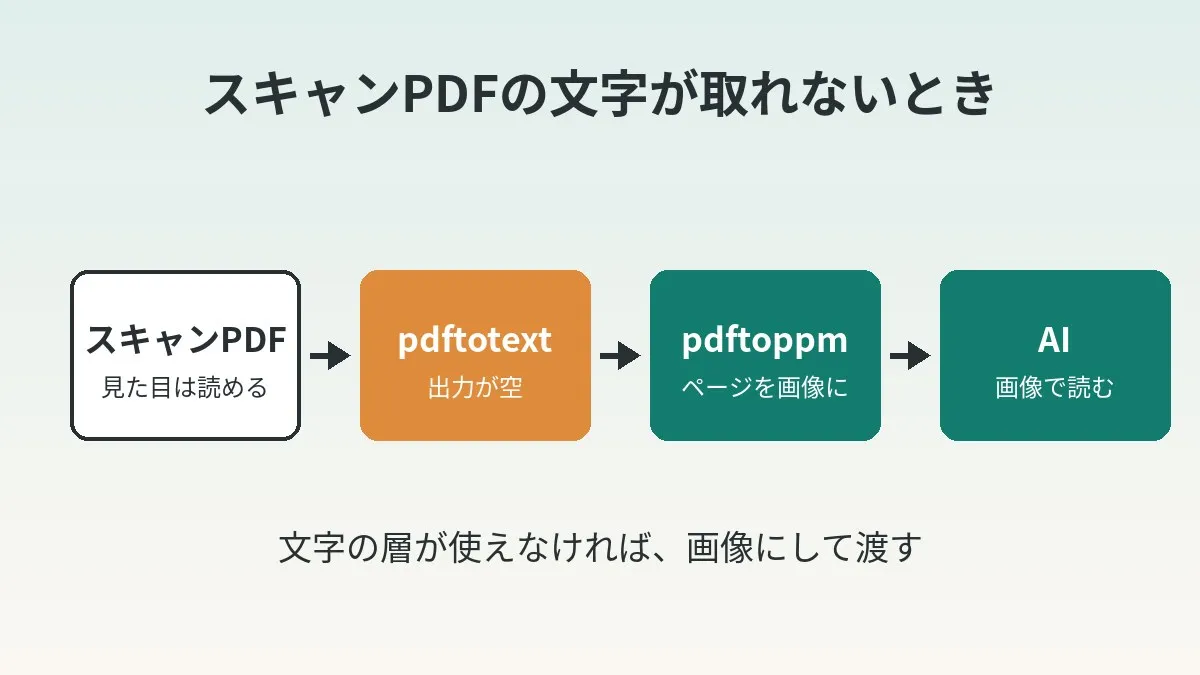
- When the text in a scanned PDF cannot be read, first check whether the output of
pdftotextis empty - If it is empty, convert the pages to images with
pdftoppm -r 200 -pngand hand the AI the images - There are three likely causes: an image-only PDF, a rough OCR layer, or missing character-code mapping
- For resolution, 150 to 200 dpi is a good guide when handing pages to an AI, and 300 dpi when re-running OCR
- Always verify numbers such as amounts and dates against the paper original at the end
I could not get text out of a scanned PDF
The app I used was Adobe Scan. I photographed the activity flyer and saved it as a PDF. When I opened it, it looked clean. The text even looked selectable.
I ran that PDF through a command called pdftotext. It is a tool that pulls just the text out of a PDF. The result was empty. Not a single usable line of text came out.
So I converted the pages to images and handed those to the AI. It read the content without any trouble.
To be clear, this is about one flyer of mine. I am not saying the app is faulty. Please read this as a rundown of something that can happen with PDFs from scanning apps.
A PDF has a “visible layer” and a “text layer”
A scanned PDF is built on a photo of the paper. On top of that, the text recognized by OCR sits as a transparent layer. OCR is the process that turns characters in an image into data.
What you see on screen is the photo. What search and copy use is the transparent text layer. So even when it looks clean, the text layer may be unusable.
These two layers matter when you hand a PDF to an AI as well. A tool that only reads the text layer conveys nothing if that layer is empty. I believe that is what tripped me up this time.
Three ways to recognize the symptom
I will list them in an order that even non-engineers can check.
- Open the PDF and drag across the text. It cannot be selected, or it turns into garbled characters when pasted
- Run
pdftotext. The output is empty or contains only page-break characters - Run
pdffonts. Not a single font line appears
The first can be tried with just an app. Copy and paste into a notes app, that is all. If it comes out empty or garbled there, it may be better not to rely on the text layer.
Three possible causes
I have not pinned down which one applies to my flyer. So this is a general overview.
| Type | What is going on | Result of copy and paste | What pdffonts shows |
|---|---|---|---|
| Image-only PDF | There is no text layer at all | Cannot select | No fonts listed |
| Rough OCR layer | The layer exists but has many misrecognitions | Different characters or broken sentences | Fonts are listed |
| No character-code mapping | The table mapping characters to Unicode is missing or broken | Symbols or blanks | The uni column may be no |
The third needs a bit more explanation. The official pdffonts manual describes a column called uni. It shows yes when the PDF contains a mapping table called ToUnicode.
The manual also carries a caveat, though. It says that the absence of the table does not necessarily mean the text cannot be converted. So uni being no is not an instant fail. I think it is best treated as just one clue.
The pdftotext manual has something similar in its BUGS section. Some PDFs contain fonts with broken encodings. In that case there is no way to extract text other than OCR. That is the gist. Even the tool itself admits “some PDFs just cannot be extracted.”
Installing poppler
pdftotext and pdftoppm are part of a package called poppler. It is the standard free toolkit for working with PDFs.
| Environment | How to install | Notes |
|---|---|---|
| macOS | brew install poppler | Requires Homebrew |
| Ubuntu / Debian | sudo apt install poppler-utils | The package name is poppler-utils |
| Windows | Install with the apt command above in Ubuntu on WSL | The official site mainly distributes source |
Windows takes a little more work. What the official poppler site distributes is source code, and for each OS you use the packages provided by a distributor. If it were me, I would install Ubuntu on WSL and use apt there.
You can check whether it is installed with the following.
pdftotext -v
If a version number appears, you are good.
Steps to deal with it
There are five stages. I think most paper will be sorted by the fourth.
Step 1: Check with pdftotext whether it is empty
First see whether the text layer is usable. I am using flyer.pdf as the example file name.
pdftotext -layout flyer.pdf flyer.txt
wc -c flyer.txt
-layout is an option that keeps the original visual layout as much as possible. For paper with many columns, like a flyer, adding it makes the output easier to read. wc -c is a command that just counts the size of the file.
If the number is 0 or a single digit, no text was extracted. My flyer was empty at this point. Conversely, if proper sentences come out, you can use them as is. There is no need to convert to images.
To narrow down the pages, use -f and -l. They are the first and last page numbers.
pdftotext -f 1 -l 2 -layout flyer.pdf -
The trailing - tells it to print to the screen rather than write to a file.
Step 2: Look inside with pdffonts and pdfimages
You can skip this one. I prefer to do it, though, because it gives a sense of the cause.
pdffonts flyer.pdf
pdfimages -list flyer.pdf
pdffonts lists the fonts inside the PDF. If only the header row appears, it seems fair to assume there is no text layer. pdfimages -list lists the images inside. If there is one large image per page, it is a PDF that came from a scan.
Step 3: Convert pages to images with pdftoppm
If the text cannot be extracted, convert to one image per page.
pdftoppm -r 200 -png flyer.pdf page
This creates files such as page-1.png and page-2.png. -r is the resolution, in dpi. If you do not specify it, it is 150. Without -png the output comes out in PPM, an awkward format to work with, so it is best not to forget it.
When you want just one page, do this.
pdftoppm -r 200 -png -f 1 -l 1 -singlefile flyer.pdf flyer
Adding -singlefile produces a single flyer.png with no number.
Step 4: Hand the AI the images
Attach the resulting PNGs directly to the AI chat. In my case, that was enough for it to read the content.
Results are more stable if you make the request specific. For example, wording like this.
The attachment is a scanned image of a flyer.
Please put the date and time, location, things to bring, fees, and application deadline into a table.
For anything you could not read, do not guess; write "illegible" instead.
I think the last line is the important one. An AI sometimes fills in characters it cannot read with something plausible.
Is it wrong to hand over the PDF as is?
No, it is not. Claude’s developer documentation describes a process that converts each page of a PDF into an image. It passes both the text extracted from the page and the image. The Gemini documentation also explains that it understands PDFs as images.
So putting a PDF straight into the app should often work. The trouble comes when you end up on a path that uses text extraction only. That is the case when your own script passes along only the result of pdftotext.
PDFs with many pages also need care. Claude’s help center notes that with a large number of pages, processing becomes text-only. When in doubt, making “convert to images and hand those over” your default seems like a safe bet.
I expect the occasions for having AI read household paperwork to keep increasing. Comparing price lists was the same task when I reviewed our telecom costs.
Clicking this opens the Rakuten login page. Once you log in, you’ll see the campaign details.
Step 5: If needed, re-add the layer with OCRmyPDF
Sometimes you want to keep the PDF itself in a searchable form. In that case, there is a way to add the text layer again. It is a free tool called OCRmyPDF.
According to the official documentation, it adds a text layer to scanned image PDFs so they can be searched. Under the hood it uses an OCR engine called Tesseract.
brew install ocrmypdf
brew install tesseract-lang
ocrmypdf -l jpn --redo-ocr flyer.pdf flyer-ocr.pdf
-l jpn tells it to read as Japanese. Without it, the document is treated as English. On Japanese paper, I think the result falls apart badly if you forget this. On Ubuntu, the language data is installed as a separate package such as tesseract-ocr-jpn.
--redo-ocr tells it to redo OCR that other software applied. If that does not work, there is --force-ocr. That one, however, rebuilds every page as an image. The official documentation also says image quality may degrade.
That said, accuracy has its limits. The documentation itself says it may fall short of commercial OCR. If you are only reading a single flyer, handing an image to an AI is probably faster.
Resolution guide
What number to give -r depends on who you are handing the image to. Calculated for A4 paper, it looks like this.
| Resolution | Pixel size at A4 (approx.) | Good for |
|---|---|---|
| 150 dpi (default) | 1240 × 1754 | Having an AI read normal-sized text |
| 200 dpi | 1654 × 2339 | Flyers with small fine print |
| 300 dpi | 2480 × 3508 | Running OCR such as Tesseract |
Bigger is not automatically better. Claude’s documentation says images over the limit are downscaled before processing. Gemini also explains that large pages are scaled down to a maximum of 3072 × 3072. Going too high just gets thrown away.
On the other hand, the official Tesseract documentation says it works well on images of 300 dpi or more. So I have two rules of thumb. 150 to 200 for AI, and 300 for OCR.
When small print cannot be read, cropping may work better than raising the resolution. That means cutting out just the price-list section as a separate image and handing that over.
Always verify numbers against the original
Just because it could be read from an image does not mean the numbers are right.
On the same day, I was also transcribing a recording of the trial-lesson briefing. That one had a misheard amount. I cut out only the relevant passage, redid it with a more accurate model, and settled it that way. The story is in the time Whisper got the numbers in an amount wrong.
Whether paper or audio, numbers produced by AI are a draft. For numbers like monthly fees and application deadlines, compare against the paper original at the end. I think this is the one thing not to skip.
Cautions when handing over paper with personal information
Papers from school or activities sometimes carry names and contact details. It is worth pausing for a moment before giving them to an AI.
- First check whether names, addresses, phone numbers or face photos are in the shot
- Crop out the parts you do not need before handing the image over
- Check once how the AI service you use handles data (the setting for whether it is used for training)
- Never hand over rosters or contact trees that list other families’ names in the first place
This is another advantage of working with images. Hiding part of a PDF is a hassle. With an image, you just crop it in your phone’s photo app.
One more thing. PDFs can contain information such as the creation date and time and the app name. Converting to an image strips that out, so I feel it is not a bad thing in terms of reducing what you hand over.
Tips when scanning
In the end, what makes the later steps easier is how you take the shot. Here is the commonly given advice.
- Shoot in a bright place so no shadow falls on the paper
- Flatten the paper and shoot from directly above
- Smooth out folds and curls before shooting
- For double-sided paper, remember to shoot the back as well
- Check the text recognition language in the app
I confirmed the last item in the official Adobe Scan help. Text recognition is on by default. It can also be turned off under “Run text recognition on saved PDF” in the preferences.
The recognition language reportedly defaults to the device language. You can change it under “Text recognition language” in the preferences. Japanese is among the supported languages. If you use your device in English, it may be worth setting this to Japanese.
The help also says OCR is not run on scans with many pages. The limit appears to differ between the free and paid versions. If you shoot dozens of pages at once, please check the latest official description.
Common mistakes and pitfalls
Judging by appearance. Even if it reads cleanly on screen, the text layer is not necessarily usable. One copy-and-paste test tells you.
Forgetting -png. By default pdftoppm outputs PPM. That often cannot be attached to an AI chat, so specify PNG or JPEG.
Setting the resolution too high. Output at 600 dpi makes large files. You hit the upload limit, or it gets downscaled anyway.
Not specifying the OCR language. OCRmyPDF reads as English when nothing is specified. Japanese paper needs -l jpn.
Putting what the AI read straight into your schedule. It is safer to compare dates and amounts against the original before registering them. The flow for turning printouts into schedule entries is described in my setup for registering school printouts in calendar and reminders.
- Have you tried copying text from the PDF and checked that it pastes correctly into a notes app?
- Have you checked whether the output of pdftotext is empty?
- Have you added -png and -r to pdftoppm?
- Does the image you are handing over contain personal information such as names or contact details?
- Have you compared the amounts and dates against the paper original?
Frequently asked questions
Q. Why can the text in a scanned PDF not be read?
Most likely there is no text layer, or there is one but it is in an unusable state. There are three typical cases: an image-only PDF, OCR misrecognition, and missing character-code mapping. pdftotext and pdffonts will give you a fair idea of which one applies.
Q. Why does pdftotext not return an error even when the output is empty?
Because a PDF without a text layer is not broken. There is no text to extract, so it returns an empty result as a normal outcome. Since no error appears, it is hard to notice in automated processing.
Q. Is there a way to do this without using commands?
Yes. If you take a screenshot of the PDF open on screen, that is an image. On a phone, I think handing the original photo to the AI as is also works. Commands only become easier when there are many pages.
Q. Which is better, PNG or JPEG?
For paper that is mostly text, PNG is the safe choice. With JPEG, compression can blur the edges of characters. If the file is too large, though, switching to -jpeg makes it lighter.
Q. Can I use a different tool such as PyMuPDF?
That is fine. In batch scanning and sorting drill sheets I use PyMuPDF to make the images. It does the same thing: it just converts pages to images. Whatever tool you have on hand is enough.
Q. Do I have to use OCRmyPDF?
No. If you only need an AI to read the content, images are enough. It is an option for when your goal is to archive the PDF and search it later.
Q. Can handwriting be read too?
With AI image reading, it often can. Idiosyncratic handwriting and faint pencil lead to more misreads, though. Conventional OCR such as Tesseract is said not to be good at handwriting.
Q. Can I do everything on a phone alone?
Yes. Export as an image (JPEG) from the scanning app and hand it to the AI app, and it is the same thing. The only time you need a PDF may be when you want to bundle several pages into one file.
Official sources I referred to
- poppler official site
- pdftotext manual (Debian manpages)
- pdftoppm manual (Debian manpages)
- pdffonts manual (Debian manpages)
- pdfimages manual (Debian manpages)
- poppler (Homebrew Formulae)
- Adobe Scan settings (Adobe official help)
- OCRmyPDF Introduction
- OCRmyPDF Cookbook
- OCRmyPDF: adding language packs
- Tesseract: Improving the quality of the output
- Claude PDF support (Claude Docs)
- Claude Vision (Claude Docs)
- Uploading files to Claude (Claude Help Center)
- Gemini API Document understanding
Summary
In a scanned PDF, the appearance and the text layer are separate things. If pdftotext comes back empty, do not agonize; just convert to images with pdftoppm. That is what got it read on my end. I do not think you lose anything by leaving the root cause for later.
Once information on paper becomes data, comparing gets easier. That goes for a monthly activity fee and for a phone bill alike. Simply seeing the numbers side by side should make the decision a good deal lighter.
Clicking this opens the Rakuten login page. Once you log in, you’ll see the campaign details.
This article contains affiliate advertising. If you sign up for a product or service through a link on this site, we may receive compensation from the partner company. The site operator is also an employee of Rakuten Group and may receive compensation through an employee referral program. The content and opinions here are based on the operator’s own experience and research regardless of any advertising relationship, but please read with the above in mind. See the Disclaimer & Affiliate Disclosure for details. Disclaimer & Affiliate Disclosure
This article includes machine-translated content. Please check the official Rakuten Mobile multilingual page for exact terms.
If you have concerns about Rakuten Mobile coverage or signal quality, you can consult through the official signal improvement request form .