- 01What I Built
- 02It Started With “Could I Build This?”
- 03The Big Picture
- 04Reading Sonos Directly From Inside the House
- 05Getting Lyrics From LRCLIB
- 06Tripped Up by Romanized Song Titles
- 07Getting It Under One Second
- 08Using It on a Phone Requires HTTPS
- 09Sharing With Family: Tailscale
- 10Why My Wife’s iPhone Could Not See the Mac
- 11Tips for Keeping It Running on the Mac
- 12Cost and Time
- 13Who This Suits (and Who It Does Not)
- 14FAQ
- 15Official Sources I Referred To
- 16Wrap-Up
Good morning, this is まさきん.
We play music on Sonos at home a lot. But when I try to sing along to J-POP, I never know the lyrics. So this morning I built an app that shows lyrics on screen, talking it through with Claude as I went.
*Information is as of the time of publication. Please check the official sites for the latest details.
- I built an app that highlights the current line on my phone, in sync with whatever is playing on Sonos
- The Sonos info is read directly from the Mac at home
- Lyrics come from LRCLIB, a free public database
- Sharing with family runs over Tailscale, and the extra cost was 0 yen
- From the first question to running on my wife’s iPhone took about 2 hours one morning
What I Built
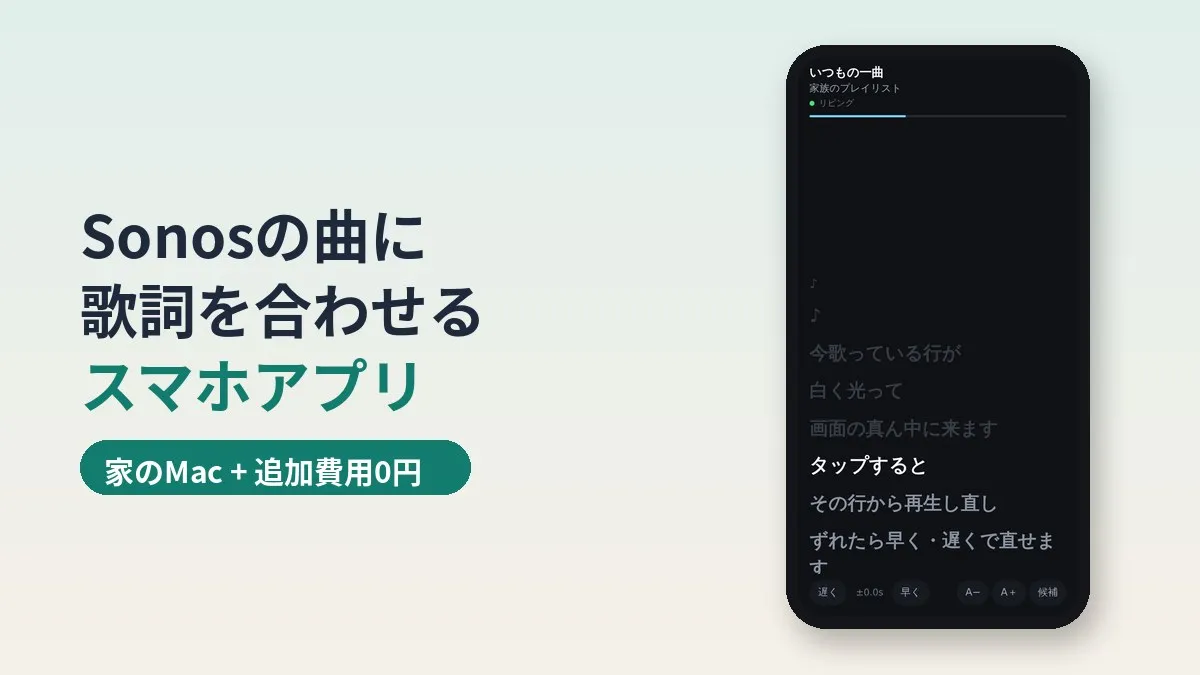
Open it on your phone and it shows the lyrics of the song playing on Sonos. The line being sung right now glows white. The screen scrolls automatically to keep the current line centered.
A few features turned out to be really handy once I started using it:
- Tap a line and Sonos jumps back to the start of that line
- If a song drifts, “Earlier/Later” buttons nudge it by 0.3 seconds, and the offset is remembered per song
- You can switch to a different version of the lyrics from “Candidates”
- Even if each room is playing a different song, you can pick the room
- It can live on the home screen, and the screen stays on while it is showing
Tapping a line was more useful than I expected. “Play the chorus one more time” is instant. It might even work for singing practice.
It Started With “Could I Build This?”
Around 6:40 in the morning, I asked Claude, “Could I build this?” The first thing it asked was where I play my music.
The answer was Sonos. I also said it would only be used inside the house, and that my Mac is always on. Those two facts pretty much decided the shape of the system.
I mentioned that we mostly listen to J-POP, too. That ended up being the deciding factor for where to get lyrics. Settling “where” and “what” up front really sped things up.
The Big Picture
The system has three parts:
- The Sonos speakers themselves (on the home network)
- A small relay server running on the Mac at home
- A screen you open on your phone (a PWA)
The relay server on the Mac reads the song title and playback position from Sonos. At the same time, it fetches time-stamped lyrics from a lyrics database. The phone asks the Mac “Where are we now?” every second and decides which line to light up.
I had Claude write the relay server without any external packages. Nothing extra was installed on the Mac. For something running at home, I feel better with as few moving parts as possible.
Reading Sonos Directly From Inside the House
Sonos does have an official cloud API. But it requires developer registration and setting up login integration.
| Method | Setup | Where it works | Best for |
|---|---|---|---|
| Official cloud API | Developer registration, login integration | Anywhere | Controlling from outside the home |
| Directly inside the home | Almost none | On the home network | Home-only use |
Since this is for use at home, I went with reading it directly. On the home network, Sonos will tell you the song title and playback position. We have 5 speakers, and it found them all automatically.
“Groups,” where several rooms play together, can be read as-is too. So even if each room is playing a different song, you can choose which one.
Getting Lyrics From LRCLIB
The lyrics need timestamps, as in “this line starts at 1:23.” That format is called LRC.
I compared a few options:
| Source | Cost | Time-stamped J-POP lyrics | Ease of use |
|---|---|---|---|
| LRCLIB | Free | Plenty for well-known songs | Worked without an API key |
| Lyrics from music streaming services | Depends on subscription | Extensive | No access for individuals |
| Japanese lyrics sites | Free to view | Extensive | No access for individuals |
LRCLIB is a public database built by volunteers. I tested a handful of songs to see how much J-POP it actually has.
- Kenshi Yonezu, YOASOBI, Official HIGE DANdism, Vaundy, and Mrs. GREEN APPLE had time-stamped lyrics
- Spitz, Yuuri, and Creepy Nuts had them too
- Songs that did not match on exact title were found with fuzzy search
- Some children’s songs could not be found
For the well-known songs our family listens to, it looks like it covers a good share. For songs it cannot find, I had Claude make it possible to drop in my own LRC file.
Tripped Up by Romanized Song Titles
Right after building it, I hit a problem. The lyrics that showed up were in romanized Japanese.
The cause was the track info from YouTube Music, which was what I was playing. Artist names arrive romanized, like “Aimyon” or “Kenshi Yonezu.” Searching with those as-is ended up picking the romanized version of the lyrics.
So I had Claude add the proportion of Japanese text in the lyrics to the scoring. Versions with more kana and kanji get priority. Differences between the romanized and Japanese artist names no longer count against a match.
There is also some handling for song titles. Some songs have English subtitles, like “ただ声一つ - One Voice” (a Japanese title followed by an English subtitle). So it also searches using the title with subtitles and parentheses stripped off.
- If the Japanese version has translated lyrics mixed in, the romanized version may get picked instead
- Kenshi Yonezu’s “Lemon” was one of these
- In that case, you can switch to another version from “Candidates” on the screen
Getting It Under One Second
The other challenge was timing drift. The playback position Sonos reports is truncated to whole seconds. Used as-is, it can be off by up to 1 second.
One second matters more than you would think with lyrics. If the line changes late, you miss the start of the phrase.
So I had Claude add a small trick. The true position has to be somewhere between “the second that came back” and “one second after that.” The screen keeps its own running estimate clamped within that range.
As it polls every second, the range gradually narrows. In testing, the drift stayed within 0.5 seconds. The moment I understood how it worked felt pretty satisfying.
Using It on a Phone Requires HTTPS
At first, I just opened it directly on the home network. It worked, but there were two problems:
- Even when added to the home screen, it did not open like an app
- The screen would dim in the middle of a song
Both are features that only work on pages opened over HTTPS. Keeping the screen on (Wake Lock) requires a secure connection.
This is where Tailscale, which I already had installed, came in handy. Tailscale’s “serve” feature gave the Mac’s server a URL with a proper certificate. It also removed the need to pin an IP address.
All these home systems run on top of network connections. The more things the family uses on their phones, the more you start thinking about what you are paying for those lines.
Clicking this opens the Rakuten login page. Once you log in, you’ll see the campaign details.
Sharing With Family: Tailscale
I wanted my wife to use it too, so I thought about how to share it.
| Method | What the other person does | Usability | Concerns |
|---|---|---|---|
| Open directly on home Wi-Fi | Nothing | Screen turns off, no app mode | Does not work outside the home |
| Invite to Tailscale | Install the app and log in | Works as an app | One more VPN app |
| Put a login in front of a public URL | Email verification the first time | Works as an app | More setup work |
My wife is planning to use other apps over Tailscale too, so I went with inviting her. Tailscale’s free personal plan allows up to 6 users. That is plenty for a family.
On my wife’s iPhone, it took just these four steps:
- Open the invite link and create an account
- Install Tailscale from the App Store and log in with the same account
- Allow “Add VPN Configurations”
- Open the URL in Safari and add it to the home screen
Why My Wife’s iPhone Could Not See the Mac
We followed the steps, but my wife’s iPhone could not see the Mac. The Tailscale app said “Connected.” But the only device it could see was her own.
Checking the admin console, the device status said “Owner needs approval.” It was not the device but the user that was waiting for approval.
According to the official docs, tailnets created on or after May 22, 2025 have user approval enabled by default. Users who have not been approved can connect to Tailscale, but they cannot talk to other devices.
Once I approved her under “Users” in the admin console, the Mac showed up right away. Worth remembering when you invite family members.
Tips for Keeping It Running on the Mac
The relay server runs under the Mac’s background service system (launchd). It is set to restart automatically if it crashes.
There is one house rule here. When launchd starts a program directly, it can crash because it cannot read the Documents folder. So I always start things through a shell instead.
This time too, Claude first wrote it to launch directly. Our house check system caught it, and it got fixed right away. Writing your house rules down really does pay off when working with AI.
Cost and Time
| Item | Details |
|---|---|
| Extra cost | 0 yen |
| Reading Sonos | Directly from inside the home (no registration) |
| Lyrics | LRCLIB (free) |
| Sharing with family | Tailscale free plan |
| Time taken | Asked at 6:40 a.m. → running on my wife’s iPhone around 9:00 |
The Mac is one that was already always on. I did not buy anything new.
Who This Suits (and Who It Does Not)
It seems like a good fit for households like these:
- You play music on Sonos and often sing along as a family
- You have a Mac or PC at home that is always on
- You use Tailscale, or want to try it
On the other hand, it may not suit you if:
- You do not have an always-on computer at home
- You often play TV or line-in audio through Sonos (no song title comes through, so no lyrics appear)
- You mostly listen to children’s songs or lesser-known tracks
- There is a Mac or PC at home that is always on
- You play songs from a music streaming service on Sonos
- Family members are willing to install one app on their phones
- You are ready to supply lyrics yourself for songs that cannot be found
FAQ
Q. Do I need programming knowledge?
This time, Claude wrote all of the code. That said, it helps to understand the Mac Terminal and the basic idea of launchd. When something breaks, it is easier to work out together what went wrong.
Q. Does it work with Spotify or Apple Music?
As long as it is playing on Sonos, the song title and playback position come from Sonos. So the streaming service should not matter much. I have only tested YouTube Music.
Q. What happens with songs that have no lyrics?
The screen shows “No lyrics found.” You can search again for another version from “Candidates.” If there is still nothing, drop in your own LRC file and it will be used from then on.
Q. Can I use it away from home?
Over Tailscale, you can open it from anywhere. But what it shows is the song playing on the Sonos at home. It will not show lyrics for whatever you are listening to while out.
Q. What if the lyric timing is off?
Use “Earlier/Later” at the bottom of the screen to adjust in 0.3-second steps. The adjustment is remembered per song, so it stays that way next time.
Q. Will the screen stay on with an iPhone too?
If you open it over HTTPS, it should work on recent iOS versions. On older iOS, it may not work when opened from the home screen. Keeping iOS up to date is the safe bet.
Q. Is there a monthly cost?
In our case, it was 0 yen. LRCLIB is free, and Tailscale stays within the free personal plan. About the only cost is the Mac’s electricity.
Official Sources I Referred To
- LRCLIB (public database of time-stamped lyrics)
- LRCLIB API documentation
- Tailscale serve (expose services within your tailnet)
- Tailscale: Enabling HTTPS certificates
- Tailscale: User approval
- Tailscale pricing
- MDN Screen Wake Lock API
- Sonos developer documentation
I have written about other home automation projects too. Check out what to do when you run out of Cron Triggers on the Cloudflare Workers free plan and a system that puts school notices on a home signage display.
Wrap-Up
Starting from “Could I build this?”, in two morning hours I got to something the whole family can use. The only hard parts were the romanized song titles and the timing drift. Both got fixed by testing with real songs.
Singing together as a family while following the lyrics is more fun than I expected. If you have Sonos at home, it might be worth a try.
Clicking this opens the Rakuten login page. Once you log in, you’ll see the campaign details.
This article contains affiliate advertising. If you sign up for a product or service through a link on this site, we may receive compensation from the partner company. The site operator is also an employee of Rakuten Group and may receive compensation through an employee referral program. The content and opinions here are based on the operator’s own experience and research regardless of any advertising relationship, but please read with the above in mind. See the Disclaimer & Affiliate Disclosure for details. Disclaimer & Affiliate Disclosure
This article includes machine-translated content. Please check the official Rakuten Mobile multilingual page for exact terms.
If you have concerns about Rakuten Mobile coverage or signal quality, you can consult through the official signal improvement request form .