- 01I ran into a PDF with no fillable fields
- 02How to recognize a flat PDF
- 03Three tools are used
- 04The whole procedure at a glance
- 05The coordinate systems are upside down
- 06The one misalignment came from misreading a right edge
- 07Three spots I left for handwriting
- 08Check the entered values against the originals
- 09Handling personal information
- 10There is also a no-code way
- 11Who this suits and who it does not
- 12Frequently asked questions
- 13Official sources I referred to
- 14Summary
Good morning, this is まさきん.
When I went to prepare a health insurance benefit claim form, I could not type anything into the PDF. It was a so-called flat PDF, with no fillable fields. I had an AI overlay the text by coordinates and finish it for printing, so here are my notes on the process.
Note: this reflects the information available at the time of publication. Please check the official sites for the latest conditions.
- A PDF form you cannot type into is often a “flat PDF” with no form fields (AcroForm)
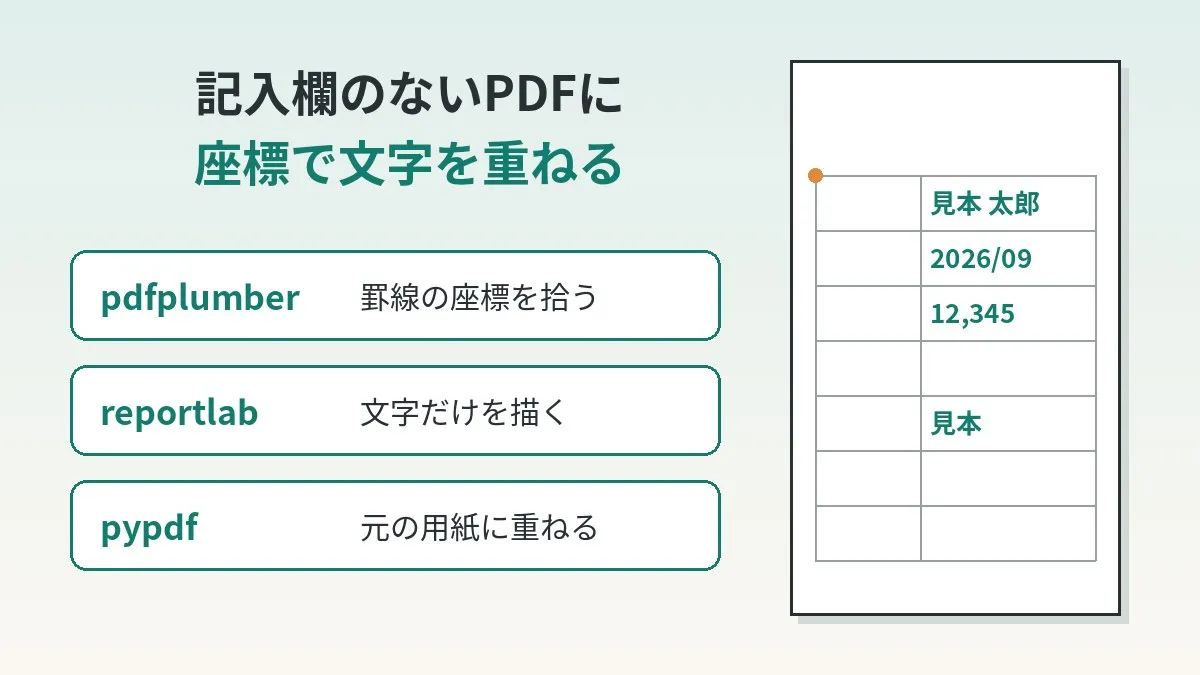
- There are three tools. pdfplumber picks up the coordinates of the ruled lines, and reportlab draws the text. pypdf does the overlaying
- The coordinate origin is top-left in pdfplumber and bottom-left in reportlab. Top and bottom are reversed, so a conversion is needed
- A4 is about 595×842 pt. 1 pt is 1/72 inch, and all coordinates are thought of in this unit
- Three spots (account number, signature, and seal) were not overlaid; I wrote them by hand after printing
I ran into a PDF with no fillable fields
What I prepared was a health insurance benefit claim form. It is the document for getting reimbursed for medical costs you paid up front. How the system works is covered in the steps to get back medical costs you paid up front through medical expense reimbursement and medical subsidies.
The form was distributed as a PDF. But when I opened it, the fields could not be clicked. There was nowhere at all to type. There were two sheets.
Printing it and writing everything by hand is one option. Still, writing the same numbers and periods in several places is a bit of a chore. A slip of the pen means reprinting. So I decided to have the AI type in just the parts that can be typed.
How to recognize a flat PDF
There are two kinds of PDF forms: those with embedded input fields, and those where the ruled lines are simply drawn as a picture.
Adobe’s official help calls the latter a “flat form.” It was described as a form whose author did not add input fields. In this article I will call it a flat PDF.
Telling them apart is easy.
- Open the PDF and click a field. If no cursor appears, it is very likely a flat PDF
- Pressing the Tab key does not move from field to field
- Ask the AI to “check whether this PDF has input fields”
The third can be checked with a library called pypdf. You just call get_fields(), which is in the official documentation. If there are no input fields, it returns None.
from pypdf import PdfReader

reader = PdfReader("form.pdf")
print(reader.get_fields())  # None if there are no input fields
That is where I learned my claim form had no input fields. If your PDF does have input fields, you do not need the method in this article. Typing into the fields the normal way is more reliable.
Three tools are used
The tools I had the AI use are all free Python libraries. Their roles divide up neatly.
| Tool | Role | Features used in this job |
|---|---|---|
| pdfplumber | Reads the original PDF | Gets coordinates of ruled lines and rectangles. Renders pages as images |
| reportlab | Draws a new PDF | Places only the text on a transparent sheet |
| pypdf | Overlays PDFs on each other | Checks for input fields. Overlays the text sheet on the form |
Picture a transparent sheet. You lay a transparent sheet over the claim form. You print only the text on it and stick the two together. That is all that is happening.
The original PDF itself is not rewritten. So if something is off, you can just remake the transparent sheet. That felt like the relaxed part of this approach.
The unit in a PDF is the point
Coordinates are in points (pt). The official reportlab documentation says 1 pt is 1/72 inch.
A4 is 210 mm × 297 mm. Converted to points, that is about 595×842 pt. When I printed the A4 constant in reportlab on my machine, it was 595.28×841.89.
In other words, 1 mm is about 2.83 pt. If a field is 8 mm high, that is roughly 23 pt. Keeping this conversion in mind gives you a feel for the numbers the AI comes up with.
The whole procedure at a glance
There are seven stages. Even if you are not an engineer, I think it is enough to be able to follow the order.
- Check whether the PDF has input fields
- Extract the coordinates of the ruled lines
- Decide the rectangle of each cell where text will go
- Create an overlay PDF carrying only the text
- Overlay it on the original PDF
- Render it as an image and check by eye
- Print it and write the handwritten parts
What I did was instruct the AI agent and check its work. I did not write the code myself. Still, I think it is better to know what is going on. When something is misaligned, you know where to look.
Getting the coordinates of the ruled lines
pdfplumber returns the shapes on a page as lists. According to the official description, lines are in .lines and rectangles in .rects. There is also .edges, which breaks rectangles into their four sides and combines them with the lines.
import pdfplumber

with pdfplumber.open("form.pdf") as pdf:
    page = pdf.pages[0]
    print(page.width, page.height)
    for r in page.rects:
        print(r["x0"], r["x1"], r["top"], r["bottom"])
x0 is the left edge and x1 is the right edge. Both are distances from the left edge of the page. top and bottom are distances from the top edge of the page.
Tables on a claim form are sometimes drawn as collections of lines rather than rectangles. In that case, look at .lines or .edges. You build up the cell rectangles from where the vertical and horizontal lines cross.
This was the dullest step and the most important one. Once the four numbers for a field (left, right, top, and bottom edges) are settled, the rest proceeds mechanically.
Creating the overlay PDF
Next, reportlab creates a PDF with only the text. To output Japanese, you need to register a font. The method given in the official documentation uses UnicodeCIDFont. Two Japanese typefaces are listed: the Mincho HeiseiMin-W3 and the Gothic HeiseiKakuGo-W5.
from reportlab.pdfgen import canvas
from reportlab.lib.pagesizes import A4
from reportlab.pdfbase import pdfmetrics
from reportlab.pdfbase.cidfonts import UnicodeCIDFont

pdfmetrics.registerFont(UnicodeCIDFont("HeiseiKakuGo-W5"))
c = canvas.Canvas("overlay.pdf", pagesize=A4)
c.setFont("HeiseiKakuGo-W5", 10)

H = A4[1]                  # page height
x0, x1, bottom = 100, 300, 142   # values taken with pdfplumber
y = H - bottom + 6         # flip vertically and lift slightly
c.drawString(x0 + 4, y, "Sample Taro")       # left-aligned
c.drawRightString(x1 - 4, y, "12,345")   # right-aligned
c.showPage()               # continue drawing if there is a second sheet
c.save()
The name and number are of course samples. The key is the single line H - bottom. It converts a distance from the top into a distance from the bottom. I explain why in a later section.
If you want to embed a specific typeface in the PDF, TTFont is also available. That method registers a font file you have locally. If you want the printed result to look consistent, choosing this may be a good option.
Overlaying on the original PDF and checking with an image
Finally, pypdf overlays the two. It is merge_page(), which the official documentation introduces as a “stamp.”
from pypdf import PdfReader, PdfWriter

overlay = PdfReader("overlay.pdf")
writer = PdfWriter(clone_from="form.pdf")
for i, page in enumerate(writer.pages):
    page.merge_page(overlay.pages[i])
writer.write("filled.pdf")
merge_page() overlays on top if you specify nothing. Adding over=False lays it underneath. This time I want the text on top, so the default is fine.
Do not print the resulting PDF right away. Render it as an image and look first. With to_image(resolution=150) in pdfplumber, you can turn a page into a PNG. Here I check every field to see that nothing spills outside its box.
Reviewing fixed costs involves much the same thing. Produce the numbers, check them by eye, and fix what is off. I think telecom costs are easier to work through in that order too.
Clicking this opens the Rakuten login page. Once you log in, you’ll see the campaign details.
The coordinate systems are upside down
The easiest thing to get wrong in this job is the direction of the coordinates. I put what I confirmed in the official documentation into a table.
| Item | pdfplumber | reportlab |
|---|---|---|
| Origin | Top-left of the page | Bottom-left of the page |
| Horizontal | x0 x1 are distances from the left edge | x increases to the right |
| Vertical | top bottom are distances from the top edge | y increases upward |
| Unit | Points | Points (1/72 inch) |
| Conversion | Read as is | y = page height − distance from the top |
pdfplumber also has values called y0 and y1. These are distances from the bottom edge of the page. So if you use y0, you can pass it to reportlab without any subtraction.
Mixing top and y0 causes confusion, though. It seems best to decide at the outset which one to use and to tell the AI as well. For example, settle on “read as distance from the top, and flip when drawing.”
- If the text appears on the vertically opposite side of the sheet, you have most likely forgotten to flip the coordinates
- Horizontally, both use the left edge as the reference, so values can be used as is
- Rather than hard-coding the sheet height, it is safer to use the value read from the original PDF
The one misalignment came from misreading a right edge
In fact, the text was misaligned once. The cause was the coordinate of the right edge of one field. The AI had read it as being further right than the correct position.
The cell rectangle is the reference for placing text. If the number for the right edge is wrong, text anchored to it moves too. This kind of misalignment is obvious as soon as you look at the overlaid result as an image.
The fix is simple. I had the ruled-line coordinates read again and replaced the right edge of the cell with the correct value. Then the overlay PDF was regenerated.
Generally speaking, the lines in claim form tables are intricate. Mistaking a line from a neighboring field or the outer frame for the edge of the field you want can happen. So coordinates are not “done once extracted.” I think of them as a set with the image-check step.
Three spots I left for handwriting
I did not overlay everything. I deliberately left the following three spots blank.
| Field | Overlaid | Reason |
|---|---|---|
| Fields such as name, period and amounts | Yes | Typos can be fixed on screen |
| Account number | No | I did not want it left in a file |
| Signature | No | It is a field the person writes personally |
| Seal | No | It is stamped after printing |
The general view is that a signature field is written by the person with their own hand. A printed name does not substitute for a signature. The seal is the same: you stamp it after printing on paper.
The account number is my own judgment rather than a rule. I did not want it left either in the data handed to the AI or in the PDF I created. There are only a few digits, so writing it by hand is no great burden.
I made one more judgment call. A document sealed with a “do not open” seal was enclosed unopened, and in the corresponding field I wrote “as per the enclosed document.”
- Check the instructions from the office you are applying to for which fields may be printed and which need a handwritten signature
- When in doubt, ask the office before printing
- Follow the rules of the office for how to make corrections as well
Check the entered values against the originals
When you leave things to an AI, it is easy to get absorbed in the alignment. What really matters on a claim form, though, is the numbers inside.
I checked the values entered against scans of the receipts and itemized statements. I confirmed one by one that the amounts and periods matched. I kept this as a step done by human eyes.
The thinking behind the check is the same as in how I have AI reconcile side-business expenses between accounting SaaS and email. If there are two sources, cross-check them. A claim form is no different.
For how to organize scanning a batch of paper, my article on batch scanning and sorting drill sheets may also be useful.
Handling personal information
A claim form is packed with personal information. When having an AI do the work, I think it is good to decide the scope of what you hand over in advance.
- For extracting coordinates alone, the blank claim form PDF is enough
- Hand over the values to enter separately, and only the items needed
- Do not hand over things you can do without, such as the account number
- Once submission is done, reconsider where the PDFs and images you created are stored
The last one in particular is easy to forget. The check images show the filled-in content exactly as it is. It is safer not to leave them sitting in the working folder.
In this article too, I have not written the name of the health insurer or any amounts. Whether writing about an experience or narrowing down the data handed over, I think the principle is the same.
There is also a no-code way
Some readers may feel “I would not go that far” at this point. In that case, “Fill & Sign” in Adobe Acrobat is a candidate.
Adobe’s official help describes how to fill in flat forms. It uses the Fill & Sign tool in Acrobat Reader. You can place text and symbols anywhere on the form. You choose the position with the mouse, so there is no need to think about coordinates.
Say the form is one or two sheets and has few fields to fill. Then I think this way is faster. Having AI type by coordinates pays off when there are many fields. It probably also suits cases where you produce the same form over and over.
Who this suits and who it does not
I think it suits people like the following.
- People who find it tedious to write the same content repeatedly on handwritten claim forms
- People who already have an environment where an AI agent can handle file operations
- People who expect to submit the same form repeatedly in the future
On the other hand, it does not suit cases like these.
- There are only a few fields, and handwriting would take 5 minutes
- The office you are applying to requires handwriting or does not allow the form to be modified
- You cannot spare time for the image check and the comparison with the originals
Even when you leave it to AI, checking remains a human job. If you are going to skip that, handwriting may be the safer choice.
- Have you confirmed that the claim form PDF has no input fields?
- Have you checked the instructions for which fields may be printed and which need a handwritten signature?
- Have you standardized the coordinate direction as either distance from the top or distance from the bottom?
- Have you rendered the overlaid PDF as an image and looked at every field?
- Have you checked the entered values against the original receipts and itemized statements?
- Have you decided which items, such as the account number, not to hand to the AI?
- Have you noted down which fields to write by hand after printing?
Frequently asked questions
Q. How can I tell whether a PDF is one I cannot type into?
If clicking a field shows no cursor, it is very likely a PDF with no input fields. The sure way is to check with get_fields() in pypdf. If there are no input fields, it returns None.
Q. Can I use this even if I cannot program?
It assumes you have an AI agent write the code. I did not write it myself either. However, you do need to do the image check and the comparison with the originals yourself.
Q. Why does the text appear at the vertically opposite position?
Because the coordinate origins differ. pdfplumber has its origin at the top-left and reportlab at the bottom-left. Subtract the distance from the top from the page height and you get the correct position.
Q. Japanese text comes out garbled or does not appear.
You may not have registered a Japanese font. In reportlab, you can register a Japanese typeface with UnicodeCIDFont. To use a font you have locally, use TTFont.
Q. Can the same method be used on a scanned paper claim form?
In a scanned PDF, the whole page is often a single image. In that case the ruled lines are not present as shapes, so pdfplumber cannot pick up coordinates. I think you would need a different approach that measures field positions from the image.
Q. Is it all right to print the signature field and seal field as well?
The general view is that the signature field is written by the person by hand. The seal is also applied after printing. The details differ by office, so please check the filling-in instructions.
Q. The position was off when I printed it.
Scaling at print time may be the cause. With a setting that shrinks to fit the paper, everything becomes slightly smaller. In this case the original form and the text are overlaid in a single PDF, so the ruled lines and the text move together. Setting the scale to actual size is the safe choice.
Q. Is the original PDF rewritten?
No, it is not. The original PDF is read in, and the overlaid result is saved under a different name. If something is off, you only need to remake the overlay PDF.
Official sources I referred to
- pdfplumber README (explanation of coordinates and lines / rects / edges)
- ReportLab User Guide, Chapter 2: Graphics and Text with pdfgen
- ReportLab User Guide, Chapter 3: Fonts and encodings
- pypdf documentation: Adding a Stamp or Watermark to a PDF
- pypdf documentation: Interactions with PDF Forms
- Fill in forms, Adobe Acrobat Reader (Adobe Help)
- Fill and sign PDF forms in Acrobat (Adobe Help)
Summary
Even on a PDF with no fillable fields, text can be overlaid as long as you can get the coordinates of the ruled lines. Where I stumbled was a misread coordinate. Re-reading fixes it, so the image-check step seems best not skipped.
I submitted the claim form by post. Type what can be typed, and write by hand what should be written by hand. Deciding where that line falls in advance should make the work calmer.
When you can cut down the effort of paperwork, you have a little more capacity for other household budget reviews. It may be worth taking a look at monthly fixed costs like telecom in that same flow.
Clicking this opens the Rakuten login page. Once you log in, you’ll see the campaign details.
This article contains affiliate advertising. If you sign up for a product or service through a link on this site, we may receive compensation from the partner company. The site operator is also an employee of Rakuten Group and may receive compensation through an employee referral program. The content and opinions here are based on the operator’s own experience and research regardless of any advertising relationship, but please read with the above in mind. See the Disclaimer & Affiliate Disclosure for details. Disclaimer & Affiliate Disclosure
This article includes machine-translated content. Please check the official Rakuten Mobile multilingual page for exact terms.
If you have concerns about Rakuten Mobile coverage or signal quality, you can consult through the official signal improvement request form .