- 01Five Things I Decided Before Erasing
- 02What Apple Says to Do Before Giving a Device Away
- 03The Order of the Work and Why
- 04Why the Apple Watch Decision Comes First
- 05What to Keep, What to Move, What to Erase
- 06Keeping the AirTag on My Own Apple Account
- 07Quick Start Requirements
- 08Assistive Access as an Option
- 09A Child’s Apple Account and Family Sharing
- 10Switching Video Calls Away From FaceTime
- 11Common Mistakes and Pitfalls
- 12What to Check Before You Start
- 13Frequently Asked Questions
- 14Official Sources I Referred To
- 15Wrap-Up
Good morning, this is まさきん.
I recently switched from an iPhone to a foldable Android phone. The iPhone I was left with is being prepared as a hand-me-down for my child. The handover is still a while off, so this time I am just writing down the plan I settled on.
Note: The information here is current as of publication. Please check the official sites for the latest terms.
- Before erasing the iPhone, decide what to do with the Apple Watch first
- The official steps go in this order: unpair, sign out, then erase
- My child’s migration uses Quick Start. It requires iOS 11 or later and Bluetooth
- An AirTag is tied to an Apple Account. Decide whether to hand it over or keep it before erasing
- If the parent is moving to Android, shift video calls to something that doesn’t depend on the device
Five Things I Decided Before Erasing
Preparing a hand-me-down looks like nothing more than erasing the phone and handing it over.
Once I looked into it, though, the order turned out to matter. Erasing can’t be undone. Before it, there is a whole row of decisions that need to be made first.
So this time I worked out the order and the deadlines in a question-and-answer format. The work is split into six subtasks. They are sequenced, so you can’t move to the next one until the previous one is done. Here are the five things I decided.
- Finish deciding what to do with the Apple Watch before erasing the iPhone
- Push the deadline back from early October to early November
- Keep the AirTag on my own Apple Account
- Migrate my child’s whole current device with Quick Start
- Switch family video calls from FaceTime to another method
I haven’t carried out any of these yet. They are plans for the handover in early November.
I pushed the deadline back because I decided not to rush. With sequenced work, everything stops if the first decision gets stuck. So I adjusted the deadline to match reality.
What Apple Says to Do Before Giving a Device Away
First, I checked Apple’s official page. There is a guide on what to do before you sell or give away your iPhone.
It lays out the process of removing your personal information in the following order.
- Make a backup
- If you paired an Apple Watch, unpair it
- Sign out of iCloud and the stores
- If you are moving to a non-Apple phone, deregister iMessage
- Run “Erase All Content and Settings”
- Remove the old device from your list of trusted devices
The Apple Watch step comes well before the erase. That became the backbone of my plan.
The same page carries a warning. If you delete contacts or photos by hand while still signed in, they are removed from iCloud as well. What you want to clear is only what is on the device. That is why signing out comes first.
The Order of the Work and Why
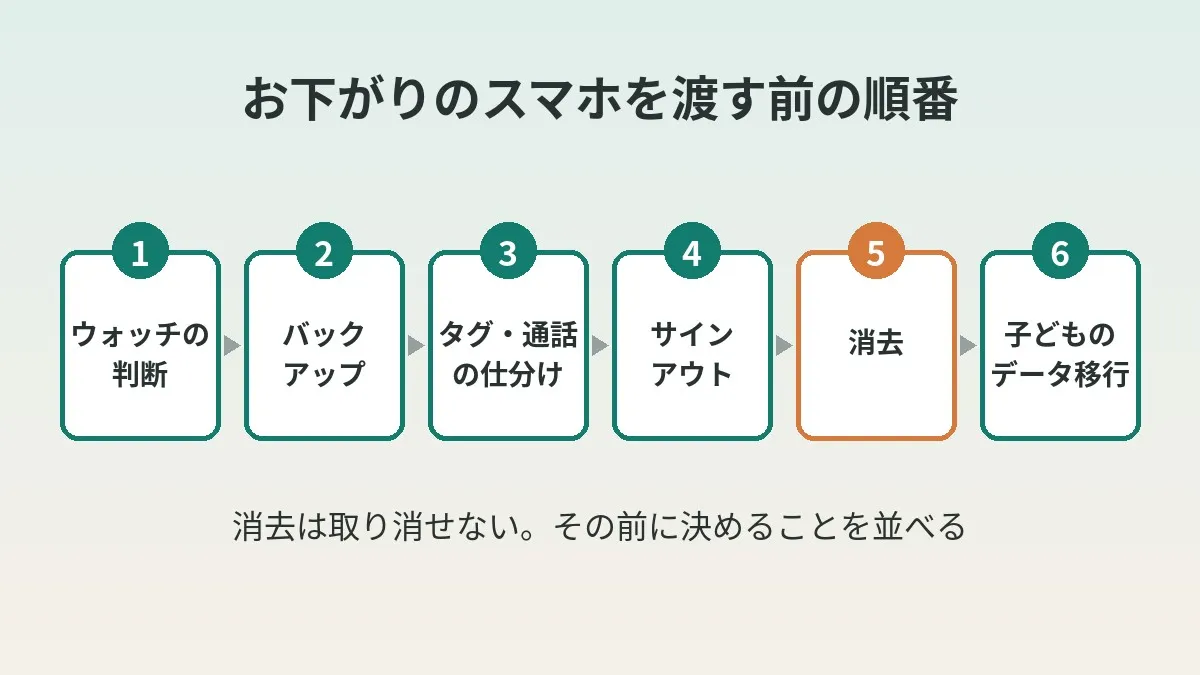
I matched the official steps against my own decisions and sorted out the sequence. The table below is not my actual list of subtasks. It is a generalized sequence that follows the official steps.
| Order | Task | Why it goes here |
|---|---|---|
| 1 | Decide what to do with the Apple Watch | The Watch is paired with the iPhone, so after the erase is too late |
| 2 | Back up the parent’s iPhone | Leaves somewhere to go back to after erasing |
| 3 | Decide how to handle the AirTag and video calls | Sort out the things tied to the Apple Account first |
| 4 | Sign out and deregister iMessage | If the number stays on iMessage, SMS may not arrive reliably |
| 5 | Erase all content and settings | There is no going back from here |
| 6 | Migrate from the child’s device with Quick Start | Requires an iPhone in an empty state |
Arranging things so the next step appears once the previous one is done is something I have also built into my task management. I wrote about it in detail in my article on Notion task dependencies.
Why the Apple Watch Decision Comes First
The very first thing I placed was the Apple Watch decision. Do I keep using it as is? Do I move to a different activity tracker? That gets decided first.
The reason is simple. An Apple Watch works as a pair with an iPhone. Once the paired iPhone has been erased, my options might narrow.
Apple’s official unpairing guide also explains the reason for the order. When you unpair from the iPhone, the Watch returns to factory settings. Activation Lock is removed at the same time.
On the other hand, it said that erasing from the Watch alone does not remove the lock. If there is any chance of parting with it, unpairing while the iPhone is still in hand seems the safe way.
When you unpair, you are also asked whether to keep or remove the cellular plan. Remove it if you are letting the watch go, keep it if you will keep using it. This is one more decision that has to come first.
I also sorted out the Watch’s cellular line in my article on number sharing.
What to Keep, What to Move, What to Erase
Next, I sorted my belongings into three groups.
| Item | Handling | Reason and notes |
|---|---|---|
| AirTag | Keep (stays on my Apple Account) | Someone else would need it removed before registering it |
| Apple Watch | Still deciding | Decide first whether to continue or move to another activity tracker |
| Data on my child’s current device | Move | Planning to migrate everything with Quick Start |
| Contents of the parent’s iPhone | Erase | Erase after signing out |
| iMessage registration for the phone number | Erase | So messages can be received on Android |
| Family calls on FaceTime | Replace | Switch to a method that doesn’t depend on the device |
Keeping the AirTag on My Own Apple Account
I decided to keep the AirTag on my own Apple Account.
According to Apple, an AirTag is tied to the Apple Account of the person who registered it. For someone else to use it, the original owner has to remove it in the Find My app. The steps were on the official page. You select the item in the Find My app and tap “Remove Item.”
- I could not find anything in Apple’s official materials on whether you can locate your own AirTag from Android
- The steps for removing and managing it assume the Find My app on an iPhone or other Apple device
- Even if you decide to keep it, check which device you will use to see its location before erasing
Quick Start Requirements
My child is going to migrate everything from the current device using Quick Start.
I checked the requirements on Apple’s Quick Start page.
| Item | What I confirmed officially |
|---|---|
| Supported versions | Both devices on iOS 11 or later |
| State of the current device | Connected to Wi-Fi. Bluetooth turned on |
| During the process | Both devices are occupied |
| Placement | Keep them close together and plugged in to power until finished |
Neither device can be used during the process. With a hand-me-down, the new side is the “erased iPhone.” So the order is that you can’t start until the erase is finished.
Devices enrolled in school or company management may not be able to use Quick Start. A phone bought for home use is unlikely to fall under that. Checking the iOS version ahead of time is enough for peace of mind.
Alongside the device plan, it is worth thinking about what to do with your child’s mobile line. Phone bills come every month, so reviewing them before the handover may make things easier. I summarized conditions such as whose name the contract is in in my article on the Saikyo Kodomo Wari kids’ discount.
Clicking this opens the Rakuten login page. Once you log in, you’ll see the campaign details.
Assistive Access as an Option
There are also ways to keep the screen simple on an iPhone you give to a child. One of them is Assistive Access.
Apple’s guide described it as a distinctive interface that makes it easier to use iPhone independently. It is positioned as a feature for people with cognitive disabilities. Being able to narrow down which apps and features are used is its defining trait.
Setup requires a supporter, such as a family member, to go through it together. You also need the Apple Account and passcode of the person who will use it. With a new iPhone, the flow was to finish the regular initial setup first.
To exit, you triple-click the side button and enter the passcode. If the family knows that passcode, it may be easier to switch back when something goes wrong.
I have not been able to confirm officially whether this setting carries over as is with Quick Start. If you use it, I think it is reassuring to set aside time to review the settings after the migration.
A Child’s Apple Account and Family Sharing
An easy point to get stuck on with a hand-me-down is whose Apple Account to sign in with.
Apple offers an Apple Account for children. For children under 13, the parent or guardian creates it. The age requirement apparently varies by country or region.
To create one, you need to set up Family Sharing first. The flow went through “Family” in Settings.
With a child account, you can use management features such as Screen Time. The official overview introduced limits on usage time and approval before purchases. There are also limits on who the child can communicate with, and location sharing.
Whether you can keep managing things when the parent is on Android only is a separate question, though. The official explanation assumed Settings on an iPhone, iPad, or Mac. It doesn’t clearly say whether the parent needs an Apple device. This is another point I want to verify before erasing.
Switching Video Calls Away From FaceTime
Our family video calls have been on FaceTime until now. Since the parent is now on Android, I am switching to a method that doesn’t depend on the device. Google Meet is among the candidates, but nothing is final yet.
| Method | How to use it from Android | Conditions I confirmed officially |
|---|---|---|
| FaceTime (joining via link) | Open the link in the latest version of Chrome or Edge | Only the Apple device side can create a link. You wait for the host to approve before joining |
| Google Meet | Join in the app or a browser | Requires a Google Account. Supports Android 5.0 and later and iOS 17 and later |
With FaceTime, you can at least join from Android. According to Apple’s guide, you enter your name and tap join. But creating the link happens on the iPhone side. Screen sharing and SharePlay aren’t available from the web either.
For Google Meet, I checked the supported environments on the requirements page. Free personal accounts have time limits. According to the feature details page, one-on-one calls can run 24 hours. With three or more people, it was up to 1 hour. For family calls, that may be enough in most situations.
How my child will hold a Google Account needs to be decided separately.
Include iMessage Deregistration Too
If you are moving your number over to Android, include iMessage deregistration as well. According to Apple’s guide, SMS and other messages may not arrive if the registration remains.
If you still have the iPhone, you turn off iMessage and FaceTime in Settings. If you have already moved the SIM, the procedure was to put it back in the iPhone first. With a hand-me-down, I think the straightforward thing is to do it before erasing.
If the iPhone is no longer with you, there is also an online deregistration process. It can take a few hours to take effect. I would rather do this on a day with time to spare, not right before the handover.
Common Mistakes and Pitfalls
Here are the points that look easy to trip over. These are not mistakes I actually made.
- Erasing the iPhone before unpairing the Apple Watch
- Deleting contacts and photos by hand while still signed in
- Handing over an AirTag without removing it, so the recipient can’t register it
- Leaving the iMessage registration in place, so messages arrive unreliably on the Android side
- Handing the phone over without deciding how to manage it once the parent is on Android
All of these can be recovered from if you catch them before the erase.
What to Check Before You Start
- Whether to keep using the Apple Watch, part with it, or move to another device
- Whether a recent backup of the iPhone exists
- Whose Apple Account the AirTag will live on
- The status of the child’s Apple Account and Family Sharing setup
- Whether both devices are on iOS 11 or later with Wi-Fi and Bluetooth available
- What family video calls will switch to
- Whose name the child’s line will be under and with which carrier
Frequently Asked Questions
Q. Can I hand down an iPhone just by erasing it?
There are things to do before erasing. In Apple’s guide, unpairing the Apple Watch and signing out came first. Only after that do you move on to “Erase All Content and Settings.”
Q. Does Quick Start work with an older iPhone?
It is said to work as long as both devices are on iOS 11 or later. Keep in mind that neither device can be used during the process.
Q. Can I hand an AirTag to my child as is?
As is, it can’t be registered to the child’s Apple Account. The original owner has to remove it in the Find My app. I decided not to hand it over and to keep it on my own account.
Q. Can I join FaceTime from Android?
If you receive a link, you can join from a browser. The latest version of Chrome or Edge was required. However, you can’t create links or start calls from the Android side.
Q. When should I deregister iMessage?
Do it when moving your number to a non-Apple phone. If you still have the iPhone, you turn it off in Settings. If you don’t, an online procedure was available.
Q. Does Assistive Access need to be set up again on a new device?
I could not confirm officially whether the settings carry over in a migration. On a new iPhone, the flow is to finish the regular initial setup and then configure it. To be safe, it may be reassuring to set aside time on the assumption that you will set it up again.
Official Sources I Referred To
- What to do before you sell, give away, or trade in your iPhone or iPad (Apple Support)
- Unpair and erase your Apple Watch (Apple Support)
- Use Quick Start to transfer data to a new iPhone (Apple Support)
- Set up Assistive Access on iPhone (Apple Support)
- If an item is connected to another Apple Account (Apple Support)
- Create an Apple Account for your child (Apple Support)
- Overview of Family Sharing and parental controls (Apple Support)
- Join a FaceTime call from an Android or Windows device (Apple Support)
- Deregister iMessage (Apple Support)
- Requirements for using Google Meet (Google Meet Help)
- Details on Google Meet features (Google Meet Help)
Wrap-Up
Preparing a hand-me-down turned out to be mostly about the decisions that come before the erasing. There are three: the Apple Watch, the AirTag, and video calls. Once those are settled, the rest looks like it can proceed according to the official steps.
I am still only at the stage of having decided. I am going to work through it one step at a time toward early November.
Once the device plan is in view, how about thinking through your child’s mobile line at the same time?
Clicking this opens the Rakuten login page. Once you log in, you’ll see the campaign details.
This article contains affiliate advertising. If you sign up for a product or service through a link on this site, we may receive compensation from the partner company. The site operator is also an employee of Rakuten Group and may receive compensation through an employee referral program. The content and opinions here are based on the operator’s own experience and research regardless of any advertising relationship, but please read with the above in mind. See the Disclaimer & Affiliate Disclosure for details. Disclaimer & Affiliate Disclosure
This article includes machine-translated content. Please check the official Rakuten Mobile multilingual page for exact terms.
If you have concerns about Rakuten Mobile coverage or signal quality, you can consult through the official signal improvement request form .