- 01Why I decided the uses first
- 02How I narrowed 68 ideas down to 12
- 03The 12 adopted ideas at a glance
- 04Matching functions to uses
- 05Printing for study (1, 4, 5, 7)
- 06Printing for schedules and logistics (2, 3, 8, 12)
- 07The idea that came from my child (6)
- 08Uses for scanning (9, 10, 11)
- 09Official specs of the DCP-L2660DW
- 10The official running cost
- 11Ideas I did not adopt
- 12My mistake: assuming the scanner was monochrome
- 13Common mistakes and pitfalls
- 14Frequently asked questions
- 15Official sources I referred to
- 16Summary
Good morning, まさきん here.
If a monochrome laser printer only ever prints drills, that might be a bit of a waste. I bought an all-in-one for home study, so I decided up front what else it would be used for. I am leaving those 12 ideas here as a preparation memo.
Note: this information is current as of the publication date. Please check the official sites for the latest conditions.
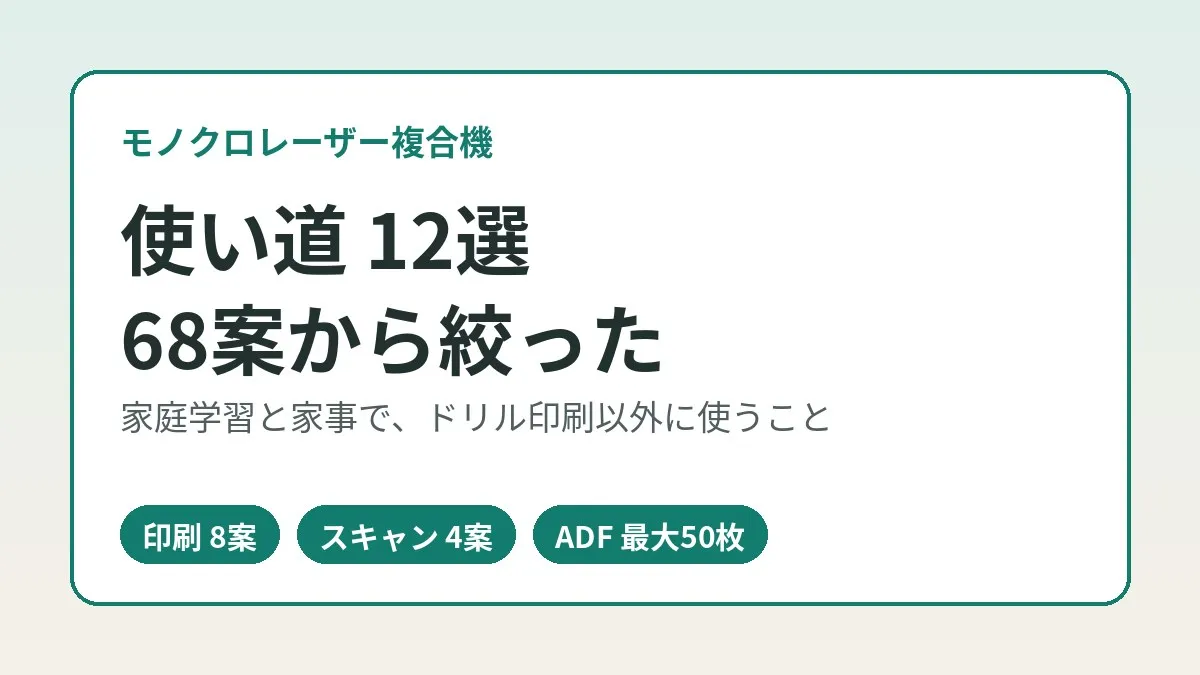
- I came up with 68 uses and decided yes or no on each, one question at a time. 12 were adopted
- The breakdown is 8 printing ideas and 4 scanning ideas. All of them are still at the “decided to do it and turned it into a task” stage
- The machine is the Brother DCP-L2660DW, an A4 monochrome laser all-in-one. The ADF holds up to 50 sheets, and scanning supports color
- The ADF reads one side only. I plan on flipping double-sided mail and feeding it through twice
- The official running cost is about 3.5 yen per sheet (tax included). That is the official figure as of October 2026
Why I decided the uses first
It all started with daily drill printing. I re-measured the per-page cost of my inkjet and decided to move just the drills over to a mono laser. The background is in my post on deciding to move drill printing to a laser.
What I actually bought after that was the Brother DCP-L2660DW. It is an all-in-one that copies and scans on top of printing.
The thing is, buying a machine does not mean the extra features get used. If all it does is print drills, I have simply added one more box that takes up space. So before starting to use it, I decided what it would be for.
How I narrowed 68 ideas down to 12
The method is simple. First, together with an AI, I listed every use I could think of. That produced 68 ideas.
Next, I decided on each idea one by one. The AI asked me one question at a time, and I answered “do it” or “skip it”. I find it easier not to waver when the questions come one at a time than when I look at everything at once.
- List uses without worrying about the count (68 ideas)
- Answer “do it” or “skip it” for each idea
- Turn each adopted idea into a task (12 ideas)
- Write down what to prepare for each idea
12 ideas were adopted. That is a little under 20 percent. The remaining 80 percent or so were set aside.
To be honest here, none of these have produced results yet. I have only gotten as far as “decided to do it and turned it into a task”. So this post cannot tell you about effects or impressions.
The 12 adopted ideas at a glance
Here is the whole picture as a table first. The items to prepare are things I plan to get ready from here on.
| No. | Use | Function used | What to prepare |
|---|---|---|---|
| 1 | Print QR codes on drills | Print and scan | Rules for what the QR code contains |
| 2 | The one-page family sheet | Source data for schedules and things to bring | |
| 3 | Weekend bundle printout | A template for bundling one week of work | |
| 4 | Print grid paper and graph paper | Paper templates | |
| 5 | A single sheet of weak points only | A record of mistakes | |
| 6 | A visual map of target schools | The child’s own concept | |
| 7 | Enlarged printouts for the younger child | Print and copy | A rough enlargement ratio |
| 8 | Homework checklist for after-school lessons | A list of homework items | |
| 9 | Automatic sorting of the scan destination | Scan | A destination folder and a way to watch it |
| 10 | Batch-scan mail with the ADF | Scan (ADF) | A place to put the mail |
| 11 | Scan and save the kids’ drawings | Scan (flatbed) | A destination and a naming rule |
| 12 | Shopping list for bulk buying | A list template |
Counting them up, there are 8 printing ideas and 4 scanning ideas. Scanning carries more weight than I expected.
Matching functions to uses
Next is a table from the function side. I checked which function serves how many ideas.
| Function | Matching ideas | Relevant part of the official specs |
|---|---|---|
| Monochrome printing | 1 to 8, 12 | About 34 pages per minute, A4 single-sided |
| Automatic duplex printing | 3, 8 | Supports A4 plain and recycled paper |
| Copy (enlargement) | 7 | Ratio of 25 to 400% in 1% steps |
| ADF scanning | 1, 10 | Up to 50 sheets. Reads one side |
| Flatbed scanning | 11 | Supports color |
For the automatic duplex row, I just slotted in the ideas where it looks usable. Whether I actually print double-sided is something I will decide after starting.
Printing for study (1, 4, 5, 7)
Print QR codes on drills (1). I will put a QR code in the corner of each drill. The point is to identify mechanically which drill it is when the graded sheet gets scanned. I want sorting to work without relying on human eyes.
Print grid paper and graph paper (4). I will print grid sheets for kanji practice and graph paper, only as many as needed. The aim is to be able to change the size of the squares to suit each child.
A single sheet of weak points only (5). I will gather only the problems they got wrong onto one sheet. Rather than adding new problems, it is a sheet for redoing the spots where they stumbled.
Enlarged printouts for the younger child (7). I will print the same content larger. According to the official specs, the copy ratio is 25 to 400%. Whether to make the original data larger or enlarge it by copying is something I plan to decide by trying.
Printing for schedules and logistics (2, 3, 8, 12)
The one-page family sheet (2). This is a sheet that puts the day’s schedule and things to bring on one page. It is paper that catches your eye just by sitting there, without anyone opening a screen.
The flow for turning school notices into schedule entries is in my post on registering school handouts in the calendar. I picture the one-page family sheet as one more outlet for that flow, this time on paper.
Weekend bundle printout (3). I will make the weekend’s work into a single bundle.
Homework checklist for after-school lessons (8). I will make a table of homework for each lesson and have the kids mark items off as they finish.
Shopping list for bulk buying (12). I will carry a paper list on bulk-buying trips. On the sales floor, I will look at paper instead of my phone.
When the number of printed pages goes up, cost is what comes to mind. I think the habit of looking at cost per sheet carries straight over to reviewing fixed costs such as phone and internet bills.
Clicking this opens the Rakuten login page. Once you log in, you’ll see the campaign details.
The idea that came from my child (6)
The visual map of target schools was my child’s own idea. Out of the 68 ideas, this is the only one that did not come from me.
I intend to leave the shape of it up to them. All I am deciding is that I will be the one in charge of printing.
Since it is monochrome, there will be no color. If they want color, coloring it in by hand looks like an option.
Uses for scanning (9, 10, 11)
Automatic sorting of the scan destination (9). I will watch the folder where scanned images land. When a new file arrives, the setup sorts it automatically by type. The QR code from idea 1 is used here.
Batch-scan mail with the ADF (10). I will stack the mail that arrives in the ADF and read it all at once. The ADF is the unit that feeds originals automatically, and it holds up to 50 sheets.
Scan and save the kids’ drawings (11). I plan to place drawings on the flatbed one at a time. Scanning supports color, so the colors can be kept as they are.
- The ADF reads one side only. In the official specs, “simultaneous duplex scanning” is shown as ”-”
- Mail printed on both sides has to be flipped and fed through once more
- I have not yet tested whether thick paper or paper with strong creases can go through the ADF
Official specs of the DCP-L2660DW
Here are the specs I confirmed on the official page. These are copied from the listing, not impressions from use.
| Item | Official listing |
|---|---|
| Type | A4 monochrome laser all-in-one (print, copy, scan) |
| Print speed (A4) | Single-sided about 34 pages per minute, duplex about 16 pages per minute |
| Automatic duplex printing | Supported (A4 plain and recycled paper) |
| ADF | Up to 50 sheets (80g/m2) |
| Simultaneous duplex scanning | Not supported |
| Scan color depth | Full color (30-bit input, 24-bit output) |
| ADF scan speed | Color about 7.5 pages per minute, monochrome about 22.5 pages per minute (single-sided) |
| Copy ratio | 25 to 400% in 1% steps |
| Paper feed | Standard tray 250 sheets + manual feed 1 sheet |
| Connectivity | USB, wired LAN, wireless LAN (wired and wireless are mutually exclusive) |
| Included toner | Starter toner (about 700 pages) |
| Replacement toner | TN32JXL (about 3,000 pages), TN32JXXL (about 5,000 pages) |
| Drum unit | DR32J (about 15,000 pages) |
| Dimensions and weight | 410 mm wide × 399 mm deep × 319 mm high, about 11.4kg |
| Price | Open price |
Printing is monochrome only, but scanning can read in color. This is a point I got wrong once. More on that later.
No dedicated driver is provided for macOS. The guidance is to use AirPrint for printing and scanning. If you use a Mac, it is safer to check this first.
The official running cost
The running cost on the official page is about 3.5 yen per sheet (tax included) for A4 single-sided. That is the figure when using the super high-capacity TN32JXXL. A note says it comes to about 4.3 yen per sheet once the drum is included.
This figure is said to be calculated from prices at the official online store as of October 2026. If prices move, the figure changes too. So I treat it as a guide with a date attached.
One more thing to watch: you cannot say a laser is always cheaper. A Brother explainer article also gives an example of a high-capacity ink inkjet at about 0.7 yen per sheet for A4 monochrome. It depends on the model and how you use it.
I chose a laser because of what I measured on the inkjet I had on hand. Those numbers are in my post on measuring the per-page cost of an inkjet. More uses mean more pages, so I plan to re-measure the increase with the same method.
Ideas I did not adopt
Of the 68 ideas, 56 were not adopted.
For example, I did not adopt a “manual management sheet for 3D printing”.
I do not think the ideas I set aside need to be deleted. Once the 12 are up and running, I may look over the rest again.
My mistake: assuming the scanner was monochrome
This part is a record of a mistake.
While writing out the uses, I had jotted down “scanning is monochrome”. My basis was a single spec table from an overseas retailer. I took it at face value.
That was wrong. The manufacturer’s data sheet shows that color scanning is supported. The official Japanese specs also list full-color depth.
Had the wrong note stayed, idea 11, “scan and save drawings”, would have assumed the colors would be lost. It was a mistake that could have affected which ideas got adopted.
There is one lesson. Check specs on the manufacturer’s official page. Retailer tables are handy, but when there is only one source, it seems wise to doubt it.
- Check specs on the manufacturer’s official spec page, not on a retailer’s table
- “Monochrome machine” refers to printing. It does not necessarily mean scanning is monochrome too
- For notes backed by only one source, write down where they came from
Common mistakes and pitfalls
Since I am about to start myself, I am writing these as points I want to watch.
Assuming the ADF handles both sides. The ADF on this model reads one side only. In a household with a lot of double-sided documents, the effort could nearly double.
Buying without deciding the uses. Because an all-in-one has so many functions, it tends to end up used only for printing unless you decide. I too only decided after buying.
Starting everything at once. Starting all 12 ideas at the same time would likely leave every one of them half done. I have made them tasks and plan to move through them one at a time.
Forgetting the times you need color. A mono laser cannot print color. If you need color even a few times a year, it is safer to decide where you will go for it.
Thinking the included toner is the same as a replacement. The included one is a starter cartridge good for about 700 pages. The more uses you add, the sooner the first replacement comes.
- Have you written down the all-in-one functions you want to use (print, copy, scan)?
- Have you listed every use you can think of and decided yes or no on each one?
- Have you written what to prepare for each adopted idea?
- Have you checked in the official specs whether the ADF reads one side or both?
- Have you checked in the official specs whether scanning supports color?
- Have you decided where to go when color printing is needed?
- Have you checked the page count of the included toner and the model number of the replacement toner?
Frequently asked questions
Q. Is a monochrome laser printer suited to home study?
For a household that prints many monochrome pages every day, I think it is a candidate. Brother’s explainer also says lasers are less prone to blurring fine text and are fast. That said, cost varies with the model and how you use it. It is probably best to compare using your own numbers before deciding.
Q. Can a monochrome laser all-in-one scan in color?
The DCP-L2660DW can. The scan section of the official specs lists full-color depth. It differs by model, so look at the official spec page before buying.
Q. Can the ADF read double-sided documents?
On this model, it cannot read both sides in one pass. The official specs list simultaneous duplex scanning as not supported. Double-sided documents have to be flipped and fed through once more.
Q. Are you already doing all 12 ideas?
No. I am at the stage of having decided to do them and made them tasks. I do not yet know the effects or how they feel in use.
Q. How did you come up with the uses?
I worked with an AI to get to 68 ideas. After that I answered “do it” or “skip it” for each one. In effect, I separated the role of generating quantity from the role of deciding.
Q. How much is the running cost?
The official figure is about 3.5 yen per sheet (tax included) for A4 single-sided. That is with the TN32JXXL, and it is stated as about 4.3 yen per sheet including the drum. The figure is based on prices at the official online store as of October 2026.
Q. How much does the unit cost?
The manufacturer lists it as open price. It differs by retailer, so check the price at the time you buy.
Q. Can it be used with a Mac?
The official page says no driver is provided for macOS. For both printing and scanning, the guidance is to use AirPrint.
Official sources I referred to
- DCP-L2660DW product page (Brother)
- DCP-L2660DW specifications (Brother)
- DCP-L2660DW consumables and options (Brother)
- Which type of printer is right for our home? (Brother)
- Asking the staff: the difference between laser and inkjet (Brother)
Summary
I came up with 68 uses for a monochrome laser all-in-one and adopted 12. That is 8 for printing and 4 for scanning. All are still in the preparation stage, and the results are yet to come.
What I learned along the way is that a wrong assumption about specs can change which ideas get adopted. It was a mistake I could have prevented by opening the official spec page once.
Taking stock of uses after buying a machine is an approach that looks useful for fixed costs too. Take a moment to check whether the phone plan you signed up for long ago still fits the way you use it now.
Clicking this opens the Rakuten login page. Once you log in, you’ll see the campaign details.
This article contains affiliate advertising. If you sign up for a product or service through a link on this site, we may receive compensation from the partner company. The site operator is also an employee of Rakuten Group and may receive compensation through an employee referral program. The content and opinions here are based on the operator’s own experience and research regardless of any advertising relationship, but please read with the above in mind. See the Disclaimer & Affiliate Disclosure for details. Disclaimer & Affiliate Disclosure
This article includes machine-translated content. Please check the official Rakuten Mobile multilingual page for exact terms.
If you have concerns about Rakuten Mobile coverage or signal quality, you can consult through the official signal improvement request form .