- 01What Is Rakuten Card Fraud Detection?
- 02How Will You Be Contacted?
- 03The Deadline Is 72 Hours from the Notification
- 04Where Is the Confirmation Screen?
- 05Steps to Respond
- 06If the Charge Was Yours
- 07Things to Watch When Redoing a Stopped Payment
- 08If You Do Not Recognize the Charge
- 09How to Spot Fake Emails and SMS
- 10What to Do Before a Long Weekend or Trip
- 11Temporarily Locking Your Card When Worried
- 12Common Mistakes and Pitfalls
- 13FAQ
- 14Official Sources I Referred To
- 15Summary
Good morning, this is まさきん.
I was tallying up my spending from the three-day weekend in October when I noticed a notification from Rakuten Card. It said their fraud detection had stopped a payment. There is a deadline for confirming whether the charge was really yours, and if you miss it during a long weekend, the window may simply close. So I decided to sort out the confirmation steps using the official guidance.
*This reflects information at the time of publication. Please check the official site for the latest terms.
- Rakuten Card’s fraud detection monitors card use 24/7, 365 days a year, and temporarily suspends transactions that look suspicious
- You respond from Card Usage Confirmation (カードご利用内容の確認) in Rakuten e-NAVI or the app. Officially it takes about 3 minutes
- The official guidance asks you to respond within 72 hours of the notification
- If the charge was yours, the restriction is lifted. But the stopped payment did not go through, so you need to buy again
- Do not tap links in emails or SMS. Going in through the official site or the app is the safe route
What Is Rakuten Card Fraud Detection?
Rakuten Card has a fraud detection system to prevent unauthorized use. The official page describes it as monitoring 24 hours a day, 365 days a year.
When it spots a transaction that may be fraudulent, it temporarily suspends the card. You are then asked to confirm whether the use was yours.
The official FAQ goes into a bit more detail. Transactions that resemble past fraud patterns are flagged. Transactions may also be put on hold if a third party might be using the card.
I work for the Rakuten Group. Setting that aside, I genuinely think this system exists to protect cardholders. A blocked payment is a little inconvenient, but it beats having fraudulent charges slip straight through, don’t you think?
How Will You Be Contacted?
The notice does not always come through just one channel. Here are the contact methods I could confirm on the official pages.
| Channel | Official guidance |
|---|---|
| Rakuten Card app | A notice (banner) appears at the top of Home (ホーム) |
| Rakuten e-NAVI | Card Usage Confirmation (カードご利用内容の確認) appears after you log in |
| Mainly sent from “@mail.rakuten-card.co.jp” | |
| SMS | Sent from numbers listed on the official page. Receiving it is free |
| Phone | If you answer that you do not recognize a charge, Rakuten Card calls you to confirm |
| In store | When a payment is held, the store may call the card company |
Some emails may come from other domains. The official FAQ lists two: “@bounce.rakuten-card.co.jp” and “@mkrm.rakuten.co.jp”.
For SMS, the official page lists the sender numbers. It also notes that the numbers differ for SoftBank and other carriers. You can check whether the number you received from is on that list.
The Deadline Is 72 Hours from the Notification
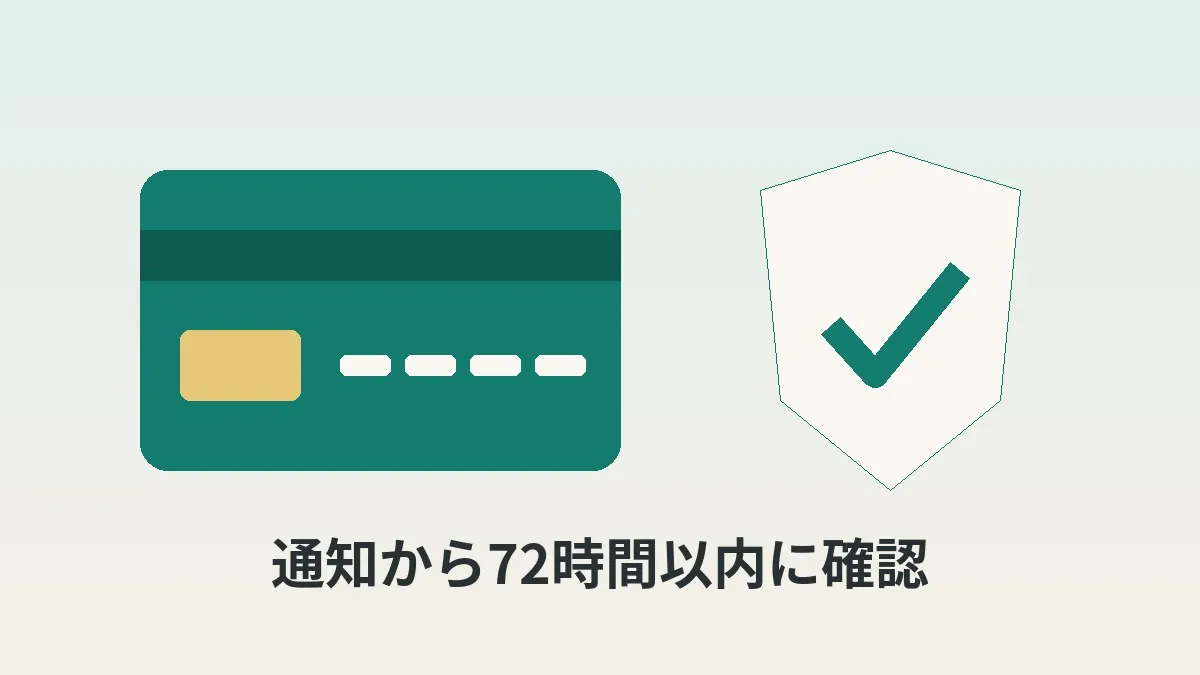
The most important thing is the deadline. The official fraud detection page says, “Please respond within 72 hours of the notification.”
The notification I received also stated a response deadline. So the surest approach is to check the deadline written in your own notification first.
72 hours is exactly 3 days. If the notice arrives at 10 a.m. on Saturday, the deadline is 10 a.m. on Tuesday. If it lands on the first day of a three-day weekend, you are looking at the morning after the holiday.
One more thing to watch out for. According to the official FAQ, the notice stops being displayed after 72 hours. The same goes once you have already responded. I could not find anything on the official pages about what happens if you never respond.
So it is probably safest to respond as soon as you notice it.
How to Read the Deadline
I think checking things in this order keeps it simple.
- Check when the notification arrived (the time you received the email or SMS)
- If the message states a deadline, go by that date and time
- If it does not, add 72 hours to the time you received it
- Put that date and time in your calendar or reminders
Remembering it as “the same time, 3 days later” may help you avoid miscounting.
Where Is the Confirmation Screen?
The screen you respond on is called Card Usage Confirmation (カードご利用内容の確認). The official FAQ describes three ways to open it.
| How to open it | Official guidance |
|---|---|
| Rakuten e-NAVI | Log in and open Card Usage Confirmation (カードご利用内容の確認), which appears on screen |
| Rakuten Card app | Open it from the banner at the top of Home (ホーム) |
| Email / SMS | Open it from the URL in the message (not recommended) |
Officially, Rakuten Card recommends not tapping links in emails or SMS. Instead, log in to Rakuten e-NAVI from your browser.
If you respond in the app, there is a version requirement: 6.28.2 or later on both iOS and Android. An older version may not show the screen.
Sometimes the screen does not appear even after you log in. Officially, that means the message may be phishing, and you are advised to delete the email.
Steps to Respond
Here is the flow based on the official FAQ. This is the order I plan to follow too.
- Close the email or SMS without tapping any links
- Log in to Rakuten e-NAVI from the official site, or open the Rakuten Card app
- Check whether Card Usage Confirmation (カードご利用内容の確認) is showing
- Go through each listed transaction one by one
- Compare the date, amount, and merchant with your memory and receipts
- Answer for each transaction whether it was yours
- On the completion screen, check what happens next
Officially, responding takes about 3 minutes. The guidance also says responding will not create any charge.
You will never be asked for your full card number or your point card number on that page.
Tips for Matching Transactions
Step 5 is probably the most time-consuming part. That is because the merchant name on the statement can differ from the store sign.
The official page gives examples of charges billed under a facility name or a parent company name. They may also show up under a payment processor’s name. I wrote about the shopping mall case in sorting statements when the store name looks different.
It is also worth checking that no family member has registered your card on their account. Officially, use by anyone other than the cardholder is prohibited by the terms.
If the Charge Was Yours
If you answer that you made the purchase, the restriction is lifted.
However, the stopped payment was not completed. The official guidance says you need to pay again. The transaction shown on screen is treated as one that will not be billed.
In other words, responding does not automatically push the payment through.
Things to Watch When Redoing a Stopped Payment
Before you buy again, there are a few things to check. Here is what the official FAQ says.
- Confirm with the store that the payment did not go through
- Then go through the purchase again
- If it still fails, suspect your available credit or an input error
Skipping step 1 could lead to a double order. For online shops, checking your order history first gives peace of mind.
As for step 3, a payment can fail because of your available credit or your security code. A wrong PIN is also listed as a cause.
The guidance also notes that fraud detection may be triggered again.
I covered how to get an early read on your card usage in another post: how to see your Rakuten Card spending before the statement is finalized.
Reviewing how you use your card naturally turns your attention to monthly fixed costs. Among them, your phone bill is one item where a single review keeps paying off.
Clicking this opens the Rakuten login page. Once you log in, you’ll see the campaign details.
If You Do Not Recognize the Charge
If you answer that you do not recognize a transaction, the card is suspended. Officially, Rakuten Card will then call you to confirm.
After the phone check, a new card with a different number is issued. The completion screen also shows a section about what happens next (この後の流れにつきまして). Reading it tells you what will arrive next.
The official page also covers liability for fraudulent charges. If a charge is confirmed as fraud and the member is judged not to be at fault, the member does not have to pay the fraudulent amount.
When the New Card Arrives
A reissued card comes with a new card number. Officially, you may need to update recurring payments, such as mobile phone and internet bills.
Some merchants update automatically, but not all of them. Keeping a list of where your card is registered should help you avoid missing any.
How to Spot Fake Emails and SMS
Fake emails imitating fraud detection notices are going around. The official FAQ summarizes how to check.
| What to check | Official guidance |
|---|---|
| Sender | Emails come from addresses like “@mail.rakuten-card.co.jp”. SMS comes from numbers listed officially |
| What shows after login | If Card Usage Confirmation (カードご利用内容の確認) or a notice appears in e-NAVI, it is genuine |
| Second password | A legitimate login asks for your second password |
| Information requested | You are never asked to enter your full card number or point card number |
| e-NAVI registration | People not registered with e-NAVI do not receive this notice |
The key point is not to relax just because the sender looks right. Even officially, you are told to always verify in e-NAVI even when the sender matches.
There is also a note about shortened URLs in SMS. Rakuten Card SMS messages may use URLs in the form “https://r10.to/”. But that alone does not prove the message is genuine.
The guidance also says Rakuten Card never asks you to download a file via SMS. And you should not call back suspicious numbers.
Watch Out for Phone Calls Too
The official site also gives examples of suspicious calls. Rakuten Card does not ask for your 16-digit card number over the phone. If someone does, you are told to hang up immediately.
If you entered your Rakuten ID and password on a fake site, the guidance says to change your password right away.
What to Do Before a Long Weekend or Trip
This experience made me realize how much preparation before a holiday matters. Here is what you can do in advance, based on the official guidance.
- Register contact details where you can be reached during the day (SMS, email, phone)
- Update the Rakuten Card app to the latest version
- If you plan a large purchase or use abroad, apply in advance
- When traveling abroad, make sure your SIM can receive SMS
Step 1 comes from the official fraud detection page. If they cannot reach you, your response may be delayed.
For step 3, you can apply through the chat support in Rakuten e-NAVI. Choose Advance Usage Notice (ご利用の事前申請) as the inquiry type. You can apply from 1 month before the planned date.
For trips abroad, you may be asked about your destination and travel dates. Even so, the guidance says transactions can still be held after you notify them.
Step 4 is easy to overlook. Online payments may ask for a one-time password by SMS. If you swap in a SIM that cannot receive SMS, the verification code will not reach you.
Note that the amount that triggers a hold is not disclosed. Officially, they cannot share it for security reasons.
Temporarily Locking Your Card When Worried
Sometimes you may be uneasy about transactions that have not yet appeared on your statement. The official page says you can lock your card for 24 hours in Rakuten e-NAVI.
It automatically becomes usable again 24 hours after the lock. You can also unlock it yourself.
If you do not know why your card is not working, the first step is to check the card status in the app or e-NAVI. If it says there may be unauthorized use, the restriction is due to fraud detection.
Common Mistakes and Pitfalls
Missing the notice during a long weekend. 72 hours is about as long as a three-day weekend. If a notice arrives on the first day off and you only see it afterward, you may be cutting it close.
Responding directly from the email link. Sometimes the link is genuine. But telling real from fake by appearance is hard. Going in through the app or e-NAVI is safer.
Assuming the payment will go through once you respond. Even if you confirm the charge was yours, the stopped payment did not complete. You need to buy again.
Overlooking a family member’s purchase. If your card is registered to a family member’s account, a charge may look unfamiliar. Asking them before you respond is worth a try.
Forgetting recurring payments after reissue. With a new number, some merchants may fail to charge you.
- Did you check when the notice arrived and the response deadline?
- Did you go in through the app or e-NAVI instead of the email or SMS link?
- Did you match each transaction shown in Card Usage Confirmation one by one?
- Did you check whether a family member registered your card?
- Before buying again, did you confirm the payment did not go through at the store?
- Have you registered contact details where you can be reached during the day?
FAQ
Q. What is the deadline for responding to Rakuten Card fraud detection?
The official fraud detection page asks you to respond within 72 hours of the notification. If the notice you received states a deadline, go by that date and time. After 72 hours, the notice is no longer displayed.
Q. Where is the response screen?
Log in to Rakuten e-NAVI and Card Usage Confirmation (カードご利用内容の確認) will appear. In the Rakuten Card app, open it from the banner at the top of Home (ホーム). The app must be version 6.28.2 or later.
Q. If I confirm the charge was mine, will the stopped payment go through?
No. The restriction is lifted, but the stopped payment is not completed. Confirm that the payment did not go through at the store, then go through the purchase again.
Q. Will I be charged for responding?
Officially, responding does not create any charge. The transaction shown on screen is also described as one that will not be billed.
Q. What happens if I say I do not recognize the charge?
Your card is suspended and Rakuten Card calls you to confirm. A new card with a different number is then issued. You may need to update the number with merchants for recurring payments.
Q. How can I tell whether an email is genuine?
Do not tap the link. Log in to Rakuten e-NAVI from the official site instead. If Card Usage Confirmation (カードご利用内容の確認) or a notice appears, it is genuine. If not, it is best to assume it is likely phishing.
Q. How much does a purchase have to be to get stopped?
No threshold is disclosed. Officially, they cannot share it for security reasons. If you already know you will make a large purchase, you can apply in advance through chat support.
Q. Do I need to notify them before traveling abroad?
It is not required, but notifying them in advance is said to make use on the day smoother. Choose Advance Usage Notice (ご利用の事前申請) in the Rakuten e-NAVI chat support. Making sure you can receive SMS is also important.
Official Sources I Referred To
- Fraud detection system (card usage confirmation) (Rakuten Card)
- How to respond to the email (SMS) “[Important] Request regarding confirmation of card usage” (Rakuten Card)
- I received the email (SMS) “[Important] Request regarding confirmation of card usage” and want to check whether it is phishing (Rakuten Card)
- What to do when your card cannot be used (Rakuten Card)
- Should I contact the card company in advance for large purchases or use abroad? (Rakuten Card)
- About charges you do not recognize (Rakuten Card)
- How to spot suspicious emails (Rakuten Card)
- Beware of fraudulent SMS (Rakuten Card)
- About suspicious emails and calls impersonating Rakuten Card (Rakuten Card)
Summary
Rakuten Card’s fraud detection can make you panic a little when it stops a payment. But there is not much you actually need to do. Check the deadline and respond from the app or e-NAVI. If the charge was yours, confirm the payment did not go through, then buy again. Remembering that flow should be enough.
I am about to check in e-NAVI myself. Before a long weekend or trip, it may be worth taking a quick look at your contact details and app version.
Once your card is in order, the next thing to look at is monthly fixed costs. Among them, the phone bill is an item where the savings from a review tend to last a long time.
Clicking this opens the Rakuten login page. Once you log in, you’ll see the campaign details.
This article contains affiliate advertising. If you sign up for a product or service through a link on this site, we may receive compensation from the partner company. The site operator is also an employee of Rakuten Group and may receive compensation through an employee referral program. The content and opinions here are based on the operator’s own experience and research regardless of any advertising relationship, but please read with the above in mind. See the Disclaimer & Affiliate Disclosure for details. Disclaimer & Affiliate Disclosure
This article includes machine-translated content. Please check the official Rakuten Mobile multilingual page for exact terms.
If you have concerns about Rakuten Mobile coverage or signal quality, you can consult through the official signal improvement request form .