- 01What Is Tethering?
- 02The Conditions at a Glance
- 03Are There Extra Fees?
- 04How Is Data Counted?
- 05Speed and Limits
- 063 Ways to Connect
- 07Setup Steps on iPhone
- 08Setup Steps on Android
- 09What to Check If It Won’t Connect
- 10Things to Watch Out For
- 11Choosing Between Other Data Options
- 12A Past Tethering Campaign
- 13Who It Suits and Who It Doesn’t
- 14Check Before You Start
- 15FAQ
- 16Official Sources I Referred To
- 17Summary
Good morning. This is まさきん.
I have been opening my laptop away from home more often. Instead of hunting for cafe Wi-Fi, I now use my phone’s tethering. Here is what I checked on the official pages about extra fees, data usage, and speed on Rakuten Mobile.
Note: This information is current as of October 22, 2026. Please check the official site for the latest terms.
- Tethering on Rakuten Mobile is available at no extra charge with your plan
- There are 3 connection methods: Wi-Fi, USB, and Bluetooth. You can also connect multiple devices at once
- Data used through tethering is added to your plan’s data usage
- Speeds may be controlled during busy periods to keep the service fair for everyone
- Some phone models cannot use tethering, so check your phone’s specs first
What Is Tethering?
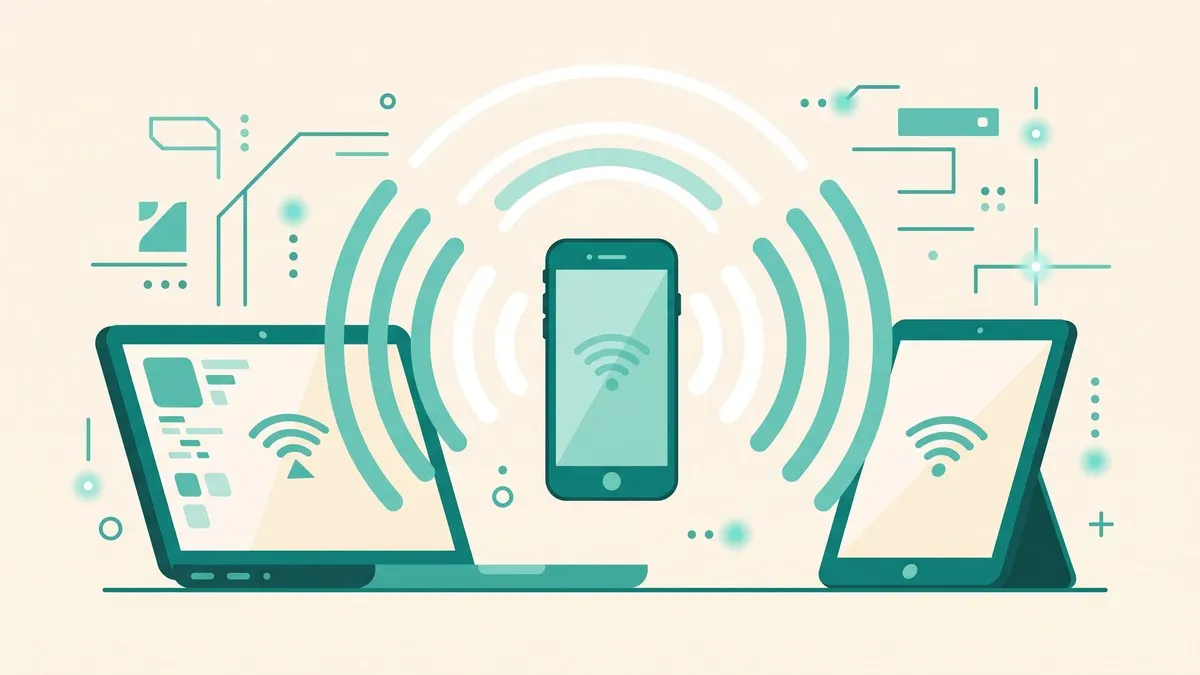
Tethering uses your phone’s mobile connection to get a laptop, tablet, or game console online. It is easy to think of it as a stand-in for a Wi-Fi router.
A typical case is working on a laptop in a hotel on a business trip, or while waiting for a train. The phone acts as the “host,” and the laptop connects to it as an “external device.”
Rakuten Mobile’s official page lists laptops, tablets, game consoles, and cameras as examples. That said, not every device is guaranteed to work. It also depends on the specs of the device itself.
The Conditions at a Glance
First, here is a table of what I could confirm on the official pages. It is based on the service page and the How to Use page.
| What to check | Official information |
|---|---|
| Extra fee | Available at no extra charge with a plan subscription |
| Connection methods | 3 types: Wi-Fi, USB, and Bluetooth |
| Multiple devices | Simultaneous connection of multiple devices is possible. No number is given |
| Data usage | Tethering data is added to the plan’s data usage |
| Speed | Speeds may be controlled during busy periods to keep the service fair |
| Supported models | May not be available on some models |
| Other carriers’ SIMs | Use with other carriers’ SIM cards has not been tested and is not guaranteed |
In this table, the maximum number of devices and actual speed figures were not on the official pages I checked. Where I could not find an answer, I have written it as unknown.
Are There Extra Fees?
The service page says, “Available at no additional charge with a plan subscription.” In other words, there is no separate option fee for tethering.
The plan fee page also says tethering is “included in the plan fee.” I did not find any sign-up procedure on the pages I checked. My understanding is that you can start using it just by turning on a switch in your settings.
What matters here is the plan fee itself. The Rakuten Saikyo Plan changes its price automatically depending on how much data you use in a month. The official page lists up to 3GB at 1,078 yen including tax. The unlimited tier is 3,278 yen including tax.
How Is Data Counted?
Tethering data is added to what you use on the phone itself. The official page says it is “added to the plan’s data usage.”
This is important for pricing. Because your monthly data usage decides the plan fee, heavy tethering may push you into a higher tier.
| Example usage | Effect on data usage |
|---|---|
| Only searching and social media on the phone | Only the phone’s usage is added |
| Email and document work on a laptop | Usage is on the small side, but it is added to the phone’s usage |
| Watching video or sending and receiving large files on a laptop | Usage tends to be large, and your price tier might go up |
If you are already in the unlimited tier, you have less to worry about extra charges from heavy usage. On the other hand, the official page says data usage is counted across all of Japan’s coverage area and international roaming.
How data is handled in the partner network area was not on the pages I checked. If it matters to you, it is worth looking at the official plan information.
Speed and Limits
On speed, the official page has this note: “Speeds may be controlled during busy periods to ensure fair service.”
No specific speed figures are given on the tethering page. So I cannot say “you will get X Mbps” in this article. It seems best to assume it varies by place and time of day.
The How to Use page also had another note worth mentioning. Depending on the area, service is provided over either the Rakuten Mobile or the KDDI network. When switching between networks, the connection may drop for a few seconds to a few minutes.
It could cut out briefly in the middle of an online meeting, for example. Before an important call or task, I recommend preparing with some time to spare.
3 Ways to Connect
There are 3 ways to connect: Wi-Fi, USB, and Bluetooth. Based on the service page, I put the differences in a table.
| Connection method | Official description | Good for |
|---|---|---|
| Wi-Fi tethering | Supports connecting multiple devices | Connecting easily |
| USB tethering | You can connect while the laptop charges the phone | Long work sessions |
| Bluetooth tethering | Said to be easier on the battery than Wi-Fi tethering | Saving battery |
The How to Use page gives detailed steps only for Wi-Fi tethering. USB and Bluetooth were mostly introduced as connection options.
Personally, I felt that for a single laptop, Wi-Fi tethering is the easiest to set up. For long sessions, connecting over USB while charging may be more reassuring.
Clicking this opens the Rakuten login page. Once you log in, you’ll see the campaign details.
Setup Steps on iPhone
Here are the steps from the How to Use page, in order. It takes about 6 steps.
- Open “Settings” on the home screen
- Open “Personal Hotspot”
- Turn on “Allow Others to Join”
- If a pop-up appears, choose the connection method you will use
- For Wi-Fi tethering, enter the displayed password on the external device
- Once connected, a label appears at the top of the home screen or nearby
The pop-up in step 4 appears when Wi-Fi or Bluetooth is turned off. It is a screen for choosing how to connect over Wi-Fi.
Setup Steps on Android
Android menus go a little deeper, taking about 8 steps. The official page screens were from a Rakuten Hand 5G. Names and order may differ by model.
- Open “Settings” on the home screen
- Open “Network & internet”
- Open “Hotspot & tethering”
- Open “Wi-Fi hotspot”
- Turn the switch on
- When it shows as on, the connection is ready
- On the external device, set up the connection with the QR code or the password
- Once connected, a tethering icon appears at the top of the home screen or nearby
In both cases, you enter a password on the external device. Be careful that other people do not learn the password.
What to Check If It Won’t Connect
The official How to Use page did not include troubleshooting steps. The following is the order I would check things in myself. Please note that it is not official guidance.
- Check that the phone itself is a model that supports tethering
- Check that the setting switch is on
- Check that the external device supports the phone’s Wi-Fi standard
- Re-enter the password
- If it still does not work, contact official support
The external device needs to support the phone’s Wi-Fi standard (such as IEEE802.11b). The How to Use page says so. You can reportedly find the details in the specs section of the product page.
It also notes that, depending on the environment, apps such as browsing or games may not work properly on the external device.
Support is available by chat, phone, and form. Chat support runs from 9:00 to 23:00 (last reception 22:30), with a guideline of about 15 minutes to resolve an issue. Outside those hours, an AI chat answers.
Things to Watch Out For
- Managing the tethering password is the user’s responsibility
- Both the host phone and the external device must be products you use yourself
- From an external device, it may be possible to view the host’s service information or handle procedures for the contracted line
- Use with other carriers’ SIM cards has not been tested or guaranteed
What caught my attention most was how external devices are used. According to the official page, an external device may be able to view the host’s service information. Those actions are treated as the user’s own. After using a shared computer, you are advised to log back in to each service.
It may be safer to avoid using tethering on a device you have lent to someone. It also seems wise not to reuse the same password elsewhere.
Choosing Between Other Data Options
The official tethering page also introduces other data services: Phone Number Share, Rakuten Mobile WiFi by Econnect, and Data Charge.
| Option | Good for |
|---|---|
| Tethering | Sharing your phone’s connection with a laptop or similar |
| WiFi by Econnect | Connecting automatically to Wi-Fi spots nationwide |
| Phone Number Share | Using the same number as your phone on a smartwatch or similar |
WiFi by Econnect is a system that connects automatically to Wi-Fi spots across the country. I wrote up how I actually used it in my WiFi by Econnect article. For Phone Number Share, I sorted it out in my Phone Number Share article.
For the full picture of the plans, I wrote in detail in my Rakuten Mobile plan guide. It helps to read it once before you start using tethering.
A Past Tethering Campaign
In August 2026, there was a “Get 100 Points for Using Tethering Campaign.” It ran from August 1 to August 31 and has already ended.
It was open to Rakuten members who were on the Rakuten Saikyo Plan at the start. Entry was required, and one condition was using tethering during the data usage period.
The official page also listed rounds from April to July as past campaigns. A similar promotion might come back. That is only my guess, though. Please check the official page to see whether one is held.
Who It Suits and Who It Doesn’t
It suits people like these.
- People who occasionally use a laptop or tablet away from home
- People who would rather use their own connection than public Wi-Fi at cafes and the like
- People who want to share their phone’s connection without extra fees
On the other hand, people like these may want to check things in advance.
- People who are not sure whether their phone supports tethering
- People who plan to use a lot of data every day, such as for video
- People who want to rely on tethering alone for work that cannot tolerate a few seconds of dropout
Check Before You Start
- I checked that my phone is a model that supports tethering
- I checked that the external device supports the phone Wi-Fi standard
- I decided on a tethering password and thought about how to keep it from others
- I understand how monthly data usage affects the price tier
- I will only connect external devices that I use myself
- I noted where to contact support if it will not connect
FAQ
Q. Are there extra fees for tethering?
The official page says it is available at no extra charge with a plan subscription. I did not find a tethering-only option fee on the pages I checked. However, the data you use is added to your plan’s data usage, so it does affect your price tier.
Q. How many devices can I connect at the same time?
The official information says simultaneous connection of multiple devices is possible. However, the specific number was not on the official pages. The supported number may differ by model. Checking your phone’s specs is the surest way.
Q. Is there a data cap?
A tethering-specific cap was not mentioned on the official pages I checked. Data is added to the plan’s data usage. For finer points such as how the partner network area is handled, please check the plan information.
Q. Will my speed get slower?
The official page says speeds may be controlled during busy periods to keep the service fair. I could not confirm specific speed figures. It may vary by place and time, so it seems best to try it in your actual environment.
Q. Does it work on both iPhone and Android?
Steps are provided for both. On iPhone, you set it up from “Personal Hotspot” in “Settings.” On Android, it is from “Hotspot & tethering” under “Network & internet.” However, it is noted that some models cannot use it.
Q. Can I use it with another carrier’s SIM card?
The official page says use with other carriers’ SIM cards has not been tested or guaranteed. It seems best to assume you will use it with a Rakuten Mobile SIM.
Q. What should I do if it won’t connect after setup?
First check whether your phone supports tethering and whether the external device supports the Wi-Fi standard. If that does not solve it, contact official support. Chat was listed as 9:00 to 23:00 (last reception 22:30).
Official Sources I Referred To
- Easy internet access with your phone via tethering! (Rakuten Mobile)
- Tethering (How to Use) (Rakuten Mobile)
- Rakuten Saikyo Plan, unlimited data (Rakuten Mobile)
- Get 100 Points for Using Tethering Campaign (August 2026, ended)
Summary
Rakuten Mobile’s tethering turned out to be a feature you can use at no extra charge with your plan. It has 3 connection methods, Wi-Fi, USB, and Bluetooth, and supports connecting multiple devices at once.
On the other hand, data is added to your plan’s data usage, and speeds may be controlled during busy periods. The maximum number of devices and the speed figures are not on the official pages, so I think it is best to test it in your real environment.
Terms and specs may change. When you consider using it, please be sure to check the official site.
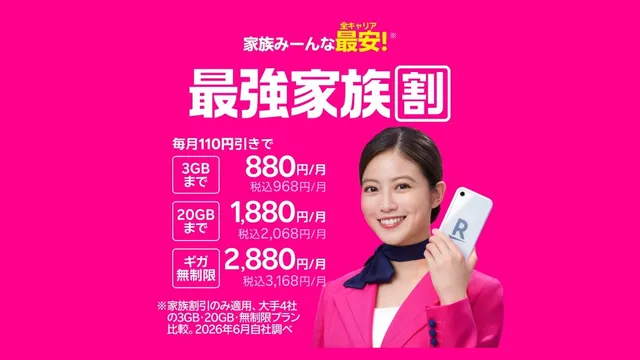
If you are about to review your overall phone costs, you can also sign up through my referral. For switching, it is up to 14,000 points.
Clicking this opens the Rakuten login page. Once you log in, you’ll see the campaign details.
This article contains affiliate advertising. If you sign up for a product or service through a link on this site, we may receive compensation from the partner company. The site operator is also an employee of Rakuten Group and may receive compensation through an employee referral program. The content and opinions here are based on the operator’s own experience and research regardless of any advertising relationship, but please read with the above in mind. See the Disclaimer & Affiliate Disclosure for details. Disclaimer & Affiliate Disclosure
This article includes machine-translated content. Please check the official Rakuten Mobile multilingual page for exact terms.
If you have concerns about Rakuten Mobile coverage or signal quality, you can consult through the official signal improvement request form .