- 01What I want to do
- 02What a Sonos alarm can do
- 03I chose my own playlist over a radio station
- 04What is in the playlist
- 05The parts the AI assistant could not do
- 06The values I plan to enter for the alarm
- 07Setup steps
- 08Conditions for using YouTube Music as the source
- 09Common pitfalls
- 10Who it suits and who it does not
- 11Things to check before you start
- 12What to do after setting it up
- 13Frequently asked questions
- 14Official sources I referred to
- 15Summary
Good morning. まさきん here.
I wanted to play the same music at the same time every night to help settle the kids for bed. The Sonos system at home has an alarm feature. I have worked out a plan for using it, so here are my notes on what I decided. The alarm itself has not been set up yet.
Note: This article reflects information at the time of publication. Please check the official sites for the latest terms.
- A Sonos alarm is a feature that plays music automatically at a time you choose
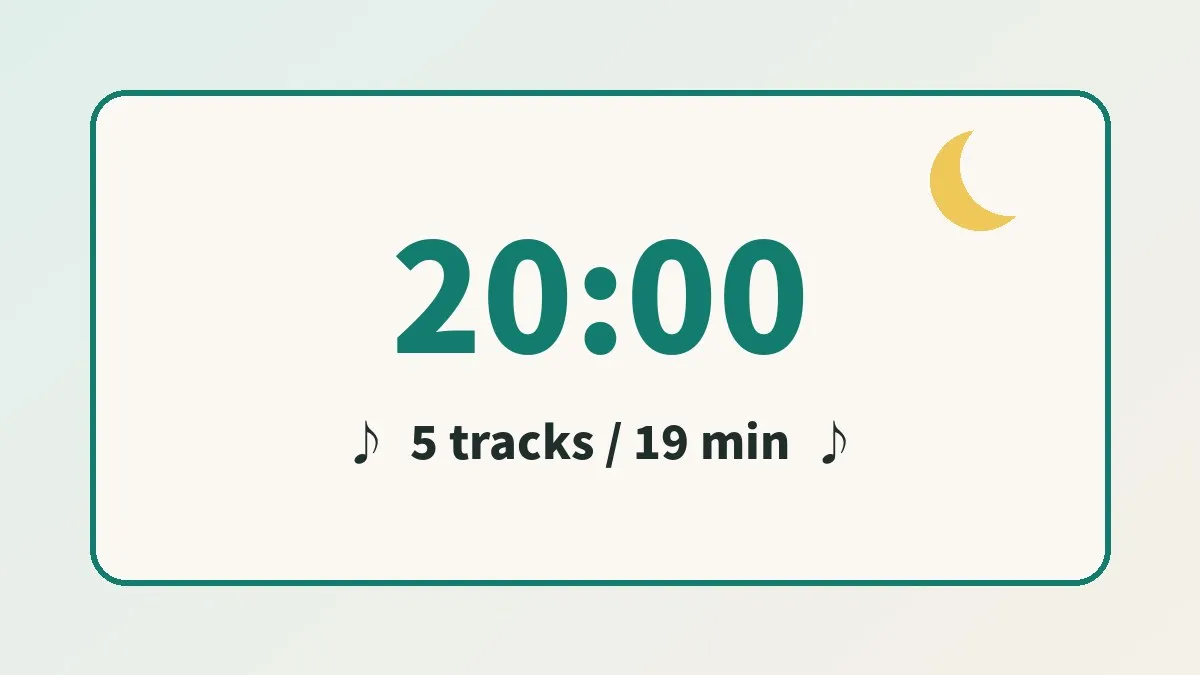
- The settings I plan to use are every day at 20:00, volume 15 to 20, and a duration of 20 minutes
- For the source, I went with a playlist I built myself rather than a radio station
- The playlist is 5 tracks and about 19 minutes. Track 1 is Debussy’s “Clair de lune”
- Creating the playlist and setting the alarm both had to be done in the apps
What I want to do
When 8 p.m. comes, quiet piano music starts playing from the Sonos. That repeats every night. That is what I want.
For the piece, I thought of Debussy’s “Clair de lune.” I want the music starting to be the signal that it is bedtime. Ideally, no parent has to touch a phone each time.
I fleshed out this idea while talking it over with an AI assistant. We settled four things: the source, the time, the volume, and the length. I do not know yet how well it works. This article covers only the plan.
What a Sonos alarm can do
The official Sonos guide describes alarms as follows. It is a feature that automatically plays content in a room or group at a specified time.
It looks like a wake-up feature, but you are free to choose the time. Set it for the evening and it should work for bedtime background music as well.
These are the settings I was able to confirm in the official support article.
| Setting | What it is |
|---|---|
| Time | The time the alarm goes off |
| Room | The speaker (room) that plays |
| Music | The source to play |
| Frequency | Which days the alarm repeats, and so on |
| Volume | The volume when it starts playing |
| Duration | How long the alarm keeps playing |
| Grouped rooms | When checked, it also plays in the grouped rooms |
The number of alarms you can set was listed as up to 32. Even with separate alarms for the morning wake-up and the evening music, there is plenty of room to spare.
Note that the wording of the setting names in the Japanese support article is a little inconsistent. It may differ from what the app shows. In that case, go by what the app displays.
How it differs from the sleep timer
Sonos also has a similar feature, the sleep timer. This one stops the music after a specified amount of time has passed.
| Point of comparison | Alarm | Sleep timer |
|---|---|---|
| Role | Starts playback at a set time | Stops playback after a set amount of time |
| Where you set it | ”Alarms” in the settings menu | The menu on the Now Playing screen |
| Repeat | You can set a frequency and have it play every day | The official article does not mention repeating |
| When it stops | Decided by the duration | When the chosen time has passed |
The alarm “starts” and the sleep timer “stops.” If you want music to play automatically at the same time every night, the alarm is the better fit.
The alarm has a duration setting. So it looks like a single setting can cover everything through to stopping.
I chose my own playlist over a radio station
The first thing I wavered on was what to use as the source. There were two candidates. A Debussy “radio” (station), or a playlist I make myself.
| Point of comparison | Radio (station) | My own playlist |
|---|---|---|
| First track | May change each time | Can be the same piece every night |
| Track order | Left to the service | I can fix it myself |
| Performers | A mix of many | I can keep them consistent |
| Prep work | Almost none | Choosing and ordering the tracks |
| Total length | Not fixed | I can decide it |
A radio station is easy. But which piece it starts with is left to the service.
What I want is a signal: “when this piece plays, it is bedtime.” So starting with the same piece every night mattered. I also wanted the order fixed. For those two reasons, I went with my own playlist.
What is in the playlist
I created the playlist on YouTube Music as a private one. It is 5 tracks and about 19 minutes. Track 1 is “Clair de lune.”
One more thing I paid attention to was the performer. Even the same piano piece feels different depending on who plays it. So I mostly stuck to recordings by one pianist. Just one track is a recording by a different pianist.
I made it about 19 minutes because I plan to set the alarm duration to 20 minutes. That is just the right length for the playlist to play through once and end.
The parts the AI assistant could not do
This is where things did not go smoothly. I could not hand either the playlist creation or the alarm setup over to the AI assistant.
The Sonos integration available to the AI assistant has playback and volume controls. But I could not find any function for setting alarms. There is no function for creating a new playlist either.
So I built the playlist by opening YouTube Music in a browser. The alarm will also be set in the Sonos app. The split is that I talk through the decisions with the AI and do the setup with my own hands.
I also wrote about a do-it-yourself Sonos project in the story of building an app that shows lyrics on my phone for the song playing on our Sonos.
A quirk of the “Save” button
One thing tripped me up while building the playlist. It is how the “Save” button in YouTube Music behaves.
When I went to save the first track, a dialog for creating a new playlist appeared. That is where I gave the playlist its name.
From the second track on, no dialog appeared. Pressing the button saved the track straight into the most recent playlist. If you are adding to the same playlist in a row, that is no problem.
- If you have just touched a different playlist, the save destination may be off
- Once you finish adding tracks, it is reassuring to open the playlist and check the order
- This behavior is what I saw in my environment. The screen design can change
The values I plan to enter for the alarm
I will set up the alarm from here on. Here is a table of the values I plan to enter.
| Setting | Planned value | Why |
|---|---|---|
| Time | 20:00 | I want it to signal the start of getting ready for bed |
| Frequency | Every day | I want a habit that does not vary by day of the week |
| Music | My own playlist | I want to start with the same piece every night |
| Room | The target speaker | Including the rooms in its group |
| Volume | 15 to 20 | Starting quiet enough not to get in the way of conversation |
| Duration | 20 minutes | The roughly 19-minute playlist plays through once |
| Shuffle | OFF | I want the track order fixed |
I intend to start the volume on the low side. The figure of 15 to 20 is a starting point, not a correct answer backed by evidence. I will adjust it after hearing it.
As for shuffle, I could not find any mention of it in the official support article. If the app screen has the setting, I plan to turn it OFF. Left ON, the first track would change every night.
Setup steps
The steps given in official support are as follows. These are for the Sonos app on iOS or Android.
- Open the settings menu in the Sonos app
- Select “Alarms”
- Add an alarm with the plus icon
- Set the time, room, and music
- Adjust the volume, frequency, and duration
- If you want it to play in the grouped rooms too, check that setting
- Select “Save”
An alarm you have created can be selected and edited later. It is a relief not to need perfect values from the start.
The desktop app also has an alarms section. In the older-generation S1 app, the entry point is in a slightly different place. Look at the official article that matches the app you have.
Every system in the house runs on top of a network connection. Music streaming is the same. Reviewing the family’s phone bills once also keeps paying off for a long time.
Clicking this opens the Rakuten login page. Once you log in, you’ll see the campaign details.
Conditions for using YouTube Music as the source
Sonos supports YouTube Music. What you can use depends on the plan, though.
| Plan | What you can do on Sonos (per the official page) |
|---|---|
| YouTube Music Free | Access the songs and albums you uploaded yourself |
| YouTube Music Premium | Access all features |
If you build a playlist from streamed tracks, Premium looks like a prerequisite. I also touch on YouTube Premium in my article on the Rakuten Mobile perk that makes YouTube Premium free for 3 months.
The steps for adding YouTube Music to Sonos are in YouTube Music Help. You add a music service in the Sonos app and authorize your account.
There is also a point I could not fully confirm. It is whether a YouTube Music playlist can be chosen directly as the “Music” for an alarm. The official articles did not go that far.
I have thought of a fallback in case it cannot be chosen. Sonos has a mechanism called a “Sonos playlist.” Choosing “Add to Sonos Playlist” from a track’s menu lets you build a playlist on the Sonos side. Re-adding the same 5 tracks there looks like an option.
How to think about playing in a group
When two or more Sonos speakers are grouped, they can play the same audio at the same time. You use this when you want the same music in the bedroom and another room.
The alarm has a checkbox for grouped rooms. According to the official explanation, when it is checked the alarm also plays in the rooms in the group.
I plan to include the target speaker in a group. But it would be a problem if unrelated rooms played as well. I intend to check during the first few days which rooms are grouped as of 8 p.m.
Common pitfalls
Before the setup, here are the cautions I picked up from official information. These are things I will be watching for myself from here on.
- With shuffle ON, the first track changes every night
- If the duration is shorter than the playlist, the last track gets cut off partway
- If the duration is too long, the playlist may start a second pass
- Depending on the group settings, it may play in rooms you did not expect
- The portable Roam has Battery Saver enabled by default
- If you choose the volume the way you would for a morning wake-up, it may be too loud at night
For the portable models, there is a dedicated official article. With Battery Saver enabled, the speaker powers off after 30 minutes without use. In that state, a scheduled alarm does not go off. If you plan to play it on a Roam or Move, it seems worth checking this setting.
Who it suits and who it does not
| Suits | Does not suit |
|---|---|
| People who want the same music at the same time every night | Households where bedtime varies a lot from day to day |
| People who want even the track order and performers consistent | People who are happy to leave the music to the service |
| People who want it to start without touching a phone | People who want to pick music by mood in the moment |
| Households that get ready for bed in the room with the Sonos | Households where the speaker is far from the bedroom |
If leaving it to the service is fine, a radio station is easier. There is no prep work either. I think a homemade playlist is the choice for when you care about “starting with the same piece.”
Whether music helps children fall asleep more easily is not something this article covers. No results are in yet at my house either. If you have concerns about sleep, I think it is best to consult a specialist such as a pediatrician.
Things to check before you start
- Whether the Sonos app is up to date
- Whether the music streaming service you use has been added to Sonos
- Whether you are on a paid plan if you use streamed tracks
- Whether the playlist of music you want to play is ready
- Whether you know the total length of the playlist
- Whether you have decided which room plays and how far the group extends
- Whether you have checked the Battery Saver setting on a portable model
What to do after setting it up
Once the alarm is created, I plan to adjust it based on how the family reacts. There are two things to watch.
The first is the makeup of the tracks. If the order of the 5 tracks does not suit, I will swap them around. If I fix the playlist, I should not need to touch the alarm.
The second is the volume. I will start at 15 to 20 and lower it if it is too loud. If it is too quiet to notice, I will raise it a little.
With systems at home, the adjusting afterward lasts longer than the building. Another automation example is written up in the setup that puts school notices on our home signage.
Frequently asked questions
Q. Can Sonos play music automatically at the same time every day?
Yes, with the alarm feature. The official guide describes it as a feature that automatically plays content in a room or group at a specified time. The frequency setting lets you decide how it repeats.
Q. Can alarms be used for anything other than waking up in the morning?
You are free to set the time. So you can set it for an evening time as well. The official article did not say anything that limits its use to mornings.
Q. How are the alarm and the sleep timer different?
The alarm starts playback at a set time. The sleep timer stops the music after a specified amount of time has passed. If you want it to start automatically every night, the alarm is the right fit.
Q. After how many minutes does the alarm stop?
The alarm has a setting for how long it plays. I plan to set it to 20 minutes. The list of lengths you can choose was not in the official article. Please check the app screen.
Q. How many alarms can I create?
Official support says up to 32. I think that is enough even with separate ones for morning and night.
Q. Can I use it on the free YouTube Music plan?
On the official Sonos page, the Free plan covers songs and albums you uploaded yourself. Premium is described as the plan with access to all features. If you build a playlist from streamed tracks, Premium will probably be needed.
Q. Can it play in several rooms at once?
The alarm has a checkbox for grouped rooms. When it is checked, it also plays in the rooms that are grouped. It is reassuring to check that no room you want to keep silent is in the group.
Q. What volume should I aim for?
I could not find a set answer. I plan to start at 15 to 20. How it sounds changes with the size of the room and the speaker model. It may be best to try from the quiet side.
Official sources I referred to
- Set an alarm on Sonos (Sonos official support)
- Set a sleep timer on Sonos (Sonos official support)
- YouTube Music on Sonos (Sonos official support)
- Create or edit a Sonos playlist (Sonos official support)
- Group and ungroup rooms (Sonos official support)
- When alarms do not work on portable Sonos products (Sonos official support)
- Sonos app user guide (Sonos official)
- Use YouTube Music with other apps and devices (YouTube Music Help)
Summary
If you want bedtime background music at the same time every night, the Sonos alarm looks usable. For the source, I went with my own playlist so it can start with the same piece every night. It is 5 tracks and about 19 minutes, with a planned duration of 20 minutes.
Setting up and tuning the alarm comes next. I do not know yet whether it will run smoothly. If you are thinking about the same thing, start by deciding on the first track you want to play.
Clicking this opens the Rakuten login page. Once you log in, you’ll see the campaign details.
This article contains affiliate advertising. If you sign up for a product or service through a link on this site, we may receive compensation from the partner company. The site operator is also an employee of Rakuten Group and may receive compensation through an employee referral program. The content and opinions here are based on the operator’s own experience and research regardless of any advertising relationship, but please read with the above in mind. See the Disclaimer & Affiliate Disclosure for details. Disclaimer & Affiliate Disclosure
This article includes machine-translated content. Please check the official Rakuten Mobile multilingual page for exact terms.
If you have concerns about Rakuten Mobile coverage or signal quality, you can consult through the official signal improvement request form .