- 01I Asked for a Reservation and It Stopped at “Needs the User”
- 02Why the AI Couldn’t Book
- 03What Kind of Service Is miraicompass?
- 04What Can Be Delegated and What the Person Does
- 05Just Before Registration Opened, It Still Said “Not Yet Open”
- 06I Booked It Myself a Few Minutes Later
- 07What the AI Did After the Booking
- 08The Plan for Events With a Set Registration Start
- 09Why I Don’t Give My Password to an AI
- 10What the Official Guidance Says
- 11The 1Password Integration as an Option
- 12Common Mistakes and Pitfalls
- 13What to Check Before You Start
- 14Frequently Asked Questions
- 15Official Sources I Referred To
- 16Wrap-Up
Good morning, this is まさきん.
The other day, I asked an AI to book a school information session for my child. To give away the ending, it couldn’t make the reservation itself. But I was able to hand off quite a lot of the prep around it. Let me sort out where the delegable range ends.
Note: The information here is current as of publication. Please check the official sites for the latest terms.
- On reservation sites that require a login, the booking itself is a job for the person
- What I could hand to the AI was checking when registration opens and sending reminders
- Fixing the calendar after booking and creating the next task also suit AI well
- Basing “done” on the application confirmation email makes it reliable
- Don’t give your password to an AI. The official guidance treats this cautiously too
I Asked for a Reservation and It Stopped at “Needs the User”
In our household, we keep the family’s tasks in one place. From there, tasks can be handed to the AI assistant Claude as “execute.” What I handed over this time was booking a school information session.
The booking site was miraicompass, an event reservation site for schools. You can’t apply there without logging in. The AI couldn’t perform the booking. What came back was a link to the reservation page, and the task stopped as “needs the user.”
I think that was the right way to stop. It is far more reassuring than having it try to log in on its own.
Why the AI Couldn’t Book
The reason is simple: a login was required. Getting to the reservation screen takes an ID and password. I hadn’t given that information to the AI.
What the AI could see was only what is visible without logging in. The list of events and the registration status, for example. The apply button beyond that can only be pressed on the user’s own screen.
There is one lesson I took from this. A login-required reservation task is a hands-on job for the person from the start. Rather than handing it to the AI as “execute,” it may be faster to put it in your own schedule from the beginning.
What Kind of Service Is miraicompass?
The official miraicompass site describes it as follows. It is a service for schools for “online applications and event reservations.” It is provided by Mitsubishi Research Institute DCS, and that company’s site has a page introducing it too.
I was also able to confirm the explanation of the “common ID” on the official site. You go through sending your email address and registering the applicant’s name (in katakana) and a password once. After that, you are said to be able to log in to other schools’ miraicompass sites without a registration procedure. It covers event reservations, brochure requests, and online applications.
| Item | What I confirmed officially |
|---|---|
| What the service is | A service for schools for online applications and event reservations |
| Provider | Mitsubishi Research Institute DCS |
| Common ID | Once registered, you can log in to other schools’ miraicompass sites without a registration procedure |
| What the common ID registers | Email address, applicant’s name (in katakana), password |
| Exam admission ticket | The site describes printing it at home or elsewhere and bringing it on exam day |
In other words, one ID connects to reservations and applications at multiple schools. Convenient as that is, I feel the weight of entrusting this ID to a person or an AI is not small. I couldn’t confirm on the official site how the reception ticket for each event is handled. Following the school’s own instructions seems best there.
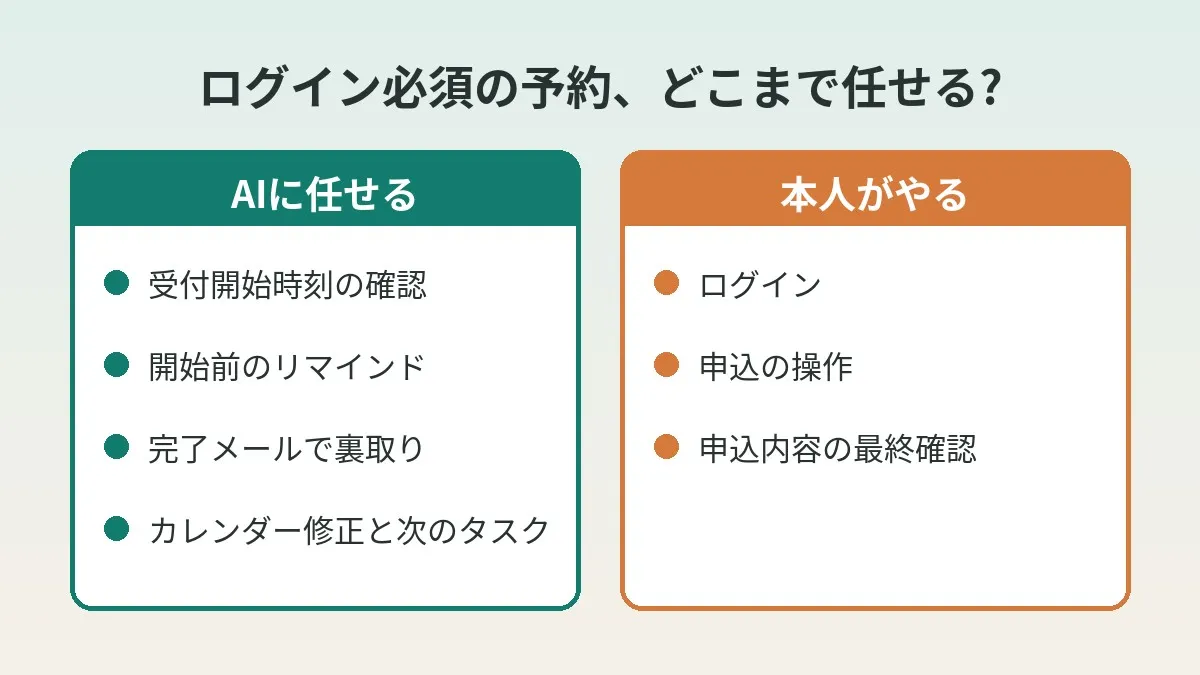
What Can Be Delegated and What the Person Does
Let me organize this case in a table.
| Task | Who | Why |
|---|---|---|
| Looking up when registration opens | AI | The information is visible without logging in |
| Reminder before registration opens | AI | The time is fixed and easy to forget |
| Checking the registration status | AI | It only takes reading what the list shows |
| Logging in and applying | Person | An ID and password are needed |
| Final check of the application details | Person | Judgments on date, time, and headcount belong to the person |
| Verifying completion | AI | It can be confirmed by reading the application confirmation email |
| Fixing the calendar | AI | It is just re-entering the confirmed time slot |
| Creating the next task | AI | Prep up to the day can be created with due dates |
The dividing line is whether a login is needed. Work outside the login could be left almost entirely to the AI. Work inside it falls to the person.
Personally, this division felt right. The image is using AI not as the booking clerk but as the one who handles the prep, I suppose.
Just Before Registration Opened, It Still Said “Not Yet Open”
Just before registration started, the AI looked at the event list. At that point it still showed “not yet open.” So there was nothing the AI could do at that moment.
This is only natural for events with a set registration start. Looking before the start time doesn’t make the apply button appear. Having the AI move early doesn’t change the outcome.
I previously wrote about checking school notices every morning and still missing just the list of things to bring. The cause then was also a gap with the time the information came out. I think this is the same pattern. The time to look is best worked backward from when the other side updates.
I Booked It Myself a Few Minutes Later
In the end, I made the reservation myself a few minutes after registration opened.
Once you apply, an application confirmation email arrives. The AI used that email as the basis for marking the task complete.
This is unglamorous, but it was a real help. The judgment of “done” can rest on an email that arrived rather than on someone’s memory. When you look back later, the evidence is clearly there.
What the AI Did After the Booking
After the booking was done, the AI did two things.
- Fixed the calendar. It replaced the all-day placeholder with the actual time slot.
- Created the next task. It made a new task, with a due date, to print the reception ticket before the day.
Putting in an all-day placeholder makes clashes with other family plans less likely. Once the time is set, it gets changed to the actual slot. All-day events have a few quirks. I summed them up in my article on an all-day event shifting to the previous day, if you are curious.
Printing the reception ticket is easy to forget right after booking. Noticing on the morning of the event means quite a scramble. Having the next task appear the moment the booking completed was a welcome move.
The Plan for Events With a Set Registration Start
Let me put this flow into a form I can reuse.
| Timing | What the person does | What to leave to the AI |
|---|---|---|
| By the day before | Register the ID and confirm you can log in | Look up when registration opens and add a placeholder |
| At the opening time | Log in and apply | Send a reminder shortly before it opens |
| After booking | Check the application confirmation email | Fix the calendar and create the next task |
Written as steps, it looks like this.
- By the day before, try logging in. If you have forgotten your password, you won’t make it at the opening time.
- Have the AI look up when registration opens. Put an all-day placeholder on the calendar.
- Get a reminder shortly before the opening time. It is easier if you get the link to the reservation page along with it.
- When the opening time comes, apply yourself. This is the one part you do with your own hands.
- Once the application confirmation email arrives, leave the cleanup to the AI. That means fixing the calendar and creating the prep tasks.
The most important one may be number 1. If you stumble at login, the slots can fill up in the meantime. The more popular the event, the more that day-before check pays off, I think.
As children’s events increase, so do the times you act from your phone. I want my mobile connection in good shape too, so I can open a reservation page right away even when I am out.
Clicking this opens the Rakuten login page. Once you log in, you’ll see the campaign details.
Why I Don’t Give My Password to an AI
You might think, “If I tell it the password, won’t the AI book for me?” Technically, that kind of use is imaginable. But I have decided not to hand it over.
There are three reasons.
- One ID connects to a lot. The common ID can also be used for event reservations and applications at other schools.
- What you write in a conversation stays. If you hand over a password as text, it remains in the exchange.
- Applications are hard to undo. If you get the date or headcount wrong, you may need to contact the school.
Anthropic’s official documentation describes a similar way of thinking. The computer use documentation lists measures to reduce risk. One of them is not giving the model access to sensitive data such as account login information.
I also checked the help pages for the Chrome extension “Claude in Chrome.” Entering potentially sensitive information into a site is described as requiring the user’s explicit permission. Creating accounts and making purchases were listed as actions Claude doesn’t perform in the first place.
- Don’t write your password in a chat to hand it over
- For hard-to-undo actions such as applications and purchases, the person does the final check
- When letting an AI operate your browser, look at the proposed action before approving it
- On unfamiliar sites, narrow what you leave to the AI even further
What the Official Guidance Says
Here is what I was able to confirm, in a table.
| Official source | What it says |
|---|---|
| Computer use documentation | Avoid access to sensitive data such as login information |
| Computer use documentation | Ask a human to confirm decisions with real-world consequences |
| Claude in Chrome permissions guide | Entering potentially sensitive information requires explicit permission |
| Claude in Chrome permissions guide | It does not create accounts or make purchases |
| Claude in Chrome safety guide | On new sites, review the proposed action before approving |
| 1Password for Claude help | Passwords do not enter Claude’s context |
What all of these share is the stance that a human does the final check. None of them assume the AI does everything automatically.
The safety guide also explained prompt injection. Instructions hidden in a web page could make the AI perform unintended actions. I think this is where the danger lies in letting an AI operate a logged-in screen.
The 1Password Integration as an Option
The official help also introduced an integration with 1Password. It is a mechanism for Claude to proceed with login-required tasks without handling the password itself. It says passwords and one-time codes do not enter Claude’s context.
As for the flow, 1Password shows which login it is going to use. When the user approves it, 1Password fills it into the page directly. Support was listed as Claude Desktop and Claude in Chrome on paid plans.
I can’t write about what this integration is like to use here. As a mechanism, it seems compatible with a policy of not handing over passwords. Still, the question of who presses the apply button remains.
Common Mistakes and Pitfalls
These are the easy traps when asking an AI to handle a login-required reservation.
- Handing it over as “execute” and relaxing. If you don’t notice the AI has stopped, you miss the registration start.
- Leaving the login check to the day itself. Resetting a password takes longer than you’d expect.
- Having it check over and over before registration opens. While it still shows “not yet open,” nothing moves forward.
- Forgetting to fix the placeholder. Left as all-day, you won’t know what time to show up on the day.
- Being satisfied once you have booked. Work up to the day, such as preparing the reception ticket, tends to slip.
The one I fell into may be closest to the first. Had I set it as my own task from the start, there would have been no stalled time. It seems best to create reservation tasks split into “person” and “AI.”
I wrote about the flow of picking up events from paper handouts in my article on a system for registering handouts to the calendar.
What to Check Before You Start
- Whether the reservation site requires a login
- Whether you can log in right now with your ID and password
- Whether the official notice tells you when registration opens
- Whether the AI can read the email address that receives the application confirmation
- Whether a placeholder is already on the calendar
- Whether you know what prep is needed after booking
- Whether you have decided not to give your password to the AI
Frequently Asked Questions
Q. Can I leave booking a school information session entirely to an AI?
On sites that require a login, I think it is difficult. In my case, the AI returned a link to the reservation page and stopped. Assuming the person does the booking and delegating the prep may be the realistic approach.
Q. Will it book for me if I tell it my password?
I don’t recommend it. Anthropic’s official documentation also lists keeping login information away from the model as a safeguard. With a widely usable ID like the common ID, all the more reason to be careful.
Q. What is the miraicompass common ID?
It is an ID that, once registered, lets you log in to other schools’ miraicompass sites without a registration procedure. The official site says it covers event reservations, brochure requests, and online applications. Please check the official site for the detailed conditions.
Q. Can the AI apply automatically at the moment registration opens?
With my setup this time, it couldn’t. When it looked just before registration opened, the display still said “not yet open.” Applying after it opens requires a login, so it is the person’s job.
Q. How does the AI judge that the reservation went through?
In our household, the application confirmation email is the basis. After confirming the email had arrived, the AI marked the task complete. I feel an email that arrived is more reliable than the person’s own report.
Q. What is good to ask the AI for after booking?
Fixing the calendar and creating the prep tasks leading up to the day. In my case, I had it change the all-day placeholder to the actual time slot. I also had it create a task with a due date to print the reception ticket.
Q. Does the reception ticket always have to be printed?
I think it depends on the event and the school. On the official site, I couldn’t confirm how reception tickets for events are handled. Please check the application confirmation email and the school’s instructions.
Q. If a reservation doesn’t require a login, is it okay to leave it to the AI?
It becomes easier to delegate, but it is safer for the person to do the final check. A mistake in entering the date or headcount causes trouble for the other party. The official guidance also says to ask a human to confirm decisions with real-world consequences.
Official Sources I Referred To
- miraicompass official site
- miraicompass online application service (Mitsubishi Research Institute DCS)
- Computer use tool (Claude Developer Platform)
- Use Claude in Chrome safely (Claude Help Center)
- Claude in Chrome permissions guide (Claude Help Center)
- Get started with 1Password for Claude (Claude Help Center)
Wrap-Up
Even when I asked an AI to book a school information session, it couldn’t on a login-required site. The booking itself is a job for the person. On the other hand, I could solidly hand off the prep before and after.
There were four things I could delegate. Checking when registration opens and sending a reminder are the first two. Verifying via the confirmation email, and fixing the calendar and creating the next task after booking, are the other two. It felt like once I did just the booking myself, everything else flowed.
Don’t hand over the password, and press the final button yourself. For now, this dividing line may be just about right. If you have a reservation coming up, how about just trying to log in the day before?
On the day, you might be applying from your phone while out. Reviewing your phone bill may lighten your mind a little on that front as well.
Clicking this opens the Rakuten login page. Once you log in, you’ll see the campaign details.
This article contains affiliate advertising. If you sign up for a product or service through a link on this site, we may receive compensation from the partner company. The site operator is also an employee of Rakuten Group and may receive compensation through an employee referral program. The content and opinions here are based on the operator’s own experience and research regardless of any advertising relationship, but please read with the above in mind. See the Disclaimer & Affiliate Disclosure for details. Disclaimer & Affiliate Disclosure
This article includes machine-translated content. Please check the official Rakuten Mobile multilingual page for exact terms.
If you have concerns about Rakuten Mobile coverage or signal quality, you can consult through the official signal improvement request form .